Home › Hopscotch Play Guide › Whiteboard
Whiteboard
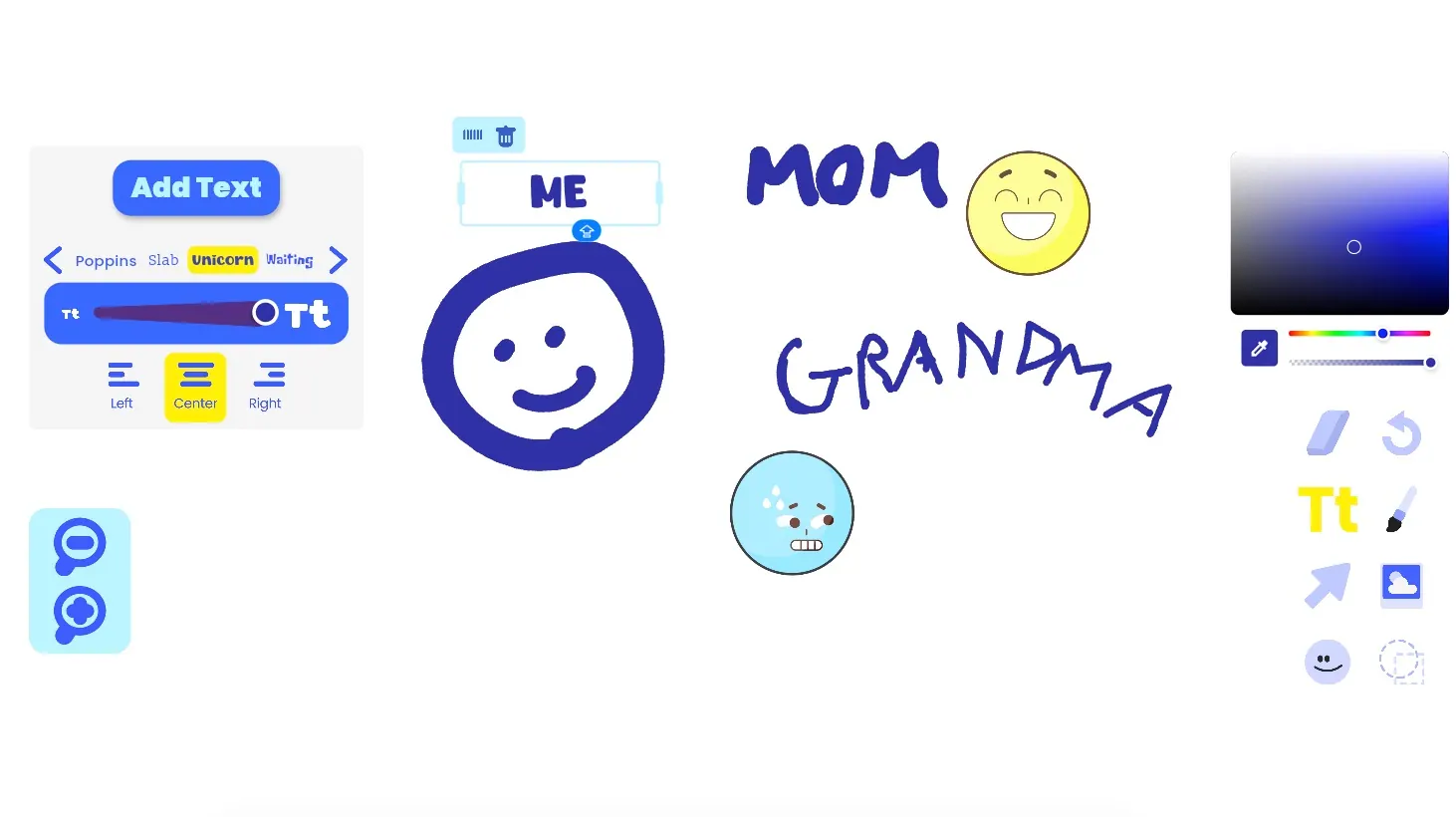
Sometimes the easiest way to talk is to draw. Whiteboard is an open, shared canvas where you and your client can draw, write, add pictures, and create together. Use it for anything from a quick doodle warm-up to mapping out feelings, brainstorming ideas, or playing drawing games.
Step 1: Pick a color
Use the color picker in the top right to choose your color:
- Pick a color: Tap anywhere in the large color square to choose how light or dark your color is.
- Change the hue: Slide the rainbow bar to switch colors.
- Adjust transparency: Slide the bar below the rainbow to make your color more solid or more see-through.
- Match a color: Tap the eyedropper, then tap anywhere on the board to use a color that's already there.
Step 2: Choose your brush size
Slide the dot on the tall bar up or down to make your lines thicker or thinner.
Step 3: Start drawing
Tap the paintbrush and draw anywhere on the board. Both players can add to the same board, so it's easy to create something together.
Step 4: Explore the tools
The toolbar on the right has everything you need:
- Eraser: Erase parts of your drawing.
- Undo: Take back your last action.
- Text: Tap the Tt button, then tap the board to type words.
- Paintbrush: Draw freehand lines.
- Select: Tap the arrow to select things on the board so you can move them.
- Image: Add a picture to the board.
- Stickers: Tap the smiley face to add stickers.
- Shapes: Add shapes like circles and squares.
Step 5: Zoom in and out
Use the zoom buttons on the left side of the screen. Tap the plus to zoom in on details, or the minus to zoom out and see the whole board.
Tips for using Whiteboard in session
- Draw it out. When something is hard to say, try asking, "Can you draw what that felt like?"
- Take turns adding. Build a drawing together, one piece at a time, to practice turn-taking and collaboration.
- Play drawing games. Try guessing games, finish-the-picture, or drawing a feeling for the other person to name.
- Make a map. Use text, arrows, and shapes to map out a problem, a plan, or a support network.
- Mistakes are welcome. Undo and the eraser are always there, so there's no pressure to get it perfect.