Home › Hopscotch Play Guide › Get Started with Hopscotch Play!
Get Started with Hopscotch Play!

Let's get you started with Hopscotch Play! This guide will help you learn how to add clients, explore content, and use it with your clients, while introducing you to all of our exciting features designed to enhance your sessions.
Scroll through or use the links below to jump straight to the information you need.
About Hopscotch Play
Hopscotch Play is a web-based platform that provides therapeutic content for children between the ages of 5-18. Our content is designed by child and adolescent behavioral health experts and is based in evidence-based interventions.
Hopscotch Play is designed to be a valuable tool for individual in-person and virtual sessions, offering a range of activities you can easily access on your computer and use with clients during therapy.
Hopscotch Play is designed to support a wide range of professionals and clients:
- In-Person Therapists – A flexible, digital companion to the hands-on tools you already use.
- Virtual Therapists – Our innovative Real-time 2-player mode makes online sessions interactive and effective.
- Kids – Playful and interactive experiences that make therapy feel fun and safe.
- Teens – Built to support engagement, rapport-building, and emotional growth.
- Child-Focused Professionals – A powerful platform trusted by school counselors, social workers, teachers, and other professionals supporting children's well-being.
Features available on Hopscotch Play:
- Unlimited Client Accounts – Easily create and manage as many client profiles as you need without additional fees.
- Ready to Use Resources – Access hundreds of pre-made activities, games, and printables designed specifically for child and teen therapy.
- Custom Therapy Games and Tools – Use engaging digital tools that support emotional regulation, skill-building, and behavior tracking.
- 2-Player Mode for Virtual Play – Play games in real-time with your client during telehealth sessions to boost interaction and connection.
- Editable Printables with Custom PDF Editor – Personalize worksheets and handouts directly on the platform to tailor content for each client.
- Audio Content – Stream calming guided meditations and relaxation music to support mindfulness and emotional regulation.
- Interactive Sandtray Activity and Dollhouse – Encourage storytelling and emotional expression through open-ended, therapist-guided digital play.
- Interactive SEL & Social Stories – Explore stories that teach essential social-emotional skills in an engaging way.
- Session Planner (Pro) – Describe a session goal and get suggested activities, keep private notes per activity, and generate a note-ready session summary afterwards.
- Video Call (optional add-on) – Secure, HIPAA-compliant video inside the Hopscotch Play app, with 2-Player available inside the call.
Quick Answers
Q: Can I try before subscribing? A: Yes! Every new account starts with a 14-day free trial that includes a preview of our Pro features, so you can explore the platform and see how it fits your workflow. Video conferencing is not part of the free trial. You choose Basic or Pro when you sign up, and that plan starts when the trial ends. See Plans and Billing for what each plan includes.
Q: Do you offer a discount for a group plan? A: Yes! Pricing is per seat, and the price per seat goes down as you add seats for your clinic, school, or organization. Use the seat selector and the Monthly / Yearly toggle on our pricing page to see the rate for your team; yearly billing saves 15%. Larger organizations can talk to our team about an Enterprise plan.
Q: Can I use Hopscotch Play for group therapy? A: Hopscotch Play can be adapted for group therapy when working in person. Providers can use a single device to share resources with the group, rotating turns or guiding discussions using the activities. The 2-player feature currently supports just two people on separate devices. We're hoping to expand this functionality in the future.
Q: Can my client access Hopscotch Play outside of sessions? A: Yes, on the Pro plan. Client Access at Home lets a client (through their caregiver) log in from their own device between sessions to use their dashboard, complete check-ins, and open the activities you have pinned for them. On the Basic plan, Hopscotch Play is used during provider-led sessions: the 2-Player link only connects while you are in that client's profile. Most content can also be downloaded as a PDF to print or share with caregivers, teachers, or other professionals.
Optimal Device Specs for Using Hopscotch Play
In This Section You'll Learn: What devices, operating systems, and internet speeds offer the best experience and how to minimize any lag issues, glitches, or load times
Hopscotch Play works on laptops, desktops, tablets, and phones, in the browser or in the Hopscotch Play app. For the best experience we recommend the app, which is available for Mac, Windows, iPhone and iPad, and Android; see Using the Hopscotch Play App. Below are the recommended device specs for a smooth experience.
For the best experience with Hopscotch Play, we recommend:
- An internet speed of 100 Mbps or higher for smooth streaming and gameplay
- A laptop, desktop, tablet, or phone
- At least 8GB of memory and a recent processor (like Intel i5 or AMD Ryzen 5)
- Windows or Mac operating system
- Using Chrome, Safari, or Edge browsers
- Download the Hopscotch Play app for your device — Mac, Windows, App Store, and Google Play downloads are all on one page: https://release.joinhopscotch.com/hs_play/installers/prod/index.html
If your device doesn't meet these specifications, you may experience slower load times and some lag during gameplay.
Quick Answers
Q: Can I use Hopscotch Play on my phone? A: Yes. Hopscotch Play works on phones, laptops, desktops, and tablets. For the best experience on a phone or tablet, we recommend the Hopscotch Play app from the App Store or Google Play: https://release.joinhopscotch.com/hs_play/installers/prod/index.html
Q: What if my internet is slower than 100 Mbps? A: The platform may still work, but you might experience lag or slower load times.
Q: What should I do if I'm experiencing technical issues? A: The first fix depends on how you're using Hopscotch Play. On the web, refresh your browser — this resolves most issues, since the platform updates frequently — and if you're using 2-Player, ask your client to refresh too. On the Hopscotch Play app, close and reopen it, and make sure it's updated to the latest version. If the issue continues, check that you're on a supported browser (Chrome, Safari, or Edge) and that your device meets the recommended specs. If problems persist, please don't hesitate to reach out to support.
Using the Hopscotch Play App
In This Section You'll Learn: Which devices have a Hopscotch Play app, what the app does better than the browser, and how to switch.
Hopscotch Play runs in your browser, and it also comes as an app for Mac, Windows, iPhone and iPad, and Android. If you have only ever used Hopscotch Play in a browser tab, the app is worth a look: it is the same Hopscotch Play, with the same login and the same clients, and it is free with your subscription.
Why providers switch to the app
- Faster loading of games
- Fewer browser-related glitches, such as a tab going to sleep in the middle of a session
- More stable 2-Player connections
- Video Call, screen sharing, and virtual backgrounds are only available in the app
- Available on all devices, including phones, tablets, and desktops, for you and your clients
Getting the app
- Open the download page: https://release.joinhopscotch.com/hs_play/installers/prod/index.html. It shows the download for the device you are on, with links for the other platforms below.
- Install it: the Mac and Windows downloads install like any other desktop app; on iPhone, iPad, and Android the page sends you to the App Store or Google Play.
- Open the app and sign in once with the same email (or PIN) you use in the browser. Your clients, pinned content, and settings are all there.
When a new version is available the app tells you with an "Update Available" prompt; choose "Update now" (on iPhone and iPad it opens the App Store). If you are in the middle of a session the prompt waits until you are done.
Steps to switching to the app
- Download and install the app for your device from the link above.
- Sign in with your usual email or PIN.
- Bookmark or pin the app where you start your sessions; you can keep using the browser on any device where the app is not installed.
Quick Answers
Q: Do I have to switch to the app? A: No. Everything except Video Call works in the browser too. The app is simply faster and more stable, especially for games and 2-Player.
Q: Will my clients need the app? A: Not for 2-Player: a client can join from a browser or from the app, and the app's 2-Player connection is more stable. Video Call does need the app on both ends. When a client opens your client link on a device without the app, the page offers the download.
Q: Is the app free? A: Yes. The app is included with every Hopscotch Play subscription, on every plan.
Q: Which devices are supported? A: Mac, Windows PCs, iPhone and iPad (App Store), and Android phones and tablets (Google Play). Chromebooks and Linux computers use the browser version.
Creating a Hopscotch Play Account
- To sign up and create a Hopscotch Play account, visit the onboarding page: https://play.joinhopscotch.com/onboarding
- You can choose to sign up using Google SSO, Microsoft Entra ID (Azure Active Directory) SSO, or by creating a PIN. We recommend SSO for better security.
Signing Up Using Google SSO
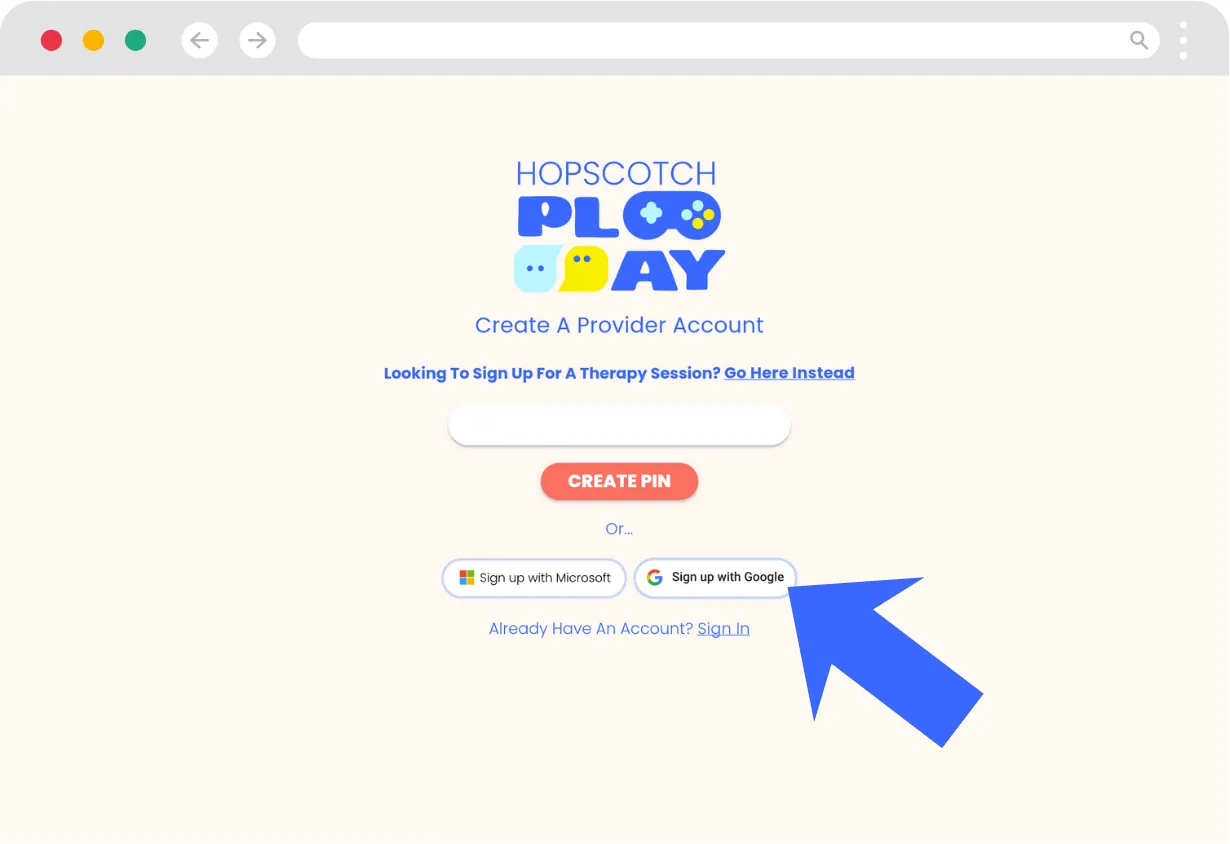
- Select Sign up with Google.
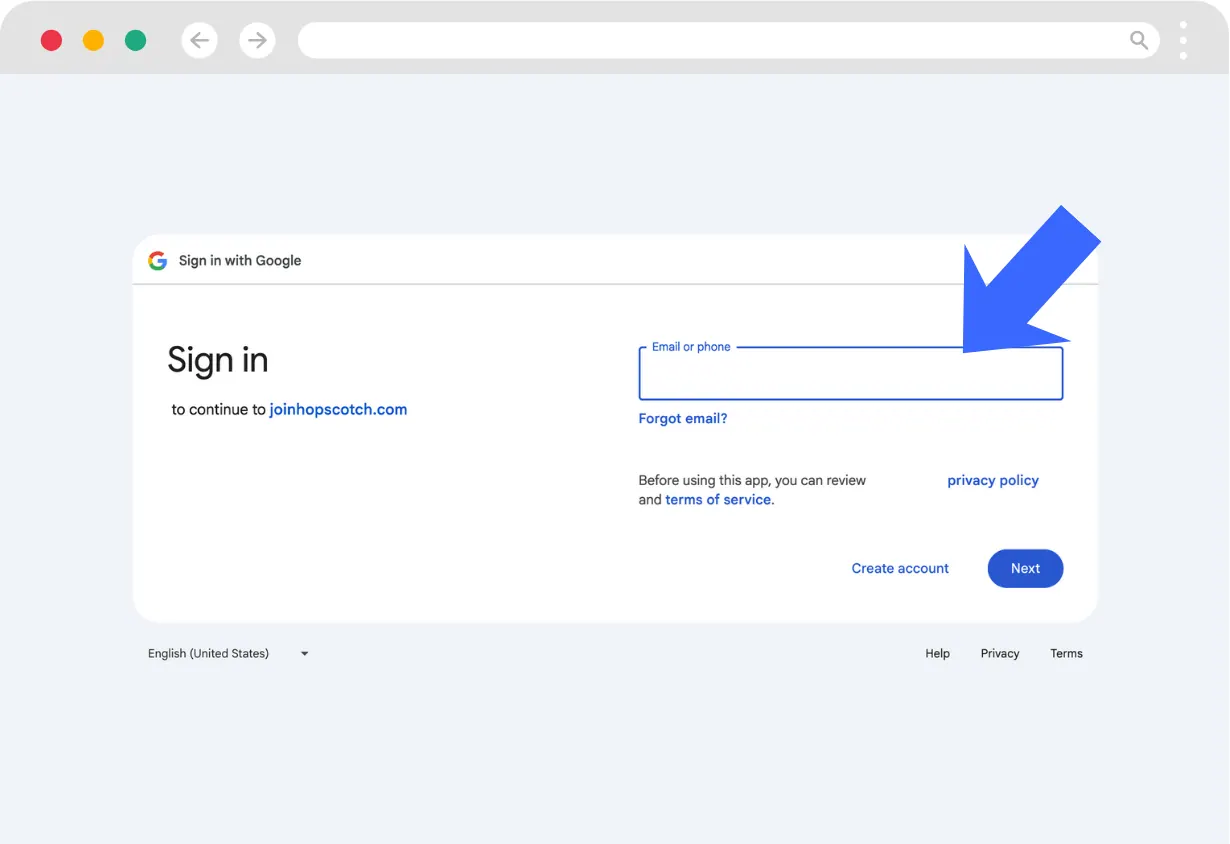
- You will be taken to a screen to enter the email associated with your Google account. If you are already logged in, you will be given an option to choose the Google account you want to use to sign in.
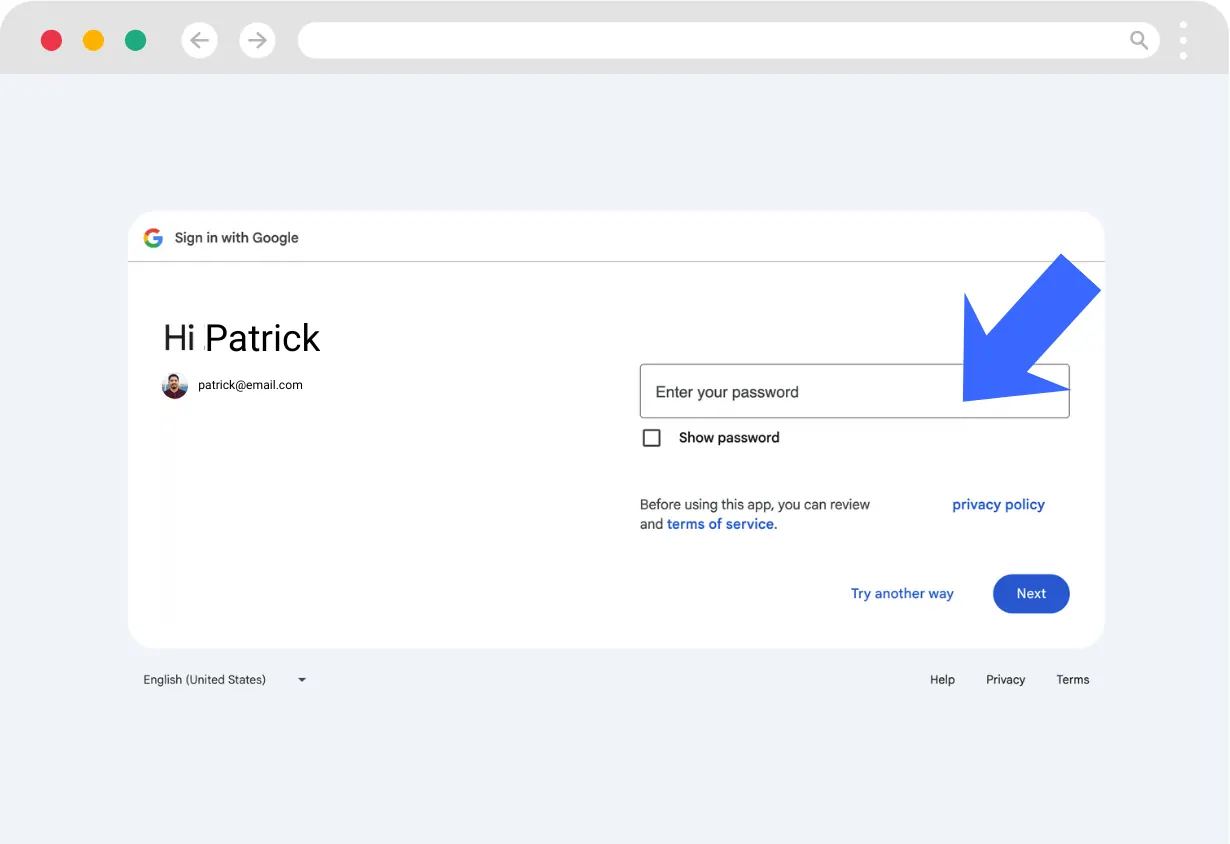
- When you click Next, you will be prompted to enter your password.
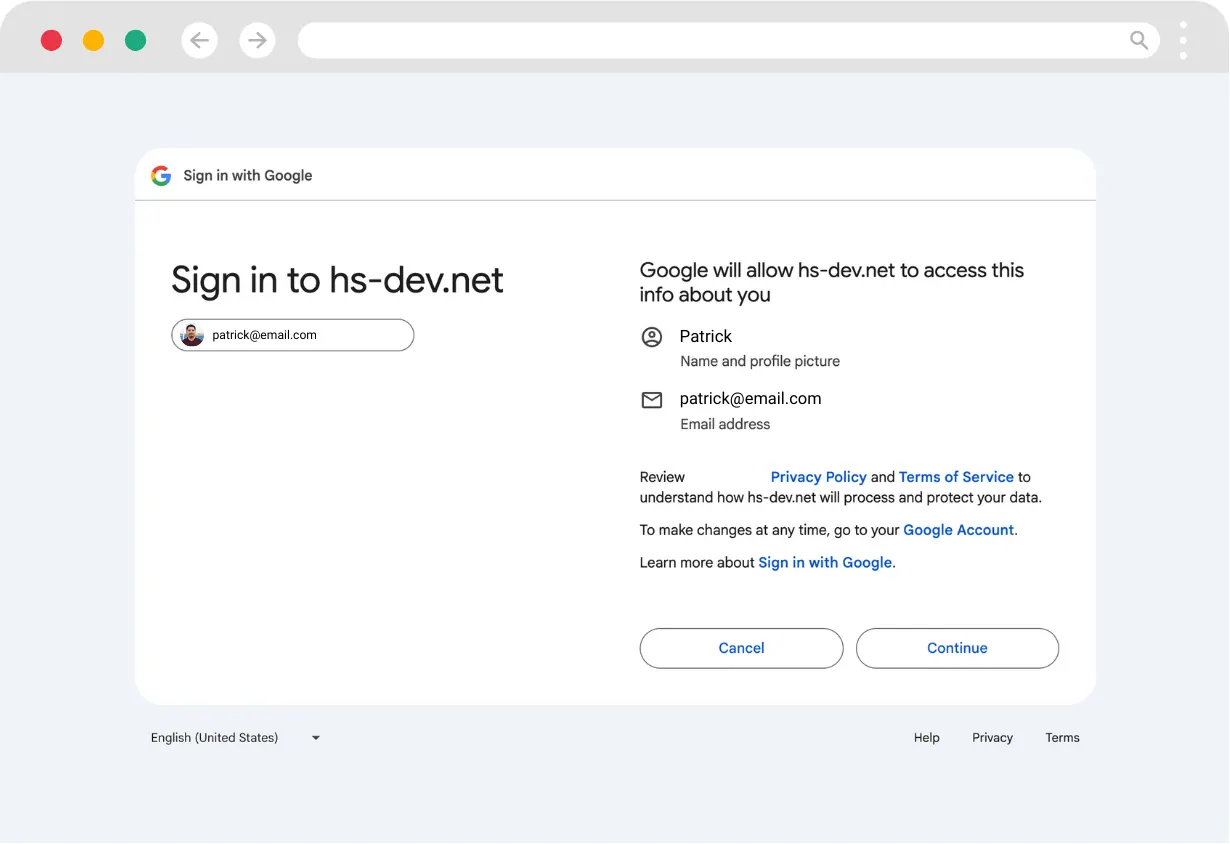
- You will be taken to a permissions screen that allows Hopscotch Play to access your Name and profile picture and Email address for account creation . Select Continue to proceed.
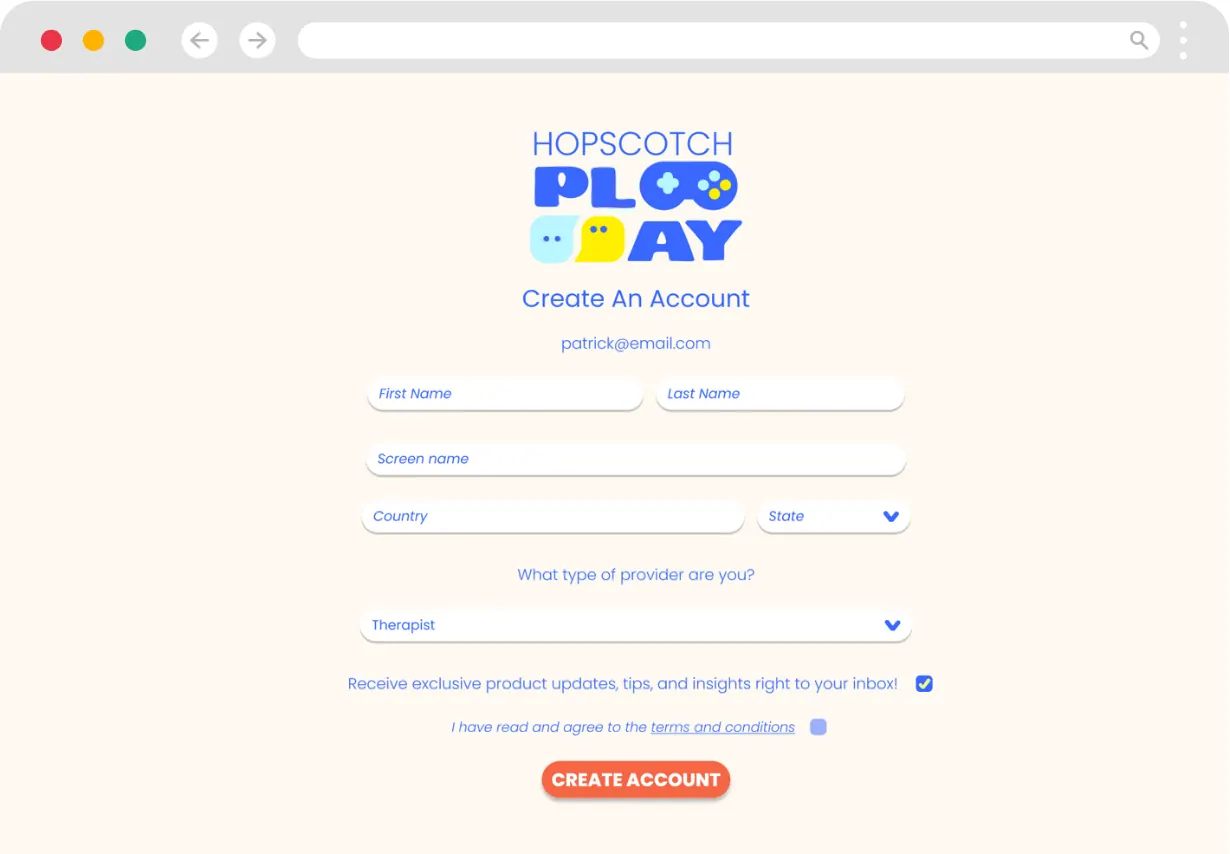
- After logging in using Google SSO, you will be taken to continue the sign up process on Hopscotch Play. Once you enter in your information, select Create Account .
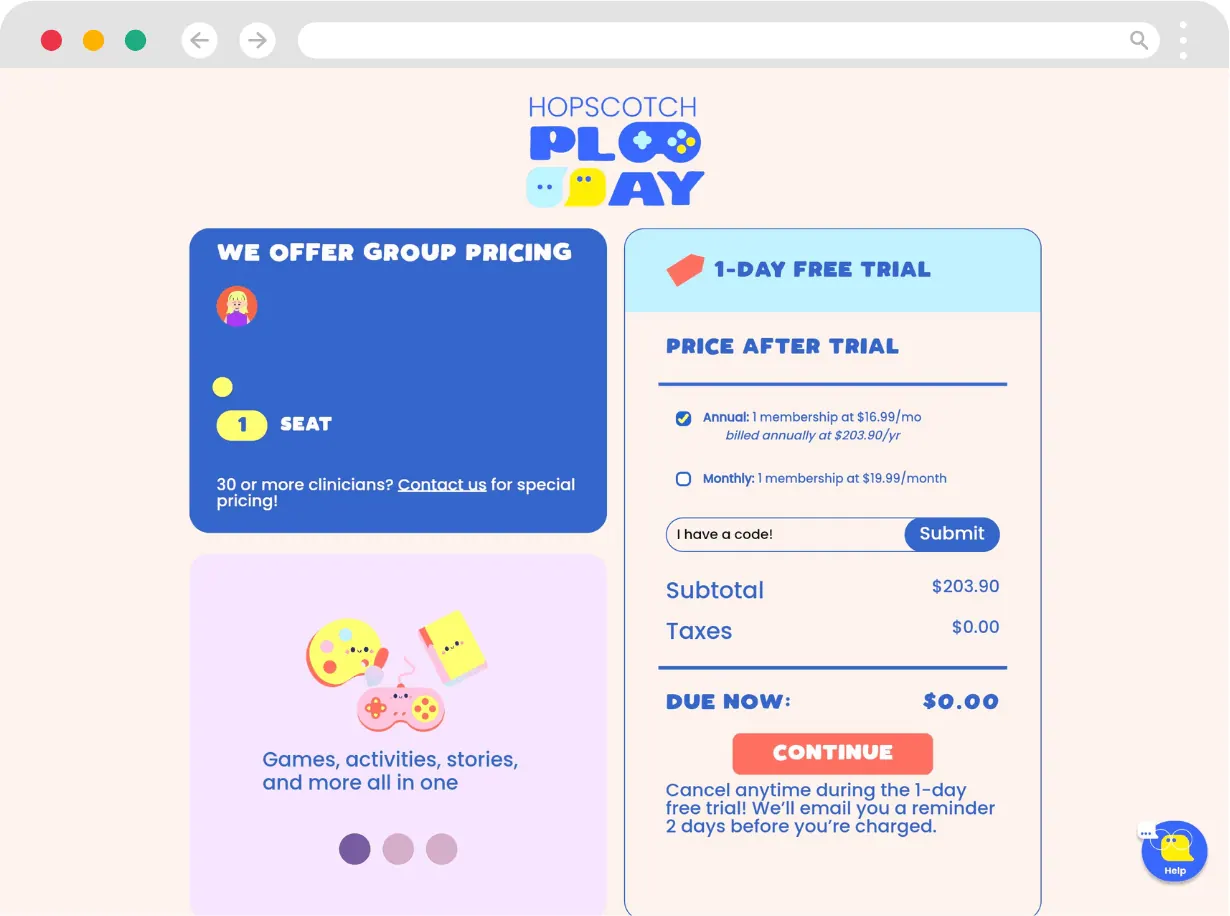
- On the next screen you set up your subscription in three steps: Team & billing (how many seats, and Monthly or Yearly billing, which saves 15%), Choose your plan (Basic or Pro; see Plans and Billing), and Add video calls (the optional video conferencing add-on). You can also enter a promo code. A single-seat signup starts a 14-day free trial with a preview of Pro features; the summary shows what is due today and when billing begins. Check everything, then select the button at the bottom to continue.
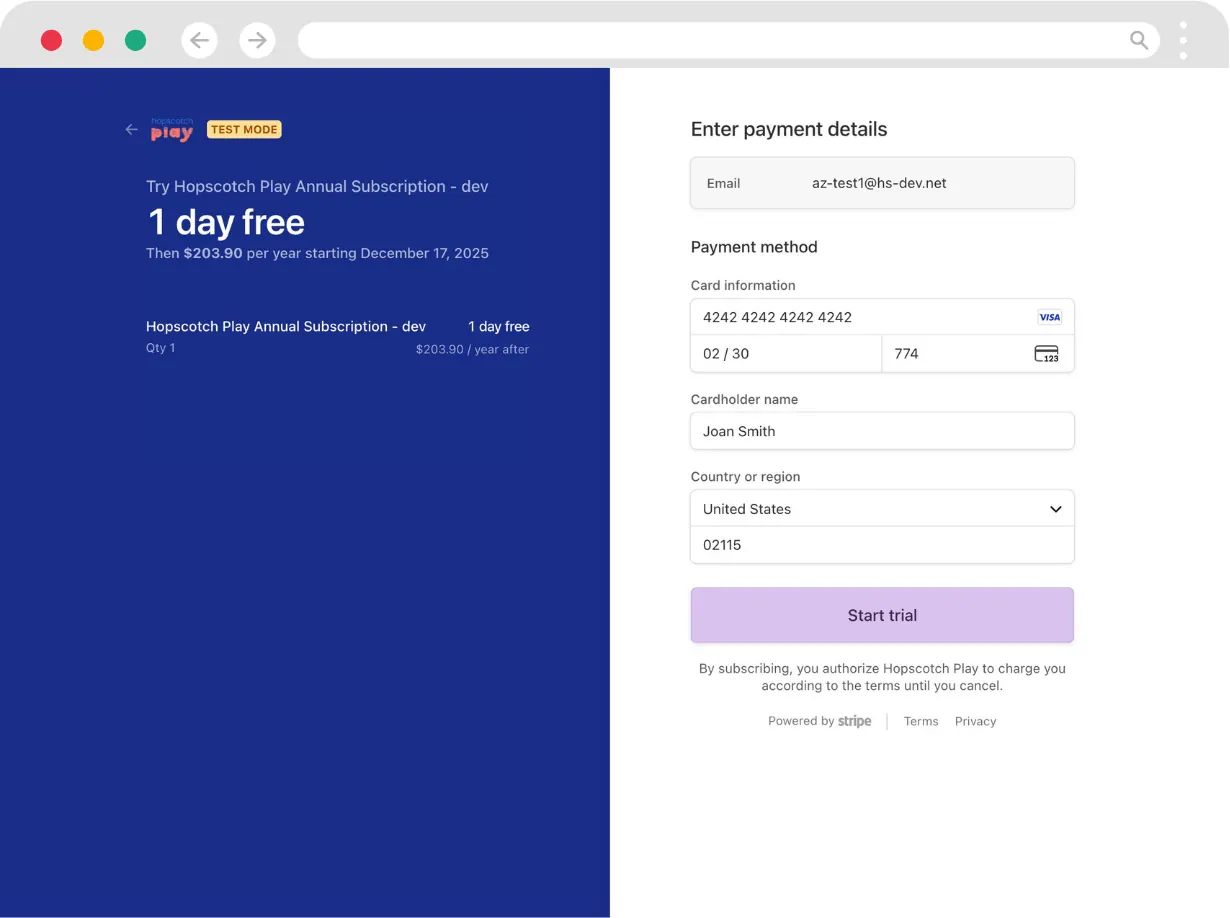
- You will then be taken to a Stripe screen to complete your checkout and enter payment information. Please, review the details on this page to make sure everything is accurate before continuing.
- After a successful transaction, you will be able to log into Hopscotch Play and land on your Home page.
Signing Up Using Microsoft Entra ID (Azure Active Directory) SSO
- Select Sign up with Microsoft.
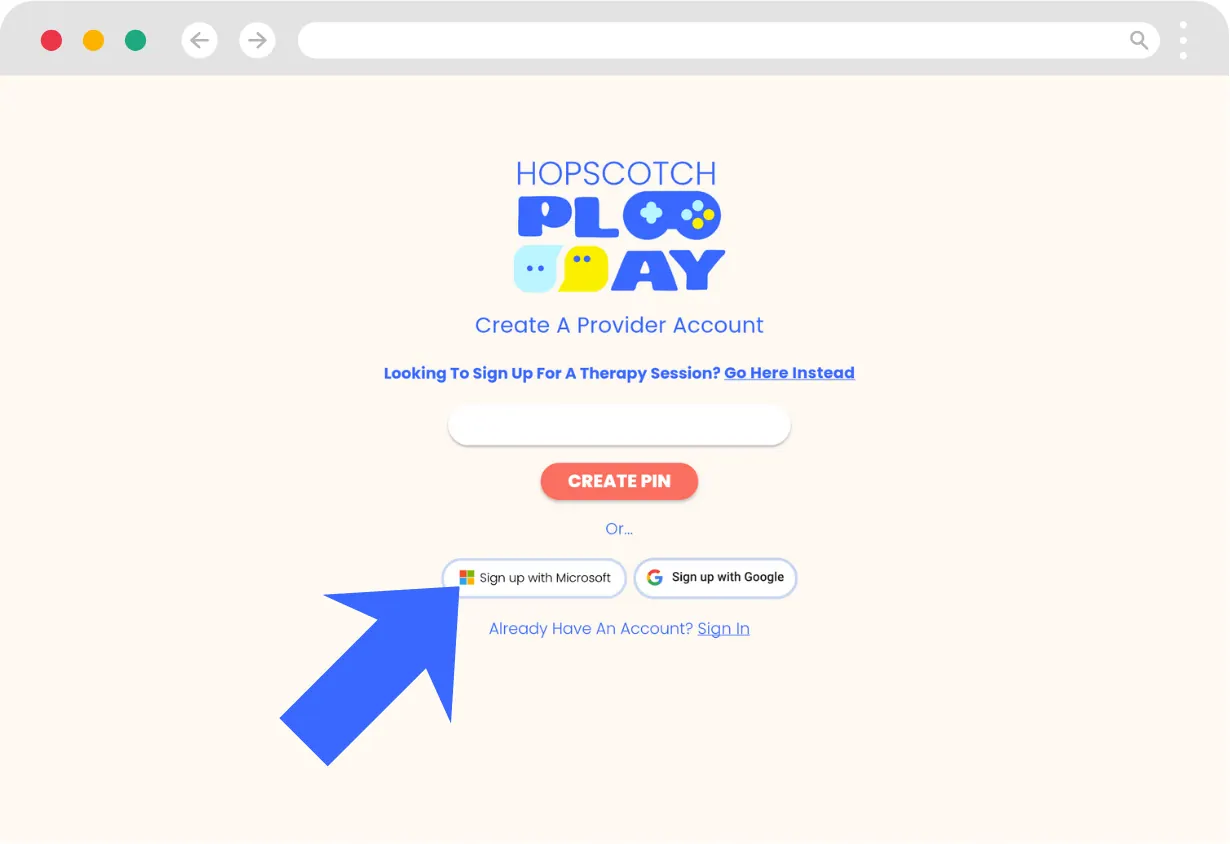
- You will then be taken to a screen to enter the email associated with your Microsoft account.
- If you are already logged in, you will be given an option to choose the Microsoft account you want to use to sign in.
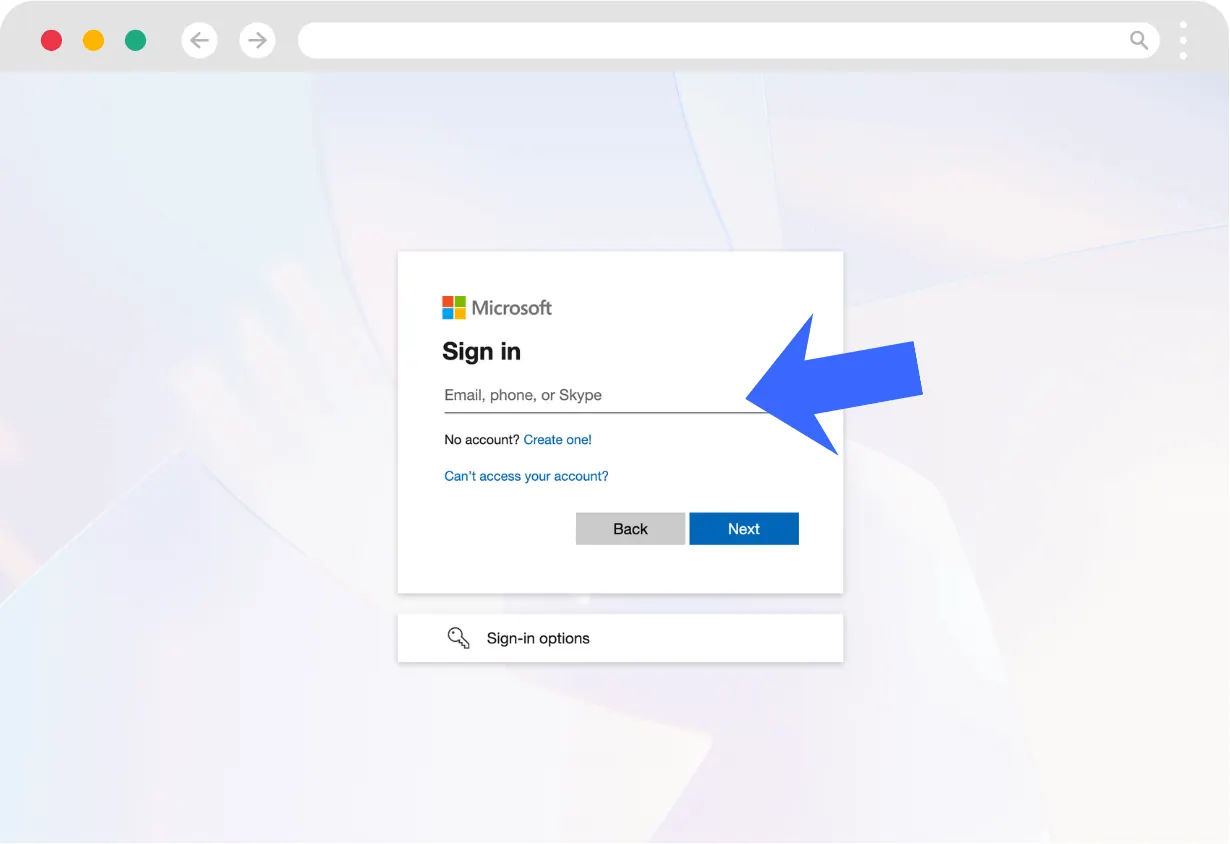
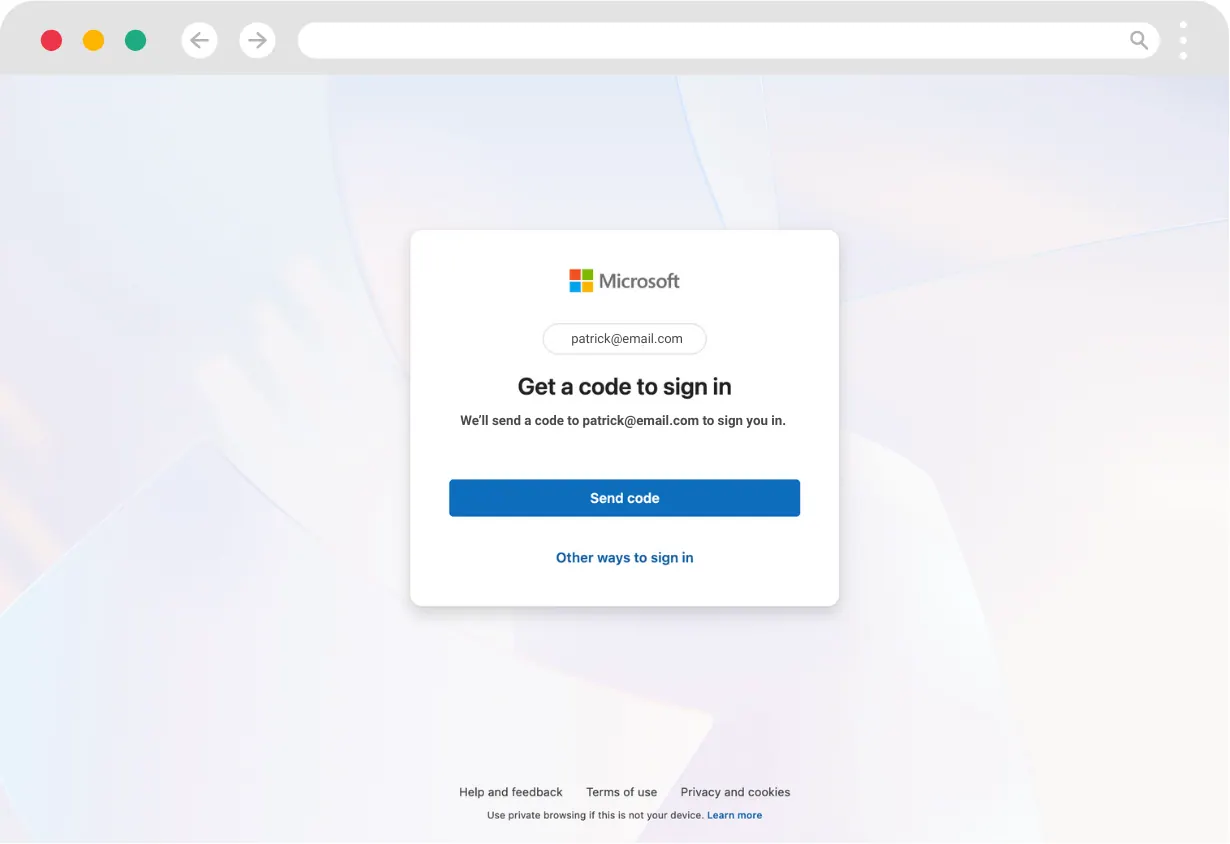
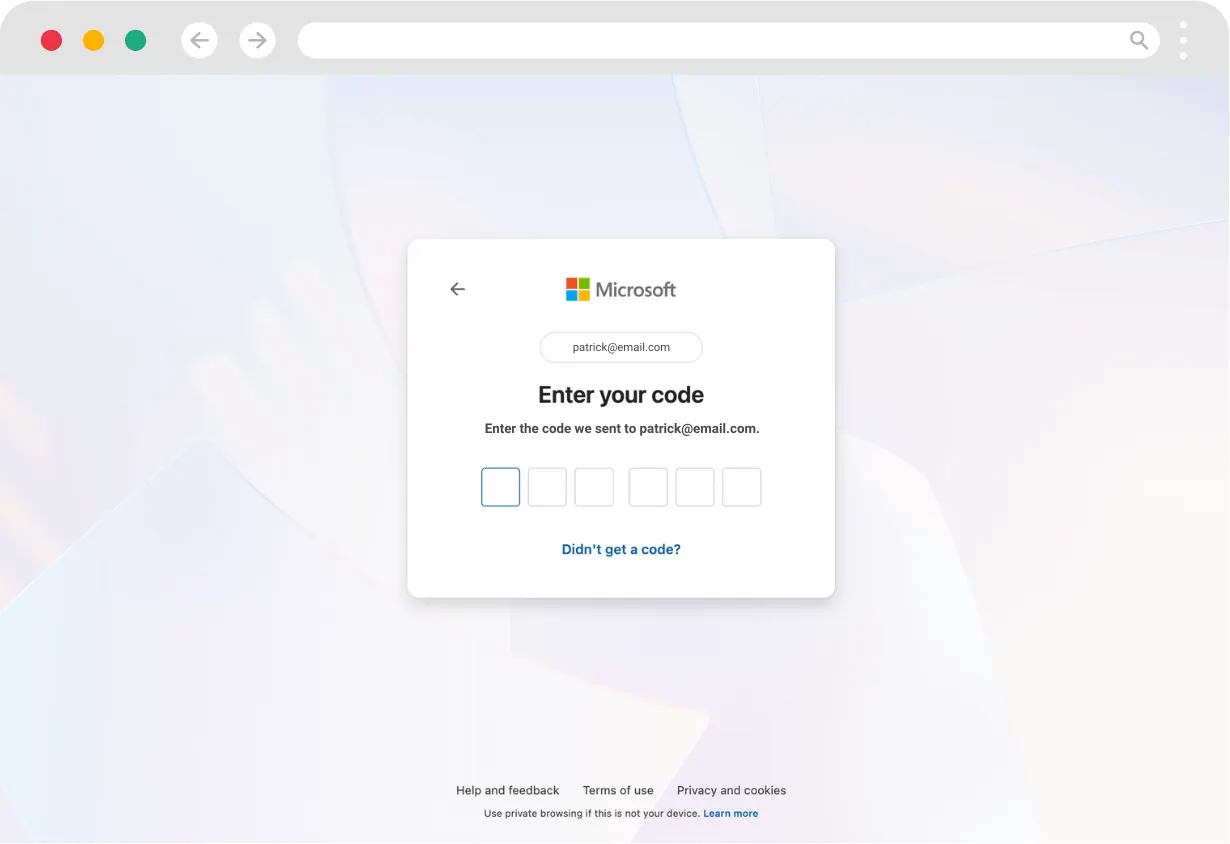
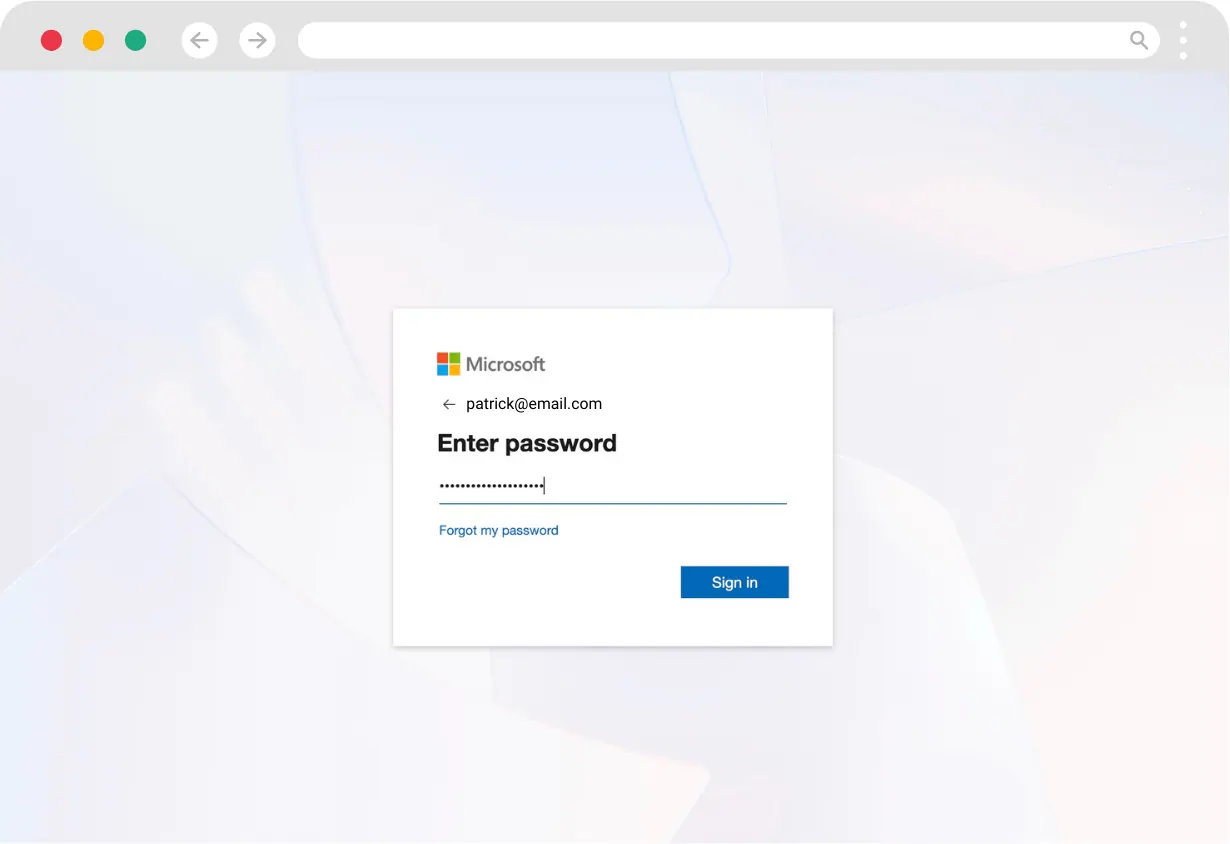
- When you click Next, you may either be prompted to enter your password, have Microsoft send you a verification code, or log in using MFA.
Password
- You will be taken to a permissions screen that allows Hopscotch Play to Sign you in and read your profile and Maintain access to data you have given it access to. Select Accept to proceed.
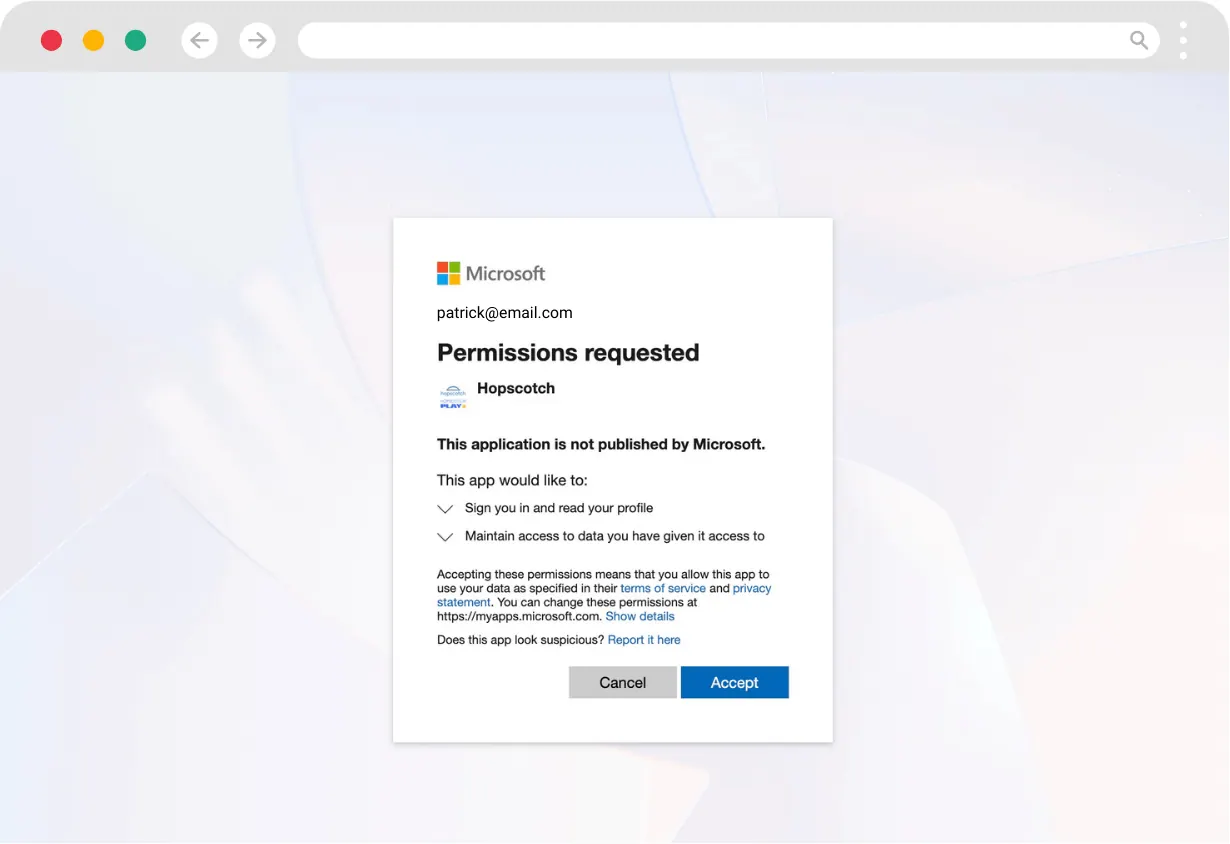
- After logging in using Microsoft Entra ID (Azure Active Directory) SSO, you will be taken to continue the sign up process on Hopscotch Play. Once you enter in your information, select Create Account.
- On the next screen you set up your subscription in three steps: Team & billing (how many seats, and Monthly or Yearly billing, which saves 15%), Choose your plan (Basic or Pro; see Plans and Billing), and Add video calls (the optional video conferencing add-on). You can also enter a promo code. A single-seat signup starts a 14-day free trial with a preview of Pro features; the summary shows what is due today and when billing begins. Check everything, then select the button at the bottom to continue.
- You will then be taken to a Stripe screen to complete your checkout and enter payment information. Please, review the details on this page to make sure everything is accurate before continuing.
- After a successful transaction, you will be able to log into Hopscotch Play and land on your Home page.
Signing Up With a PIN
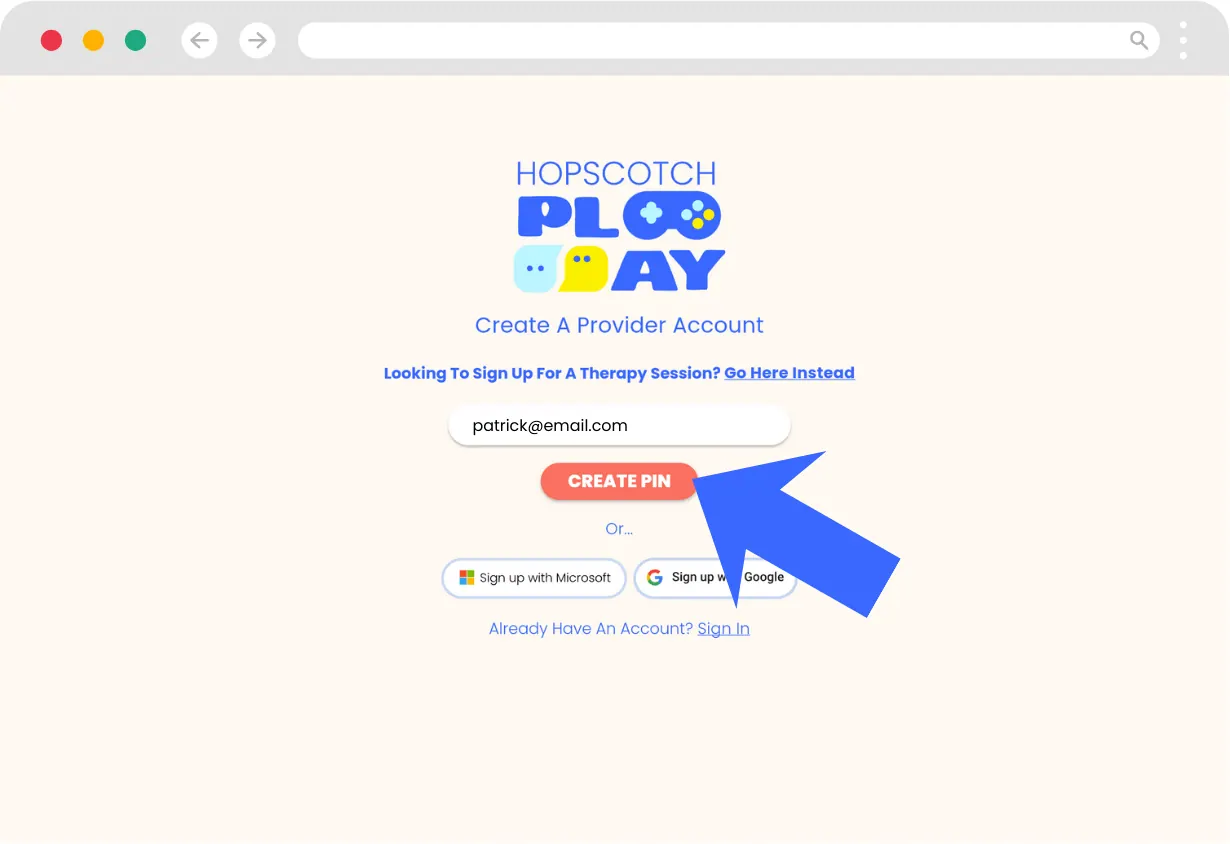
- Enter your email address and select Create PIN
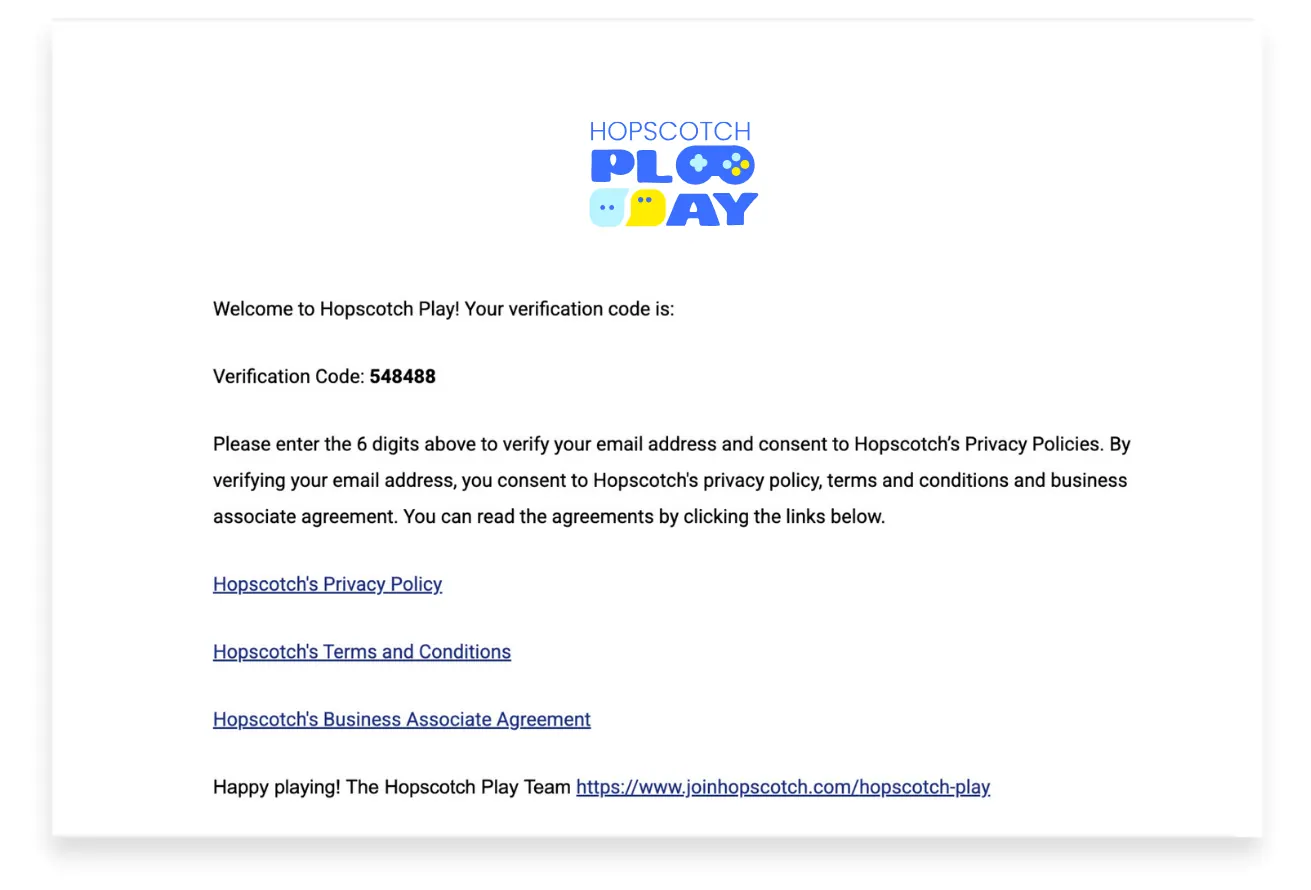
- You will receive an email containing a 6-digit verification code. Enter the code and select Continue.
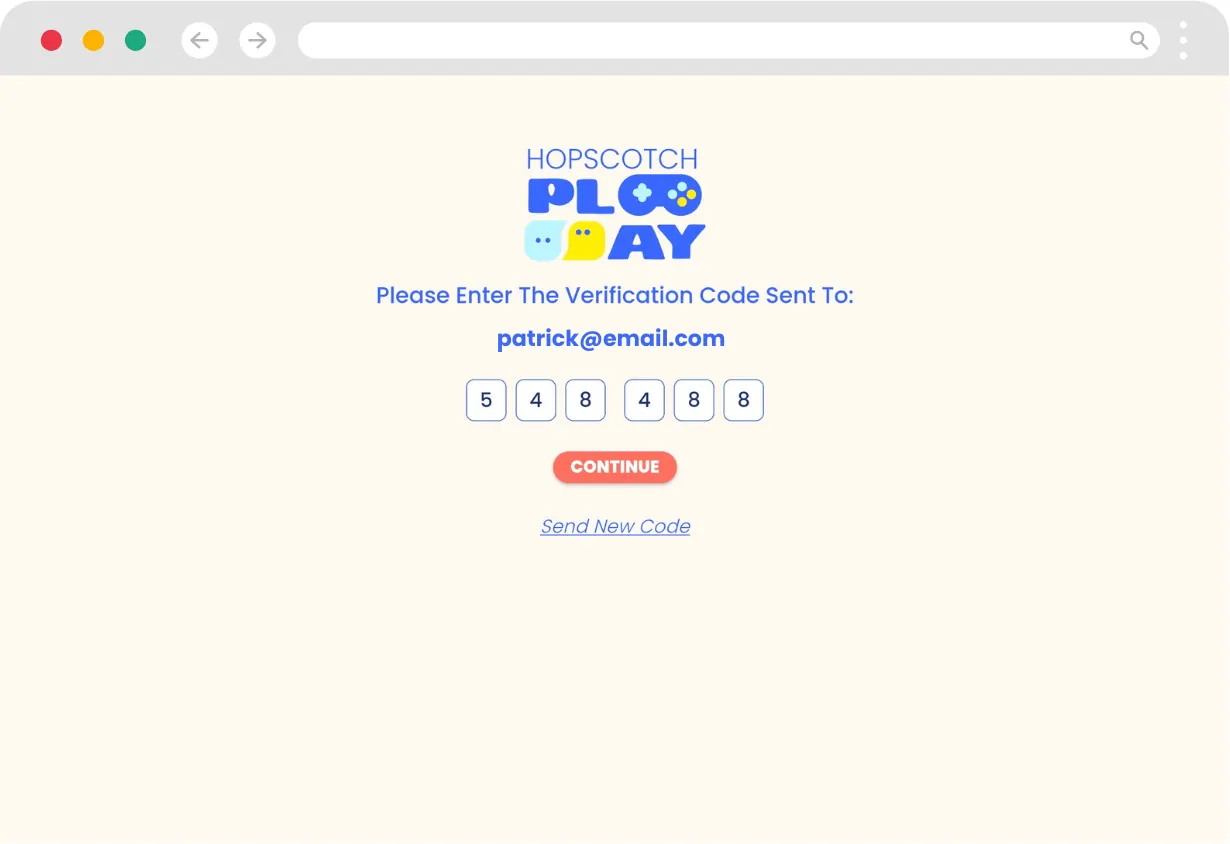
- You will then be able to create a unique 4-digit PIN that you will use to log into your Hopscotch Play account.
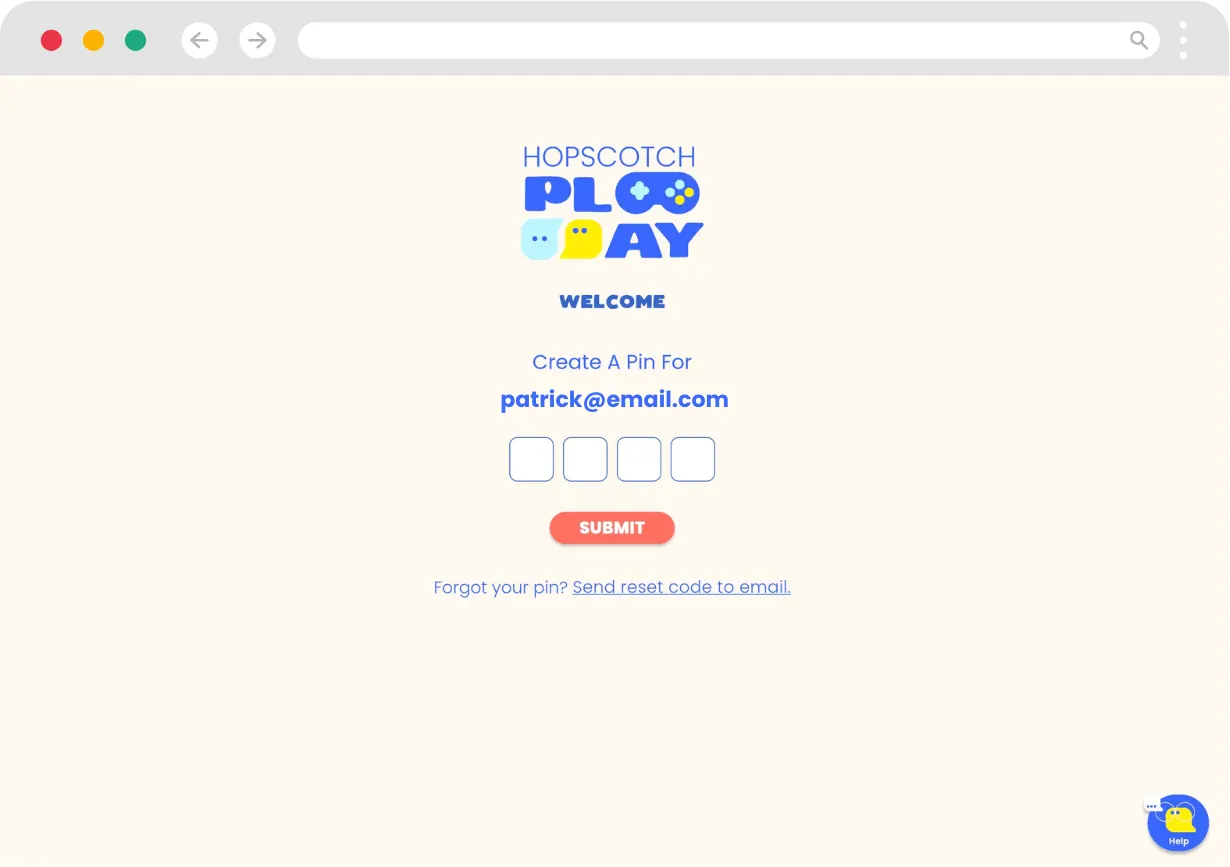
- After creating a PIN, you will be taken to continue the sign up process on Hopscotch Play. Once you enter in your information, select Create Account .
- On the next screen you set up your subscription in three steps: Team & billing (how many seats, and Monthly or Yearly billing, which saves 15%), Choose your plan (Basic or Pro; see Plans and Billing), and Add video calls (the optional video conferencing add-on). You can also enter a promo code. A single-seat signup starts a 14-day free trial with a preview of Pro features; the summary shows what is due today and when billing begins. Check everything, then select the button at the bottom to continue.
- You will then be taken to a Stripe screen to complete your checkout and enter payment information. Please, review the details on this page to make sure everything is accurate before continuing.
- After a successful transaction, you will be able to log into Hopscotch Play and land on your Home page.
Plans and Billing
In This Section You'll Learn: What the Basic, Pro, and Enterprise plans include, how the free trial works, how the video conferencing add-on works, and how to change your plan, seats, or payment details.
Hopscotch Play is a per-seat subscription: one seat is one provider login. Prices are shown on our pricing page, where you can pick the number of seats and switch between Monthly and Yearly billing (yearly saves 15%, and the price per seat goes down as your team grows). Every plan is HIPAA compliant with a BAA available, and you can cancel any time.
The plans
- Basic — the essentials: the interactive games and content library, 2-Player mode, client dashboards and the check-in suite, social stories and mindfulness tools, customizable printables, and chat support. Basic includes up to 100 client profiles.
- Pro — everything in Basic, plus the Session Planner, the clinical note generator (the session summary with note blurbs), Client Access at Home, unlimited client profiles, and priority support by chat and email. Pro is the plan most providers choose.
- Enterprise — everything in Pro for clinics, districts, and health systems, with custom annual pricing and procurement-friendly billing. It adds EHR integration, custom group content, team usage analytics and an admin dashboard, role-based access and SCIM provisioning, single sign-on (OIDC and SAML), audit logs and compliance reports, a dedicated customer success manager with white-glove onboarding, an enhanced BAA with a custom MSA, and an uptime SLA. Support by chat, email, and calls. To get started, use Talk to our team on the pricing page or Contact sales on your Billing page.
Video conferencing add-on
Video Call is an optional add-on on every plan, priced per seat and billed on the same Monthly or Yearly cycle as your subscription. You can add it at signup (step 3, Add video calls) or later from Account > Billing > ADD-ONS, where it is listed as Video conferencing (app install needed). Turn it off any time from the same place. Two things to know: video calling only works in the Hopscotch Play app, not in the browser, and it is not included in the free trial.
The free trial
Every new single-seat account starts with a 14-day free trial that includes a preview of our Pro features, so you can try the Session Planner and Client Access at Home before you decide. Video conferencing is not part of the trial. You pick Basic or Pro when you sign up; if you do not cancel during the trial, that plan starts automatically when the trial ends and your card on file is charged. Team signups with more than one seat start billing right away. If you were on Basic before the Pro plan launched, your account keeps Pro features free for an introductory period; when it ends you are on Basic and can upgrade any time.
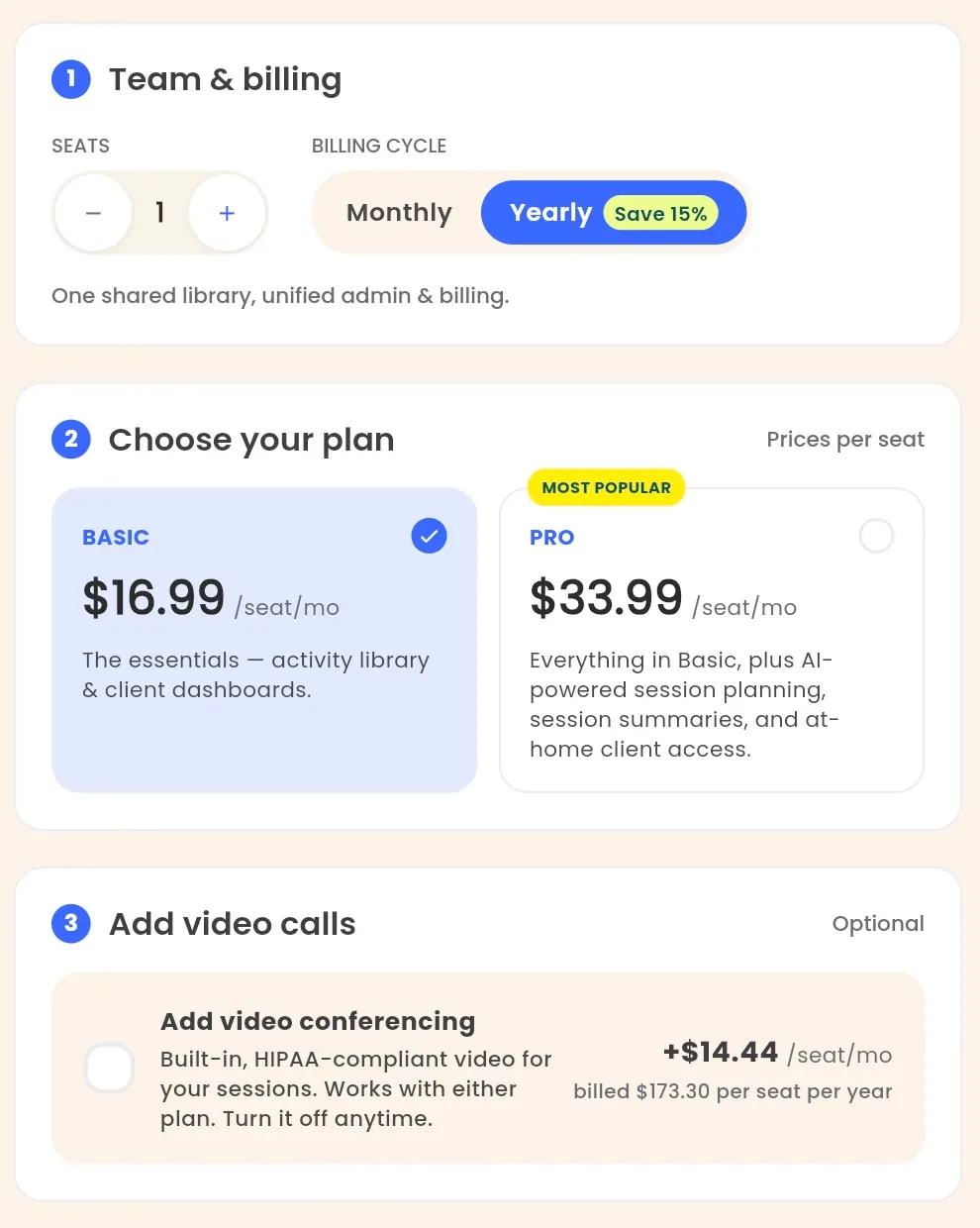
Changing your plan, seats, or add-on
- Go to Account in the left toolbar, then Billing. The PLAN tab shows your CURRENT PLAN (billing cycle, seats in use, next invoice, amount due), a CHANGE PLAN section listing Basic, Pro, and Enterprise, and ADD-ONS.
- Pick Upgrade or Downgrade next to a plan, change the number of seats, or switch the video add-on on or off.
- An AFTER THIS CHANGE bar shows the new total. Press Confirm to apply it. Changes are prorated to your billing period, and anything that starts at your next invoice is listed under UPCOMING with the date it takes effect. You can also enter a promo code here.
- PAYMENT holds your saved card; BILLING HISTORY lists every invoice and receipt (they appear 24 to 48 hours after a payment).
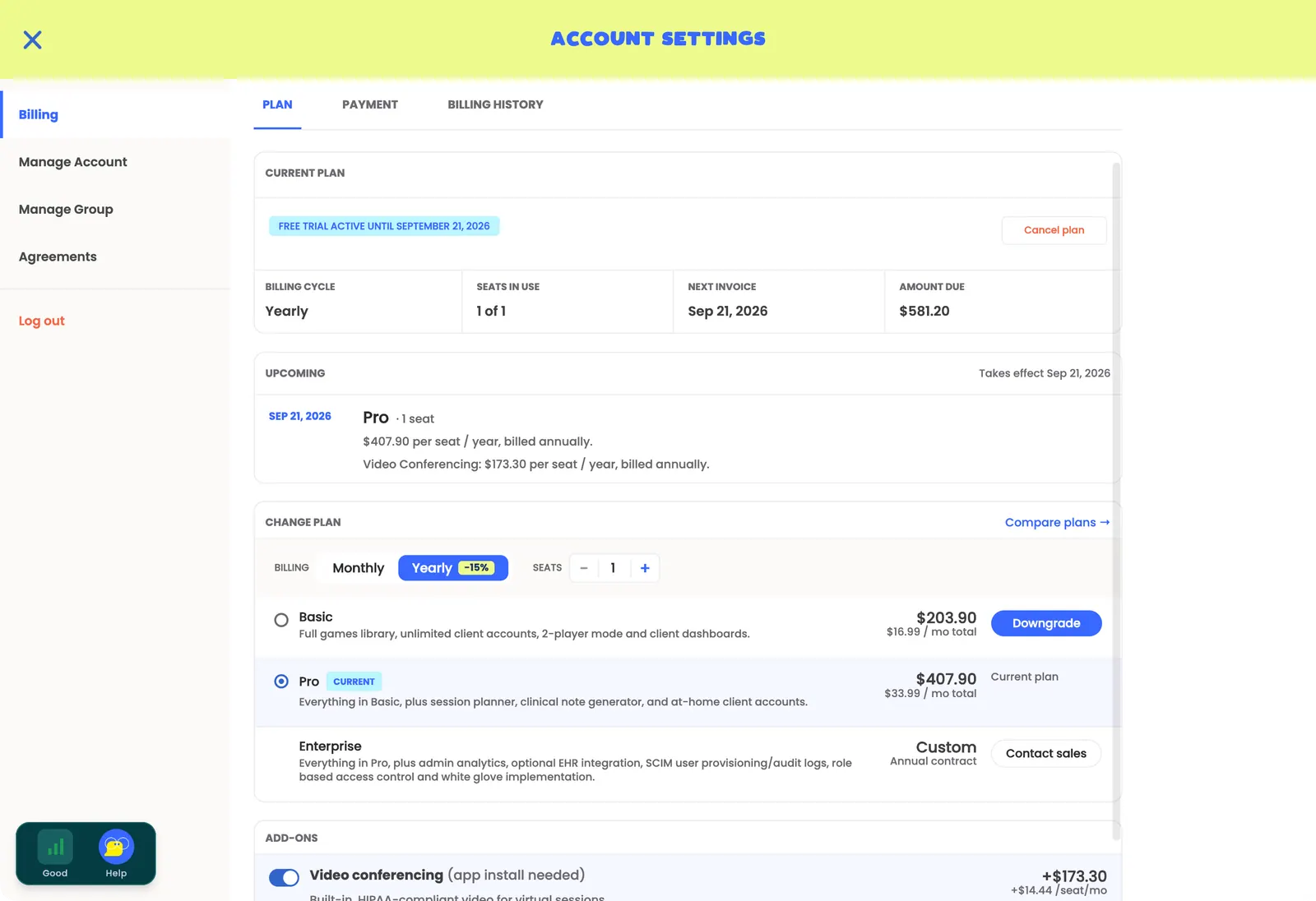
In a group account only Administrators can change the plan, seats, add-on, or card. If you see "Contact your group admin to upgrade!", ask your group's administrator.
Purchase orders and invoices — schools and larger organizations can pay by purchase order or annual invoice. Send us a message through our contact form with the number of seats and your billing contact; we will send a formal quote, then process your PO and invoice you on its terms. We can provide a W-9 or vendor paperwork on request.
Cancelling — see Cancelling or Pausing My Subscription. You keep full access until the end of the period you have paid for, and your client data stays saved.
Quick Answers
Q: How much does Hopscotch Play cost? A: Pricing is per seat, per month or per year, and differs by plan and by the number of seats. The current prices are always on our pricing page.
Q: Can I switch between Basic and Pro? A: Yes, any time, in either direction, from Account > Billing > CHANGE PLAN. Changes prorate to your billing period, and a downgrade takes effect at your next invoice.
Q: Can I buy a plan or the video add-on inside the iPhone, iPad, or Android app? A: No. App store rules do not allow purchases inside those apps, so they show no prices or purchase buttons. Sign in on the web or in the Mac or Windows app to manage your plan; the change applies everywhere you sign in.
Q: What happens when my free trial ends? A: The plan you chose at signup (Basic or Pro) starts and your saved card is charged. If you chose Basic, the Pro features from the trial preview lock, and you can upgrade to Pro any time from your Billing page.
Q: Do I lose my clients if I downgrade or cancel? A: No. Client profiles and their data stay saved on every plan, including the free Lite plan you land on after cancelling.
Home
In This Section You'll Learn: How to locate essential tools on your Home page, the page you land on after logging in (formerly called the Provider Dashboard)
Once you log in to your Hopscotch Play account, you'll land on your Home page. This is your command center where you can:
- Access help materials
- Contact support
- Refer a Friend and earn!
- Add and Edit client profiles
- View Provider Newsfeed
- Enter client accounts and access games/activities
- Access account settings
- Upload Your Own PDFs
- Start a video call from the left toolbar (with the Video Call add-on, in the app)
New accounts also see a Using Hopscotch Play checklist of first steps on the Home page, from checking your connection to trying the Session Planner. Collapse it with the arrow or press Dismiss List; you can reopen it any time from Tutorials. The Network and Help buttons in the bottom-left corner are on every page; see Where to Find Help.
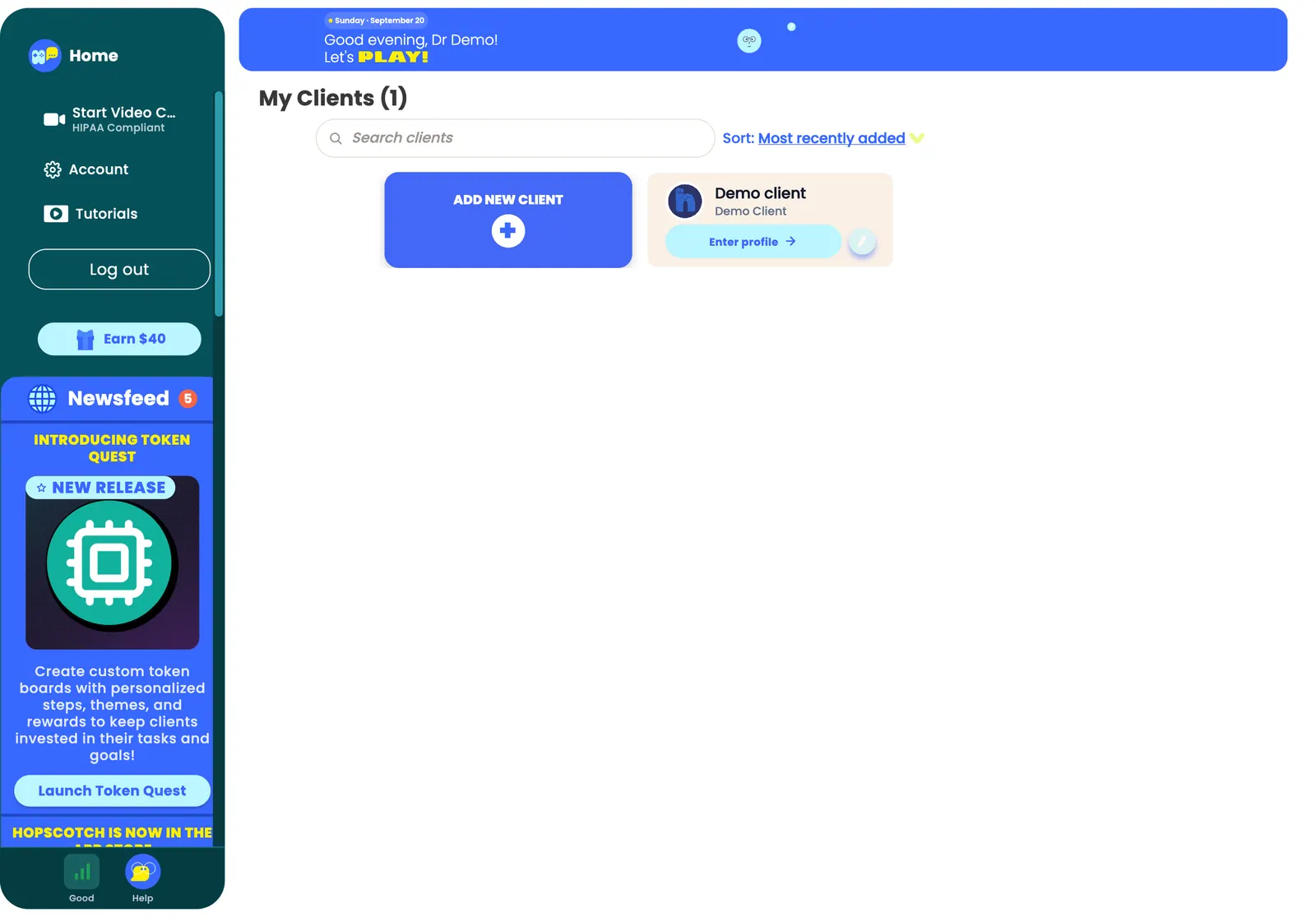
Account Settings
In This Section You'll Learn: How to manage your billing, group, and profile settings.
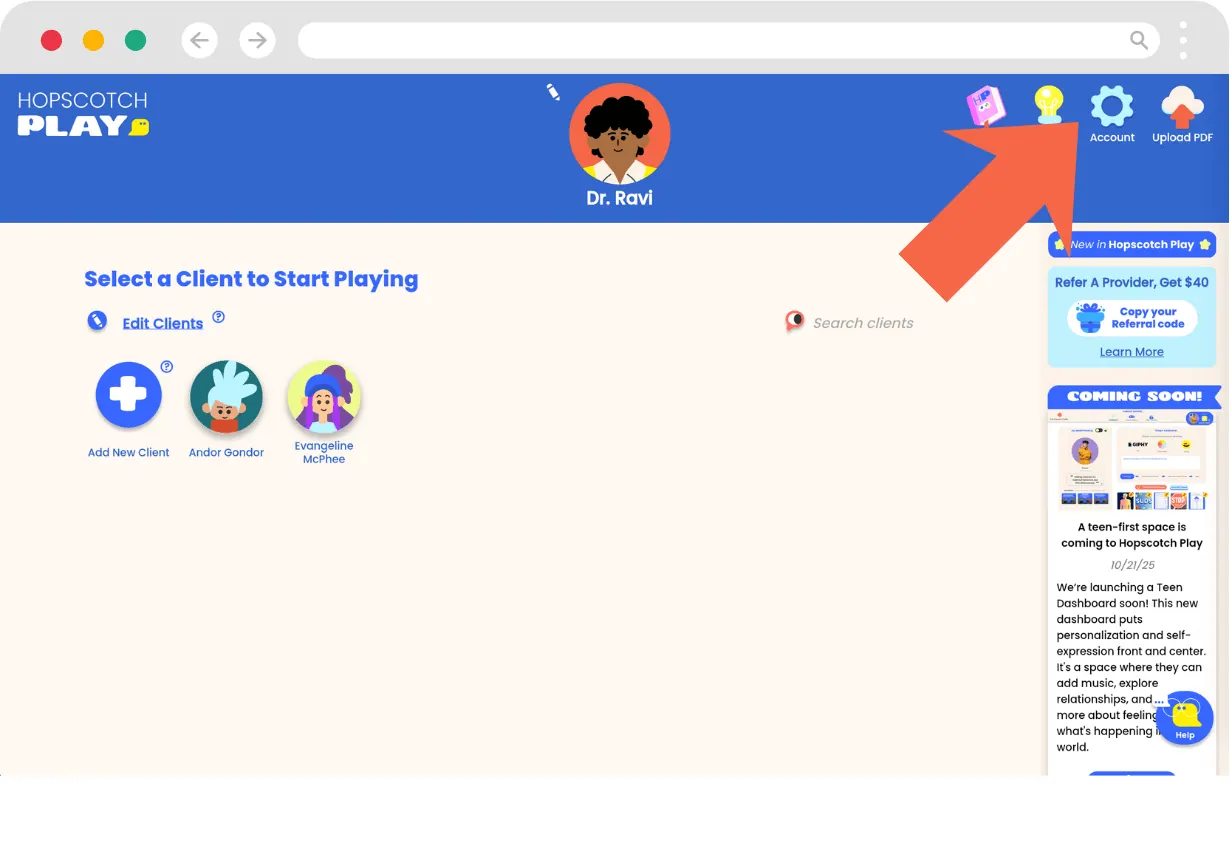
click Account in the left toolbar of your Home page. This takes you to your account area, where you can manage your account, billing, and group settings. Once inside, you'll see tabs on the left-hand side that allow you to manage different areas:
Billing
The Billing page has three tabs: PLAN, PAYMENT, and BILLING HISTORY. The full walkthrough is in Plans and Billing; in short:
-
Change or upgrade your plan
- Go to Account > Billing. CURRENT PLAN shows your plan, billing cycle, seats in use, and next invoice.
- Under CHANGE PLAN, press Upgrade or Downgrade next to Basic or Pro (Enterprise uses Contact sales). Use Compare plans to see the full feature list.
- Review the AFTER THIS CHANGE total and press Confirm. Upgrades are prorated; downgrades and other next-cycle changes appear under UPCOMING with their effective date.
-
Add or remove seats
- Under CHANGE PLAN, change the number of seats, then Confirm the summary. Adding seats is how a solo account becomes a group account; see Managing Your Group Account.
-
Add or remove the video conferencing add-on
- Under ADD-ONS, switch Video conferencing (app install needed) on or off and Confirm. It is priced per seat and prorated on your next invoice.
-
View billing history and download receipts/invoices
- Open the BILLING HISTORY tab to view and download invoices and receipts as PDFs. They appear 24 to 48 hours after a payment.
-
Update the card on file
- Open the PAYMENT tab to see your saved payment method and add or change the card.
-
- Under CURRENT PLAN, press Cancel plan and answer the short feedback questions.
- You keep full access until the end of the period you have paid for; after that you are on the free Lite plan and your client data stays saved.
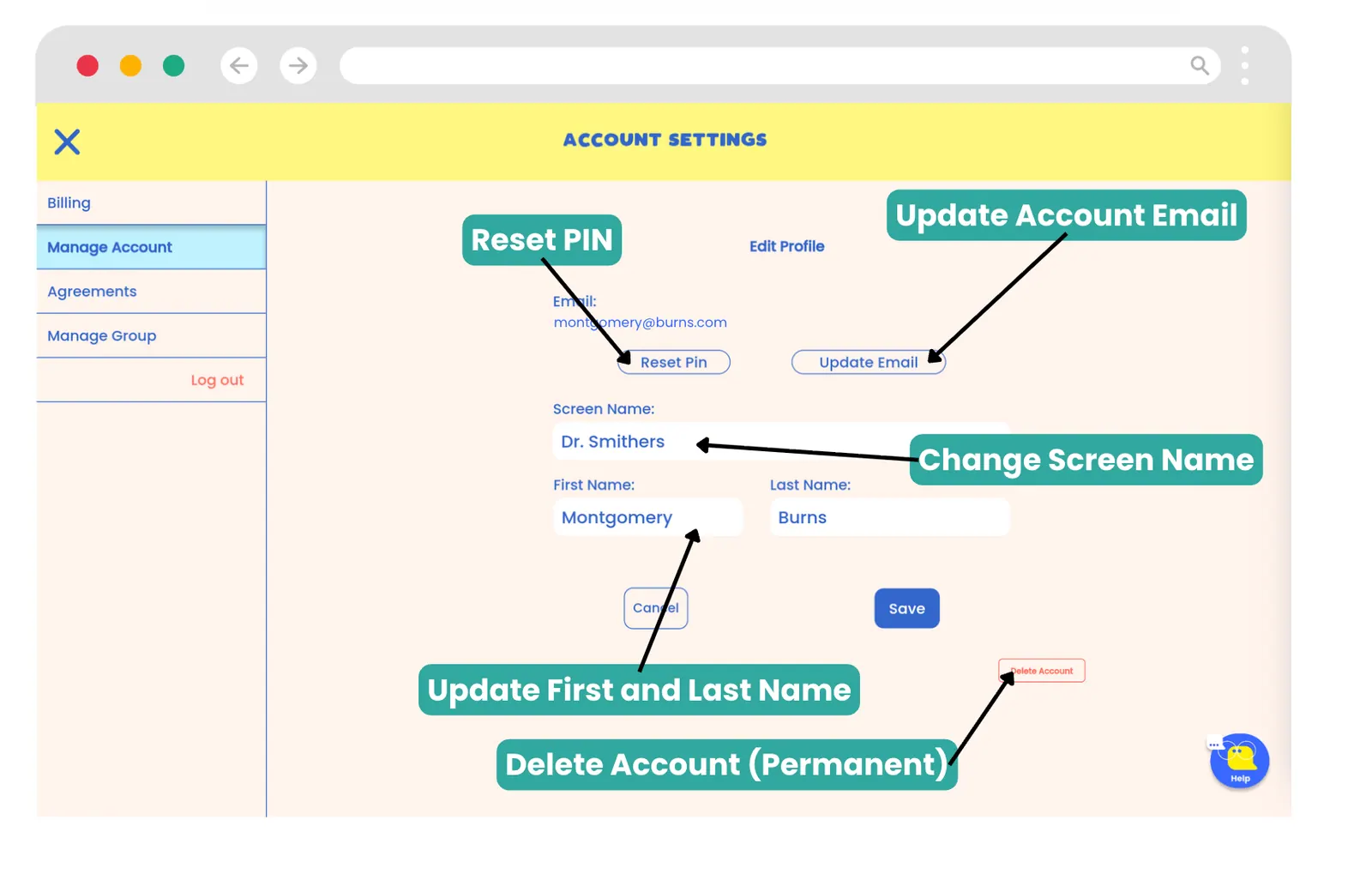
Manage Account
-
Reset your PIN
- Go to Account > Manage Account.
- Under your email, you will see the option to 'Reset PIN'.
- You will receive an email containing a 6-digit verification code. Enter this code on the next screen and select 'Enter'.
- You can now enter in your new PIN.
- Changes will take effect immediately.
-
Update your email
- Go to Account > Manage Account.
- Under your email, you will see the option to 'Update Email'.
- You will be prompted to enter your 4-digit PIN that you use to sign into Hopscotch Play. Once you do, click 'Continue'.
- You will be prompted to enter in your new email address. Once you are done, click 'Send Code.
- At your new email address, you will receive an email containing a 6-digit verification code. Enter this code on the next screen and select 'Update Email'.
- Changes will take effect immediately.
-
Change your screen name
- On your Home page, tap on Account in the left toolbar.
- Proceed to Manage Account
- You will see a field where you can edit your screen name.
- Type in your new screen name.
- Click "Save" to save your new screen name.
-
Change your avatar
- Go to the top of your Home page and locate your provider avatar.
- Click the small white pencil icon next to your avatar.
- Arrows will appear beside your avatar.
- Use the arrows to scroll through the available avatar options.
- Click the check mark above "Save Changes" to save your new avatar.
-
Delete your account ( note: this action is permanent and will delete all client data )
- Go to Account > Manage Account.
- At the bottom, you will see a button that says 'Delete Account'.
- Click on this button and go through the prompts to successfully delete your account.
Agreements
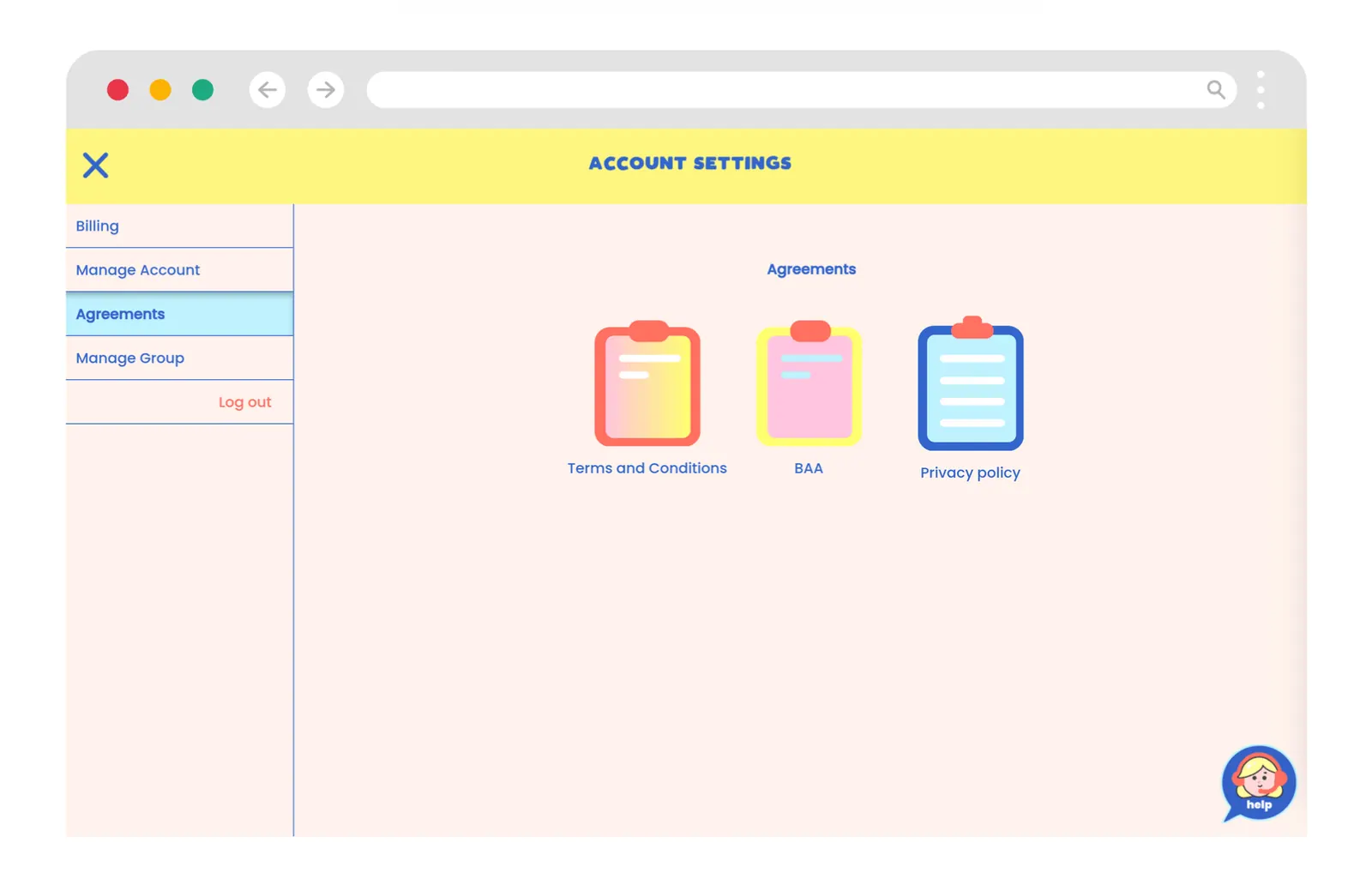
- Go to Account > Agreements.
- Click on any icon to download a copy of the Terms and Conditions, BAA, or Privacy Policy
Manage Group
-
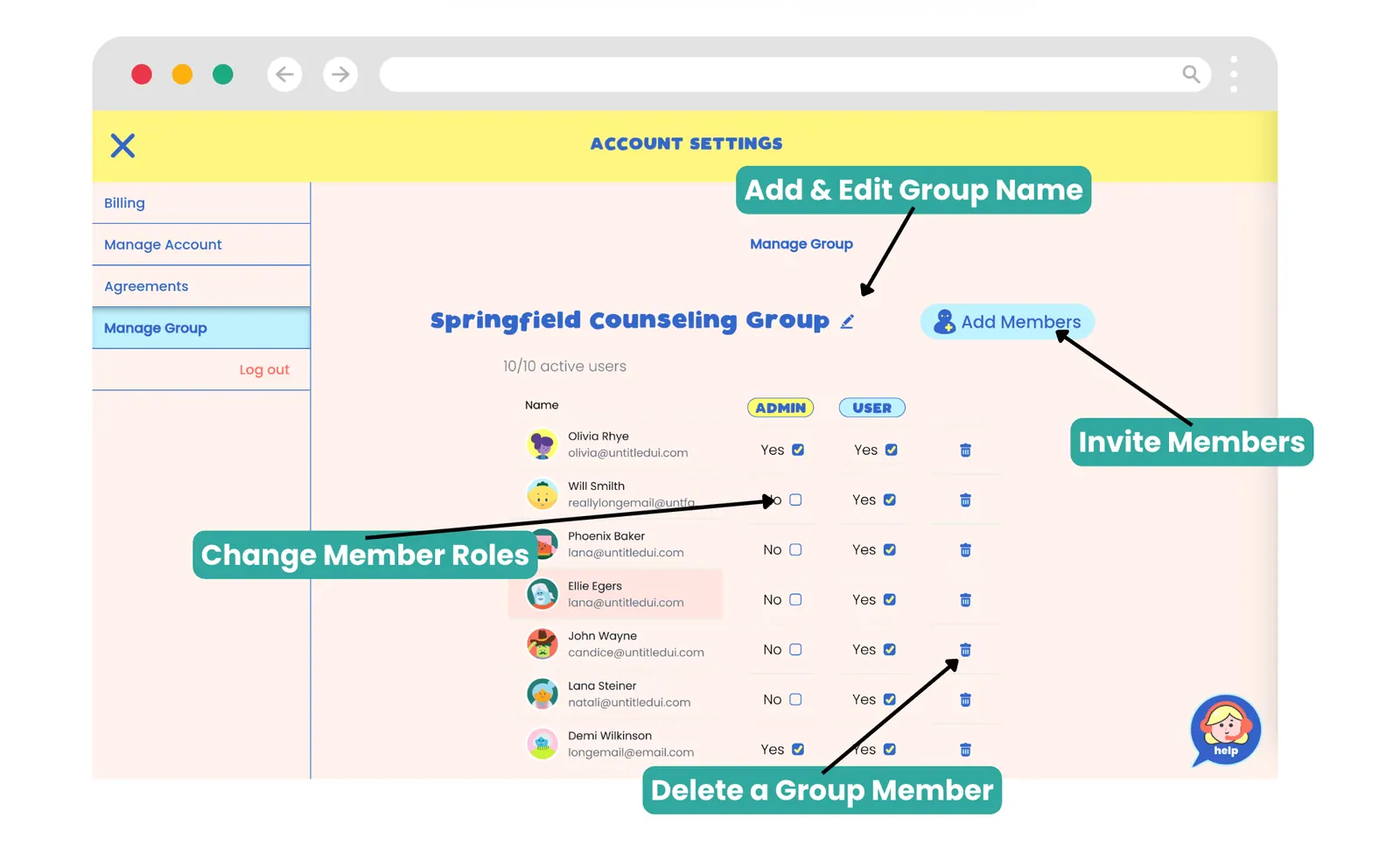
Add or remove group members
- Go to Account > Manage Group.
- Click the button that says 'Add Members'.
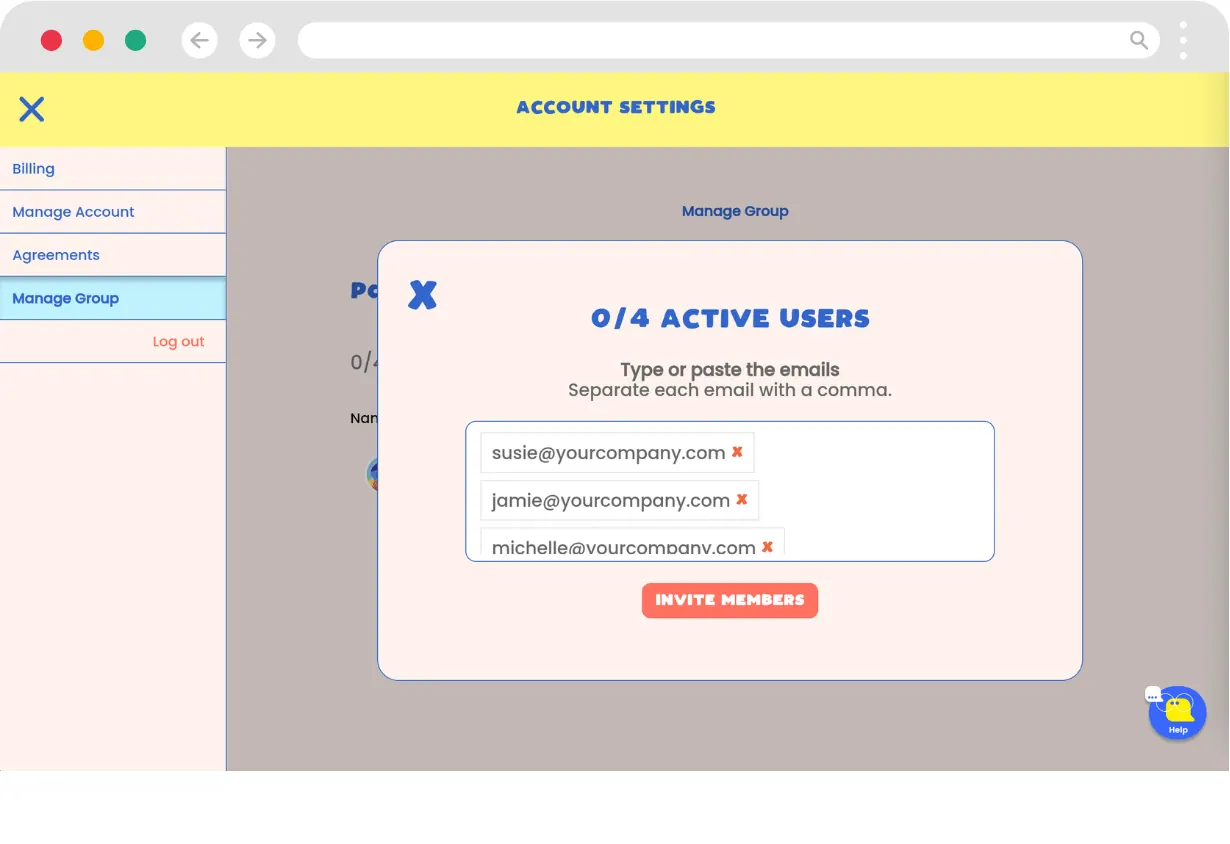
- You will be prompted to type or paste the emails of the members you would like to invite. Separate each with a comma.
- Click the 'Invite Members' button when complete.
- Invited members will receive an email inviting them to join your group.
- As your members join, your Manage Group page will be populated with the members.
-
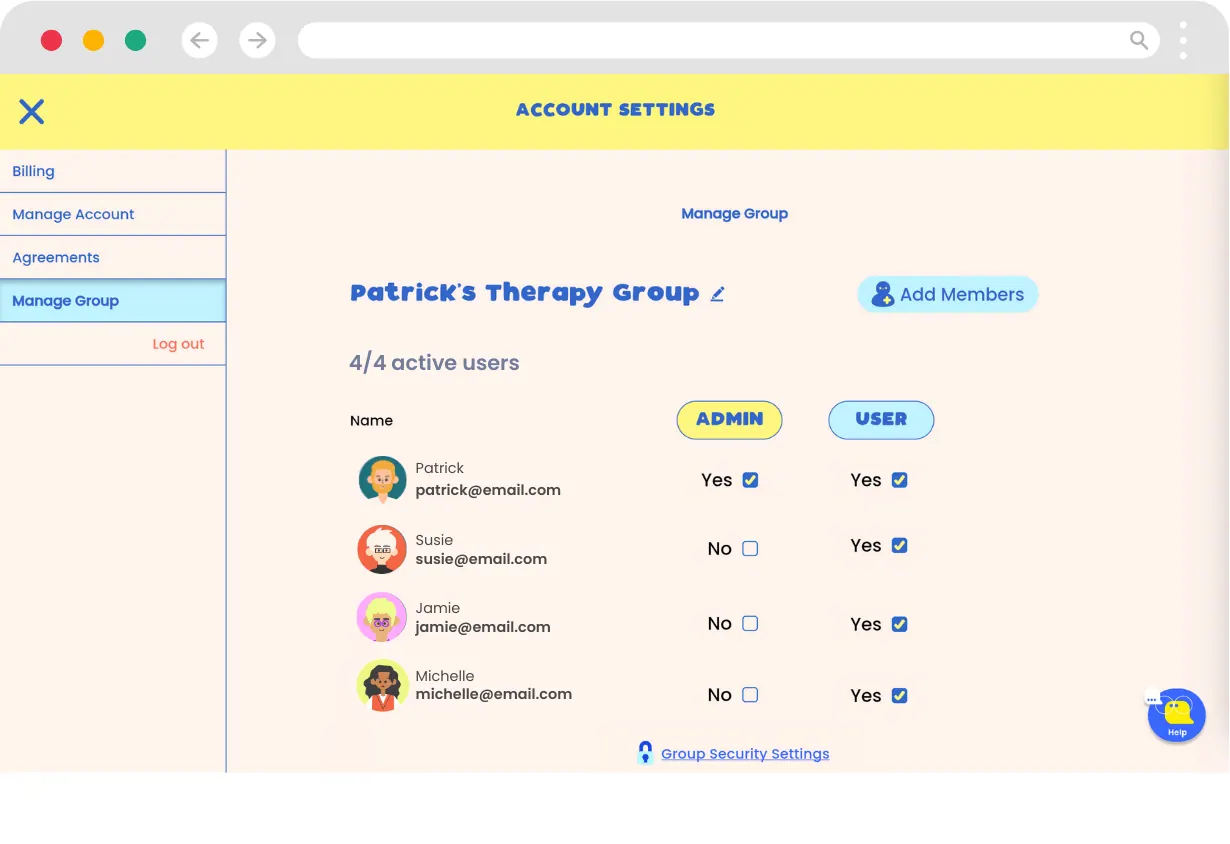
Change member roles
- Go to Account > Manage Group.
- To the side of each member's name, you will see the Admin and User columns.
- Checking and unchecking these boxes will change the member's role in the account.
- To delete a group member, press the trash can icon located in the same name as their information.
Log Out
- Sign out of your Hopscotch Play account
Managing Your Group Account
This section applies if you signed up as a group account or have changed your account type to a group account.
- From your Home page, go to Account in the left toolbar.
- Select the Manage group tab.
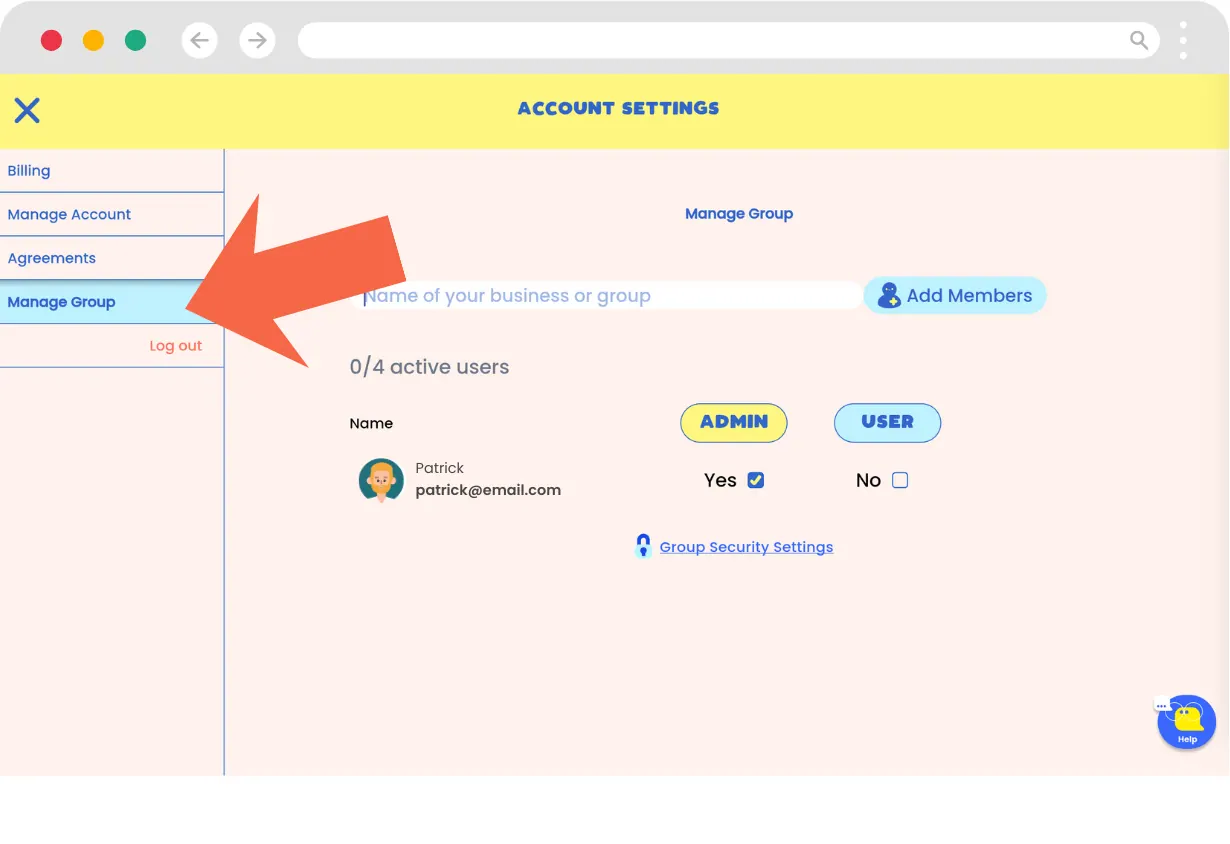
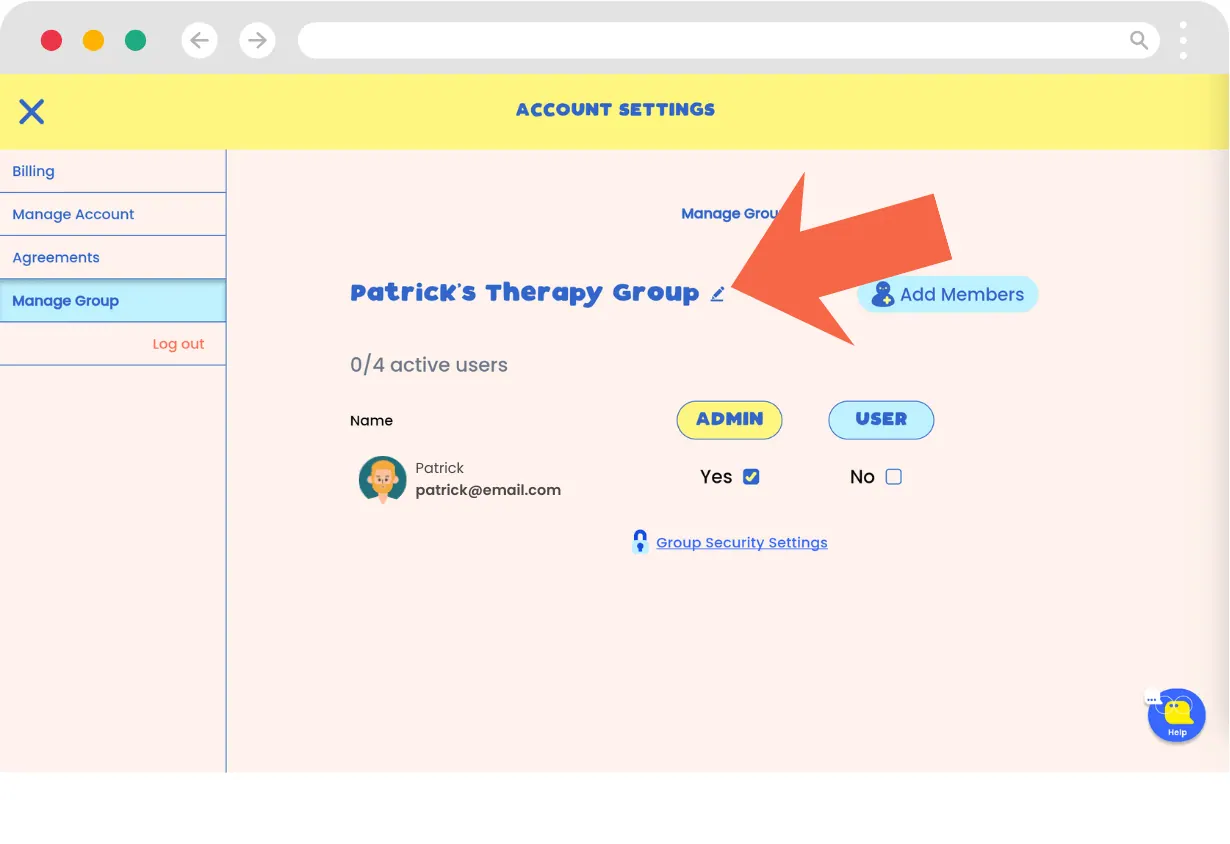
- Name your group.
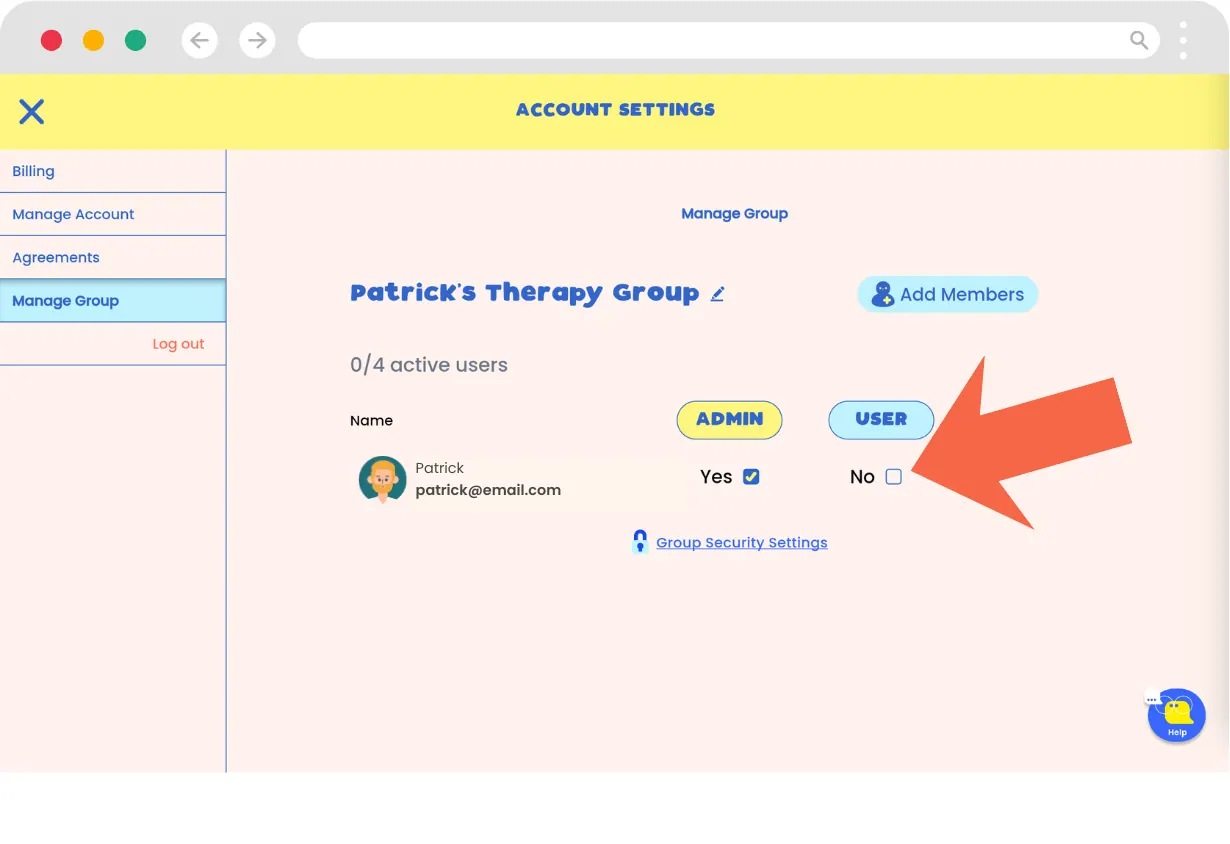
- As the person setting up the account, you are automatically the Admin. By default, you are also set as a user, which takes up one seat. Uncheck the "user" option if you will only be managing the group and not using the platform yourself.
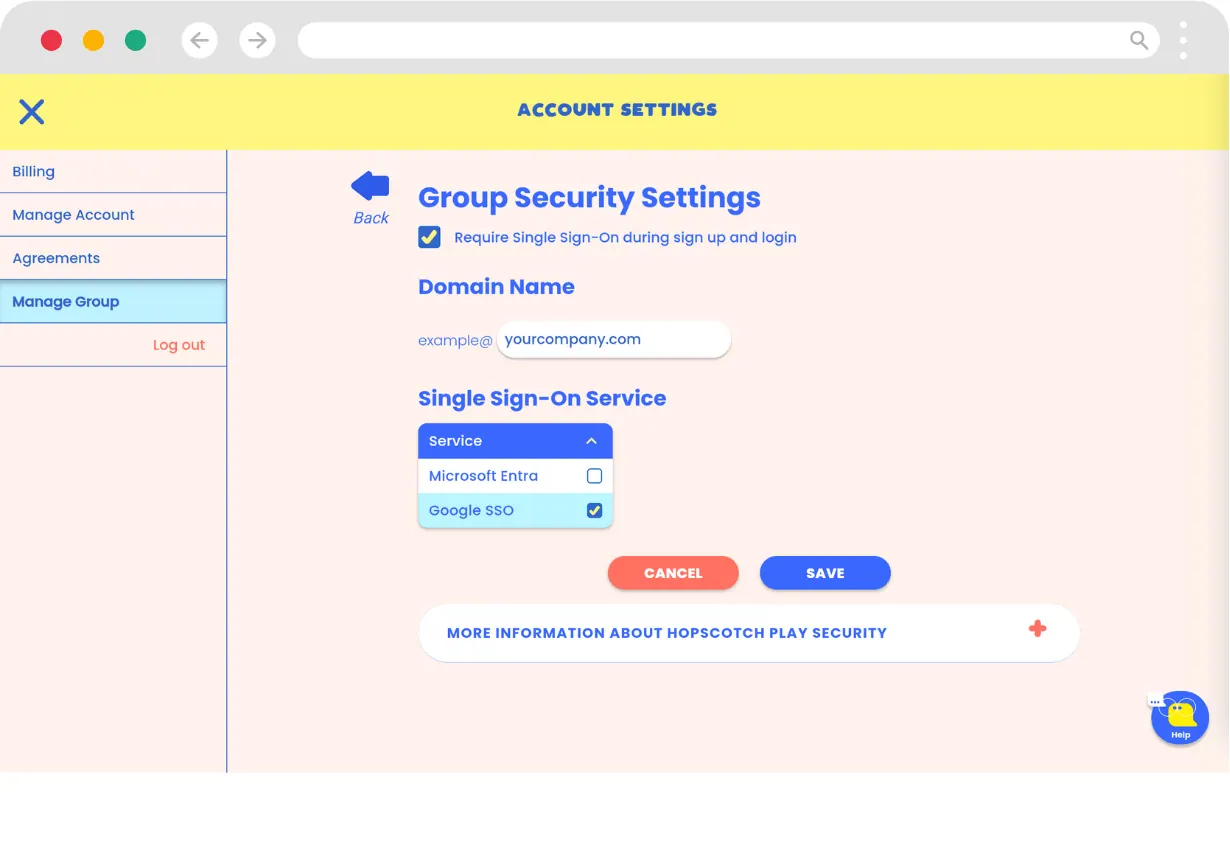
- Set up Group Security Settings (Optional, but recommended before adding members)
- Click on Group Security Settings.
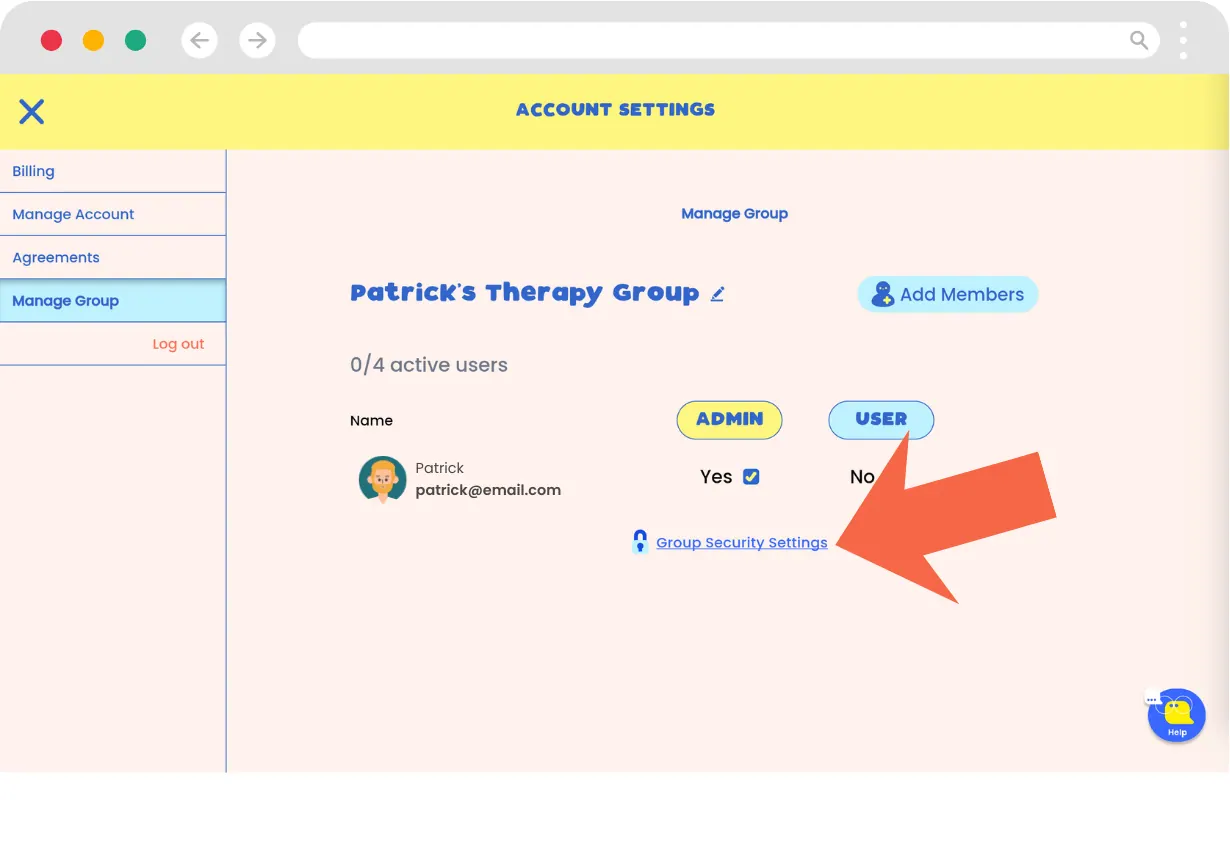
- Follow the steps to configure your settings. You can require all invited users to use an SSO service that aligns with your account.
- Input your domain name and select the SSO service.
- Click Save to confirm your settings.
- After you save, you'll be taken back to the Group management page. From here, click on Add Members . Here you can type or paste the email addresses of the members you wish to invite, separating each with a comma. When you're done, click Invite Members.
-
An email will be sent to the members, inviting them to join Hopscotch Play and create an account. They will be directed to the login page and must use SSO if you have enforced it.
-
Manage Invitations and Roles: You can track which members have accepted the invitation. Use the checkboxes in the list to change roles for specific users.
Editing Your Profile
In This Section You'll Learn: How to update your provider avatar, display name, or PIN. Watch how to edit your profile or follow the steps list below.
After creating your Hopscotch Play account, you may want to update your avatar, name, PIN, or email.
You can change your avatar and name directly on your Home page. Locate the Pencil icon next to your avatar at the top of the screen. Clicking this icon enables Edit Mode.
In Edit Mode, you'll see left and right arrows on either side of your avatar. Click these arrows to cycle through the available provider avatars until you find the one you want.
Below your avatar, there is a text field containing your name. Click into this field to update the text.
To save your changes, click the Save Changes checkmark. Your avatar and name will then be updated.
To change account information, click the Account button in the left toolbar on your Home page. Then, select Manage Account in the left toolbar. From here, you will have options to Reset your PIN and Update your email.
Follow the verification steps for each option to complete the updates.
Creating a Client Profile
In This Section You'll Learn: How to create a new client profile with a name, age group, and avatar. Watch how to create a client profile or follow the steps list below.
Welcome to Hopscotch Play! Let's get you set up and ready to go quickly.
Your first step is creating a client profile. This profile is your gateway to your client's personalized dashboard and content library. To create one, start on your Home page and click the blue plus button that says Add New Client. This opens the Add Client popup.
First, enter a screen name. This is required and is the name that will actually display on your client's profile. They can change it at any time on their dashboard. Right below that, you'll see optional fields for their first and last name. Next, select the client's age range. This helps determine some of the content your client will see on their dashboard.
Want your client to have access to Hopscotch Play at home? You can make that happen by checking the box to enable at home access. Just enter the caregiver's information and send them an invite email containing a link to create an account for their child. This feature is completely optional, and you can easily enable or disable it at any time.
After saving your client, you get the option to select an avatar. Clicking this takes you directly to their new profile and dashboard to choose an avatar. This can be done at a later time as well. When you close out, you'll see your newly added client in your client list on your Home page. You can click into it anytime to hop back into their dashboard and content library.
Congratulations, you are ready for your first session on Hopscotch Play!
During your session, if you are meeting in person, simply pull up the platform on a device in your office to explore the games and activities side by side. If you are meeting virtually, open your client's profile and start a 2-Player session with the Connect button in the side menu bar.
Steps to creating a client profile
- On the Home page, click the blue plus button that says Add New Client.
- (Optional) Add full name (visible only to you).
- Enter a screen name (required).
- Select age range.
- Click "Save."
- Once saved, you can close the pop-up and you will see the new client's profile on your dashboard. Alternatively, when the pop-up is open, you can select "Edit Client Avatar", and you will be taken into your client's profile to their dashboard where you can select an avatar.
Quick Answers
Q: I created my account. Now what? How do I get started? A: From your Home page, your first step is to create a client profile. This sets up an individual account for your client and adds them to your dashboard. From there, simply click into their profile to open their personal library—this is where you'll explore and launch all Hopscotch Play content, including games, printables, stories, and interactive tools.
Q: Do I have to enter a full name? A: No. Only a screen name is required. Full names are optional and only visible to you.
Q: What does the age range do? A: The age range helps us understand who is using Hopscotch Play, allowing us to better tailor the content and features we develop. It ensures we're creating age-appropriate tools that meet the needs of the clients you work with.
Managing a Client Profile
In This Section You'll Learn: How to edit, reorder, or delete client profiles. Watch how to manage client profiles or follow the steps list below.
To edit a client, find their client card on your Home page. You will see a pencil icon on the bottom right of that card. Click it to open the client settings. Here you can update your client's names, avatar, and age group on the Profile tab. The Client Access at Home tab (a Pro feature) lets you enable your client to log in from anywhere on their own device, which gives them easy access to their dashboard and tools outside of your scheduled sessions, and the Personalization tab (also Pro) records what the client needs support with so the Session Planner can tailor its suggestions.
If you want to delete a client, you can do so from this screen or by clicking delete in the Manage Clients list. Be aware that this is permanent and any saved progress with this client will be lost.
Once you delete a client, their profile will be removed from your Home page.
To sort how your clients appear in your list, find the Sort option on your Home page. You can click the drop down to either sort them by most recently added, most recently opened, or alphabetically.
Steps to managing a client profile
- Click on the pencil icon on the client card from your Home page.
- Here you can update their name, avatar, and age group. On the Client Access at Home tab (Pro), you can enable your client to log in from anywhere on their own device.
- To delete a client, click "Delete" from this screen or within the Manage Clients view.
- ⚠️ Deleting a client is permanent and will erase all saved progress.
Quick Answers
**Q: Can I recover a deleted client?**A: No. Deleting a client is permanent and cannot be undone.
**Q: Why would I reorder clients?**A: Reordering clients allows you to prioritize which profiles appear first on your Home page. This makes it easy to keep your most frequently seen clients at the top for quicker and more convenient access during sessions.
**Q: Do I have to let my clients log in from anywhere?**A: No, this feature is completely optional. You have full control to enable or disable it for individual clients at any time right from their settings.
**Q: What happens when I enable a client to log in from anywhere?**A: You will be prompted to enter a caregiver's email address to send them an invitation. Once they register the account, your client can access their personalized dashboard and tools on their own device between your sessions.
Setting Up Client Login
In This Section You'll Learn: How to give your clients access to Hopscotch Play outside of your sessions. Watch how to set up client login or follow the steps list below.
Allowing clients to access their accounts outside of your sessions is a fantastic way to keep the momentum going. They can access tools, do check-ins, learn, read, and so much more. Keep in mind that this feature is completely optional, and you can easily enable or disable it whenever you need to.
Client login is part of Client Access at Home, which is included in the Pro and Enterprise plans (and the free trial's Pro preview). To get this set up, head over to your Home page, choose your client, and tap the pencil icon to enter into their settings. Open the Client Access at Home tab and switch on Enable Hopscotch Play out-of-session access.
The caregiver fields then become active. Enter the caregiver's first name, last name, and email address, then click Send Invite. This immediately sends an invitation directly to the caregiver.
Down below, you'll notice the acceptance status will show as pending. You are able to make changes to the caregiver email while the status is pending. Once the caregiver receives the email, they'll be prompted to quickly register for an account. After the caregiver has accepted and registered, the email can no longer be edited — to use a different email address, delete that client and create a new profile with the correct one.
After that account is created, your client can log in from their own device and dive into their personal dashboard. This is where they can update the look and feel, complete check-ins, and explore the newsfeed.
Most importantly, they have direct access to the specific content you pin for them. This means the coping skills toolbox you built together during a session is right there waiting when they're feeling sad or upset. Are they working on goals outside of session using our Climber game? They can log in and mark off progress the moment it's completed. You can make any of our full library of content available to your clients just by using our pinning feature.
When your client is logged in, 2-Player also becomes simpler. If you're in your client's profile on your device and they are logged into Hopscotch Play from their device, press Connect in the side menu bar, choose 2-Player, and ask your client to press Request to Connect on their end. You and your client will be connected instantly and seamlessly.
Giving your clients the ability to log in from anywhere opens up entirely new opportunities for how you use Hopscotch Play together.
Steps to setting up client login
- Click on the pencil icon on your client card from your Home page.
- Open the Client Access at Home tab (a Pro feature; see Client Access at Home) and switch on Enable Hopscotch Play out-of-session access.
- Enter the caregiver's first and last name, along with their email address.
- Click Send Invite to email the registration link to the caregiver. The tab then shows "Your invite to ... is pending" until they register, and "has been accepted!" afterwards.
- Note: The status will show as pending until the caregiver registers the account. You are able to update the email address while the status is still pending. Once the caregiver has accepted, the email can't be changed — you'd delete the client and recreate the profile with the correct email.
Quick Answers
Q: Is the client login feature required?
A: No. This feature is completely optional, and you can enable or disable it at any time.
Q: How does the client actually get access?
A: Once you click send, the caregiver receives an email prompting them to quickly register a Hopscotch Play account for the child.
Q: Can I change the caregiver's email after I've sent the invite?
A: While the status is still pending (the caregiver hasn't accepted yet), yes — open the client's profile with the pencil icon and update the email there. Once the caregiver has accepted and registered, the email can't be changed; you'd delete that client and create a new profile with the correct email address. Caregivers don't currently have a way to update their own email on their end.
Q: What can clients do when they log in from their own device?
A: They can update the look and feel of their dashboard, complete check-ins, and explore the newsfeed. Most importantly, they can access the specific content you pin for them
Client Access at Home
In This Section You'll Learn: What Client Access at Home is, which plan includes it, and how to turn it on for a client.
Client Access at Home lets a client keep using Hopscotch Play between sessions from their own device. A caregiver registers an account from your invite, and the client can then log in to their own Client Dashboard: update its look, complete check-ins, follow the newsfeed, track goals, and open the activities you have pinned for them. It also makes 2-Player simpler, because a logged-in client joins with one press of their Connect button instead of a link.
Client Access at Home is included in the Pro and Enterprise plans and in the free trial's Pro preview. On Basic, the Client Access at Home and Personalization tabs of the client form show that they are exclusive to the Pro tier, with an Upgrade option for whoever manages your billing. A client whose access was switched on before Pro launched keeps it; the form tells you so.
Steps to turning on Client Access at Home
- From your Home page, open the client's profile with the pencil icon.
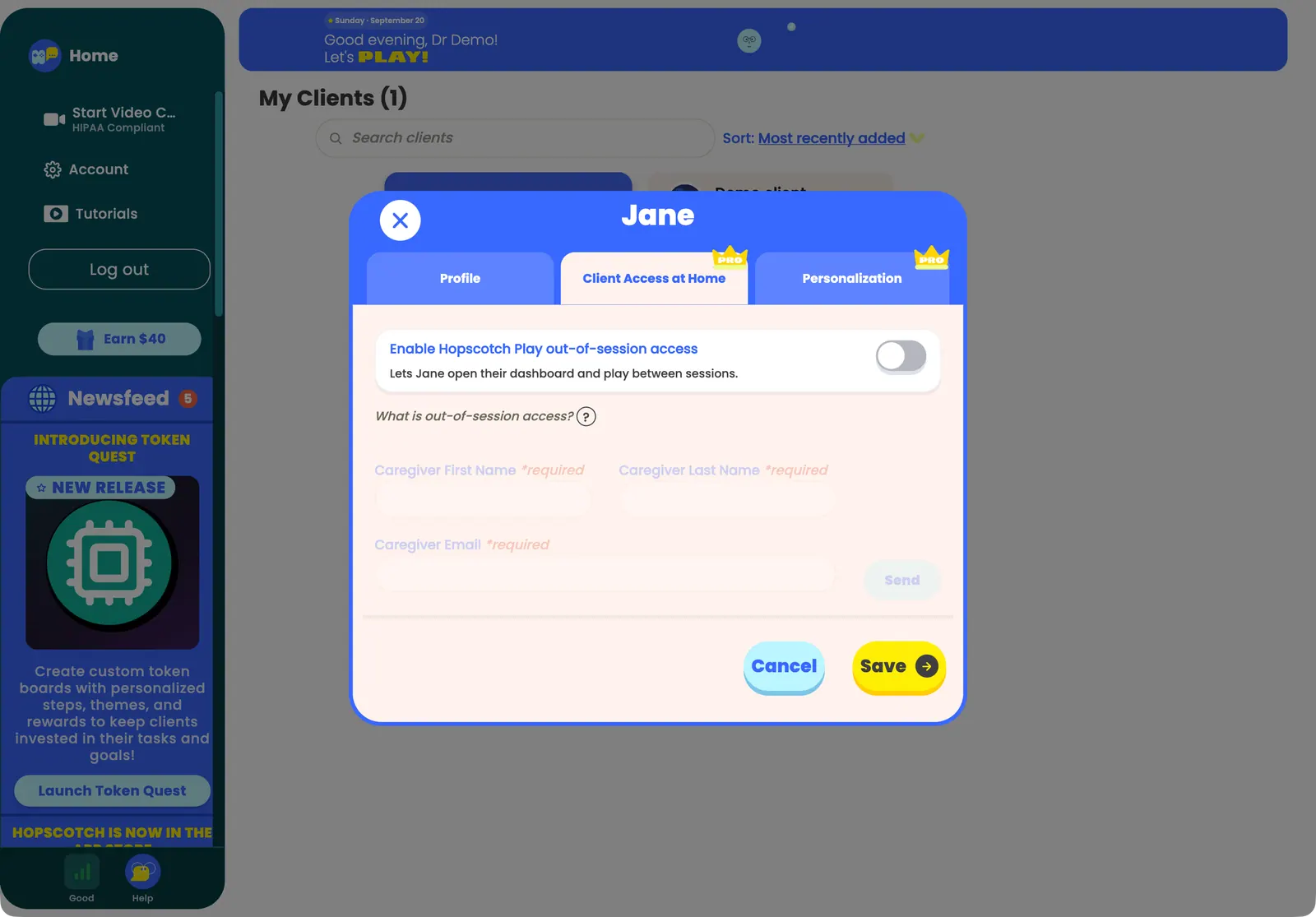
- Open the Client Access at Home tab and switch on Enable Hopscotch Play out-of-session access.
- Enter the caregiver's first name, last name, and email address, then click Send Invite.
- The caregiver receives an email and registers the account. While the invite is pending you can still change the email; once accepted, the email can no longer be edited.
Quick Answers
Q: Which plan do I need for Client Access at Home? A: Pro or Enterprise. It is also available during the 14-day free trial's Pro preview. See Plans and Billing.
Q: What happens to a client's at-home access if I move to Basic? A: The tab locks for new clients. A client who already had access switched on before the Pro plan launched keeps it; you can turn it off yourself, and the form warns you that turning it off is permanent for that client.
Q: Does the client need the Hopscotch Play app? A: No, a browser works. The app is faster and more stable for games and 2-Player and is free for iPhone, iPad, and Android; see Using the Hopscotch Play App.
Finding Content
In This Section You'll Learn: How to find the right content for your client by filtering by age, topic, title, or type. Watch how to find content or follow the steps list below.
Welcome to the Content Library! Let's explore how to find the right resource for your client. You can use our library filters to quickly narrow down your options. Use as many of the filters as you'd like to find what works best for your client. You can click on a category—like games, stories, or worksheets—to see what's available.
You also have the ability to set the age range for your client. The age range recommendations are just a guide, so feel free to choose content based on your own clinical discretion. You can also search by specific themes to match exactly what you're working on with your client that day.
For example, if you're working with a seven-year-old on anxiety, you might set the age range from six to nine and select Anxiety as your theme. The library will immediately show you tailored results. If you need to start over or adjust your filters, just click the X to clear them.
If you already have a specific activity in mind, you can always search for it directly by title.
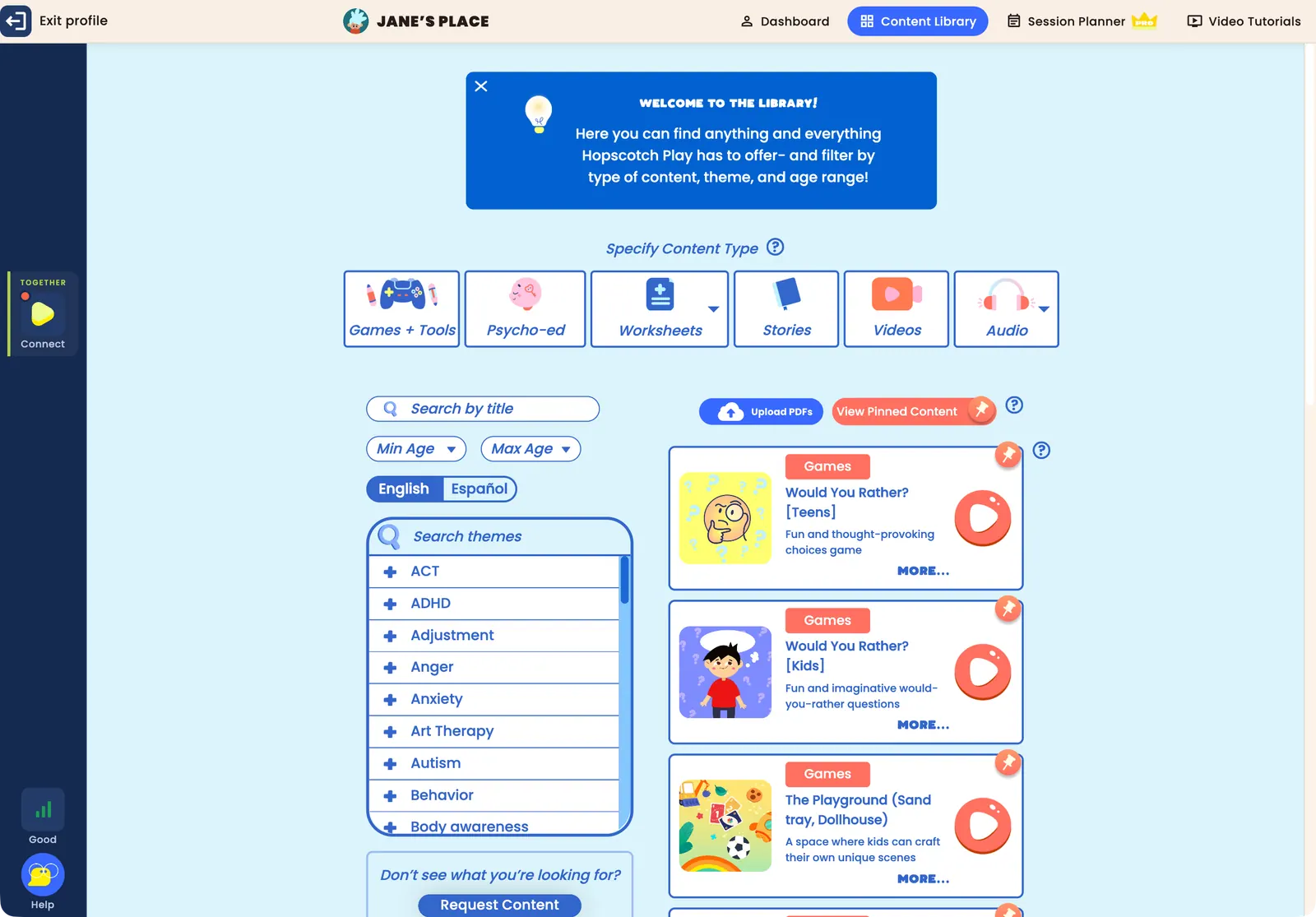
Looking for bilingual resources? We offer worksheets with Spanish translations. Just click the English/Español toggle; when Español is selected, you'll see the translated version of the worksheet.
You can also personalize your experience by uploading your own worksheets. Head over to your Home page, click Upload PDF in the top right corner, and follow the steps to upload and categorize your file. Once finished, your resource will appear in the library under Worksheets and My Uploads.
Our library is always growing, with new content added every week!
Steps to finding content
- Filter by content type (game, story, worksheet, etc.)
- Set minimum and maximum age
- Select theme (e.g., anxiety, self-esteem)
- Search by content title
Quick Answers
Q: How can I find content that fits my therapy approach? A: You can use the Themes filter to find content aligned with popular therapeutic approaches, including CBT, DBT, Play Therapy, and Art Therapy. Just select your preferred approach to see relevant games, printables, and activities.
Q: Can I use content outside its age range? A: Absolutely. Age ranges are guides. You are encouraged to use your clinical judgment.
Q: Can I request content that is not on the platform? A: Yes! To request content or features, you can do so by clicking on the Request Content button. This button is found under the Themes section. Complete the form and it will be submitted to our content team!
Finding Spanish-Language Content
In This Section You'll Learn: How to switch the library to show Spanish materials. Watch how to find spanish-language content or follow the steps list below.
To access these resources, start by clicking into your client's profile, then head to the Library. At the side of the screen, you'll see a language filter with a toggle between English and Español. By default, you'll see content in English. To switch to Spanish, simply click Español.
Once selected, the library will update to show only resources that have a Spanish version available. These are currently only text-based activities. Each one includes a title and description in Spanish, and you'll notice a small "ES" icon to help you quickly identify them. At this point, you can also continue to filter by age range or theme. If you click More on any resource, you'll be able to view the full description in Spanish. Click Play from either the library or the description page, and you'll be taken directly into the Spanish version of that resource.
You can use the tools to edit the Spanish resources as usual. Any edits will be saved specifically to the Spanish version of the activity. If you pin a Spanish resource, it will appear in Pinned Content in the library as well as on the Pinned section of the client dashboard. This is the case even if your language setting is back in English.
Steps to finding spanish-language content
- Enter client profile > go to Library.
- Use the language toggle to select "Español."
- Filter by age or theme if needed.
- Click "More" to read the full Spanish description.
- Click "Play" to launch the Spanish version.
Quick Answers
Q: Is all Hopscotch Play content available in Spanish? A: Currently, only select text-based activities are available in Spanish.
Q: What other languages are available besides Spanish? A: Currently, Spanish is the only additional language offered, as it's been the most highly requested by our users. As demand grows, we'll continue exploring translation options for other languages in the future.
Exploring and Playing Content
In This Section You'll Learn: How to launch, preview, and review activities. Watch how to explore and play content or follow the steps list below.
Once you've found the right piece of content for your client, it's easy to get started. Each content card includes a content type, title, short description, and a play button. To jump straight into the game or activity, simply press Play. If you'd like more details before starting, click More to open the content page. Here, you'll find a longer description, therapeutic themes and tags, and the recommended age range. You'll also see related resources that can supplement the activity. From this page, you can start the game anytime by clicking Play.
Steps to exploring and playing content
- Click "Play" to launch an activity
- Click "More" to view full description, themes, tags, and related content
- Use "Provider Tools" during the activity for guided use. This is located in the in-game menu which you can access by clicking the gear icon in the bottom left corner of your screen.
Quick Answers
Q: Can I see more details about a game before playing? A: Yes. Click "More" on any content card to view a full description, tags, and age recommendations.
Q: What type of content is available on Hopscotch Play? A: Hopscotch Play offers a wide range of interactive tools designed for child and teen therapy. This includes custom games, printable worksheets, guided meditations, digital stories, psycho-educational slideshows, audio tools, and open-ended activities like the interactive sandtray and dollhouse. All content is filterable by age and theme to help you find exactly what you need for each session.
Pinning Content
In This Section You'll Learn: How to save and organize content for each client. Watch how to pin content or follow the steps list below.
Pinning is a great way to stay organized and make session planning even easier. Every resource in the library can be pinned so you can access it quickly later. To pin an item, just look for the pin icon on any content card and click it. The icon will change to let you know it's successfully pinned.
To see everything you've pinned for a specific client, just click View Pinned Content, and the full list will appear. You can also find these resources on your client dashboard making it easy to access content during sessions. Once at the dashboard, scroll down to the Pinned for this Session section. This is your go-to spot for everything you've selected so far, and it's also where you can unpin items if you no longer need them.
When clients log in from home, they'll only see the specific resources you've pinned for them. This makes pinning a perfect way to assign homework and keep the therapeutic work going between sessions.
Steps to pinning content
- Click the pin icon from the library or activity page.
- Visit "View Pinned Content" on the client profile to access saved items.
- Pinned items are also available on your client's dashboard in the Pinned for this Session section.
Quick Answers
Q: Can I unpin something later? A: Yes. Click the pin icon again to remove it from your client's profile.
Q: How can I assign homework for a client? A: Pinning is a great way to assign homework for your clients. Since they'll have access to their dashboard from their own device, any content that you pin will be accessible in the Pinned for this Session section.
Using the Session Planner
In This Section You'll Learn: How to describe a session goal and get suggested activities, keep private notes, run the plan, and generate a note-ready session summary. Session Planner is a Pro feature.
The Session Planner is a panel that lives inside each client's profile. Open a client and look at the header bar at the top: it has Dashboard, Content Library, Session Planner (marked with a PRO crown), Video Tutorials, and Exit profile. Click Session Planner to slide the planner open over the page; drag its top edge to resize it, and collapse or close it with the control in its header. It stays available while you browse the library and while you play, so you can move through the plan without leaving a game. It is not available for the Demo Client.
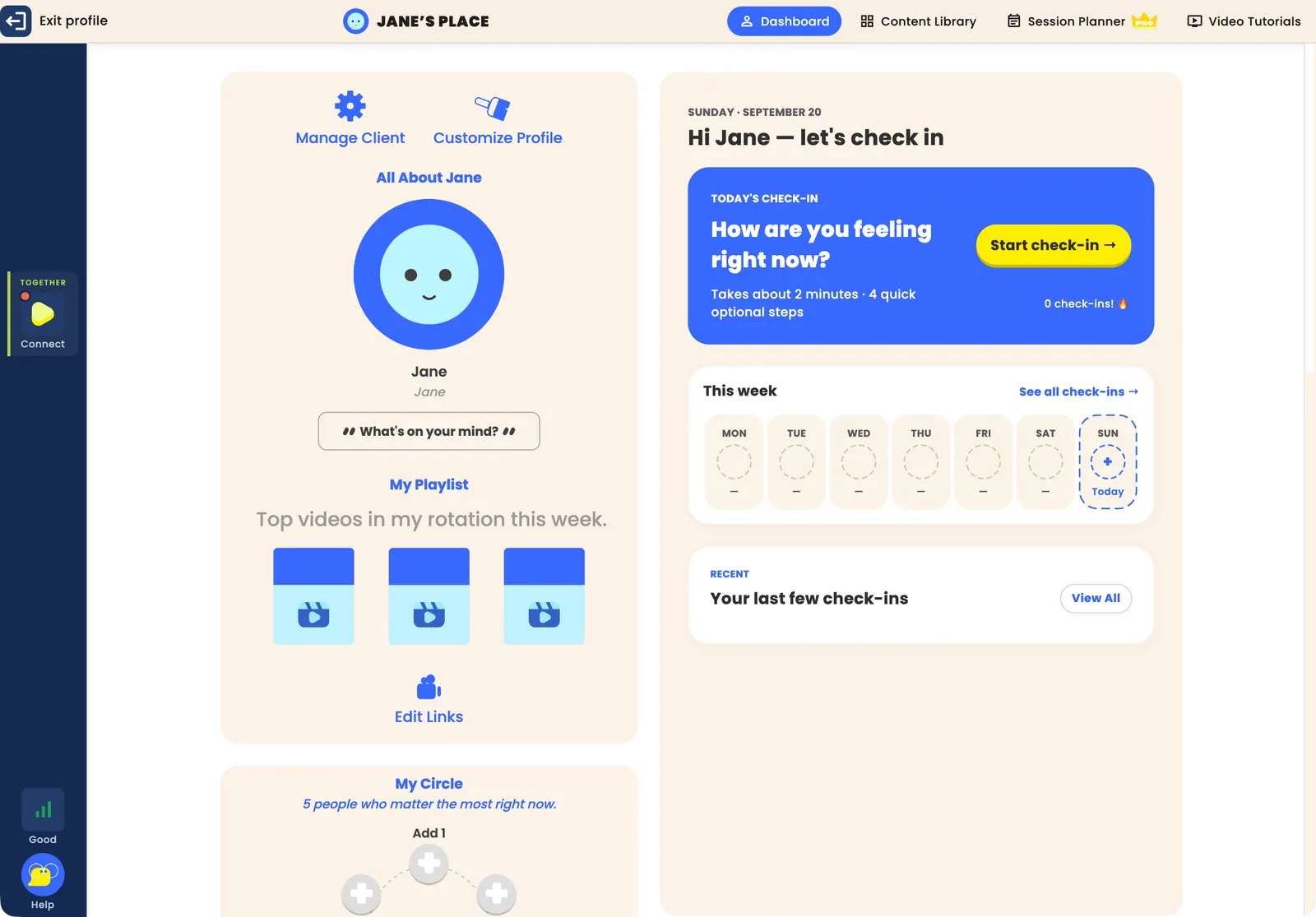
Planning a session
A banner under the planner's header reminds you that everything in it is private: "Only you can see this. Hidden from clients in 2-player sessions."
The planner has four tabs: Session Planner, Pinned Activities, Recently Played, and Search by name. On the Session Planner tab, describe what today's session is about in the box that reads "Describe today's session goal (e.g. frustration tolerance for an 8-year-old)" and send it. The assistant thinks for a moment and suggests a small set of activities from the library that fit the goal, each with a Why this activity? button and an Add button that turns into Added once it is in your plan. You can reply to refine the suggestions, or add activities yourself from the other three tabs. The Session Plan on the right lists what you have chosen; drag to re-order, and use Notes or Remove on each activity.
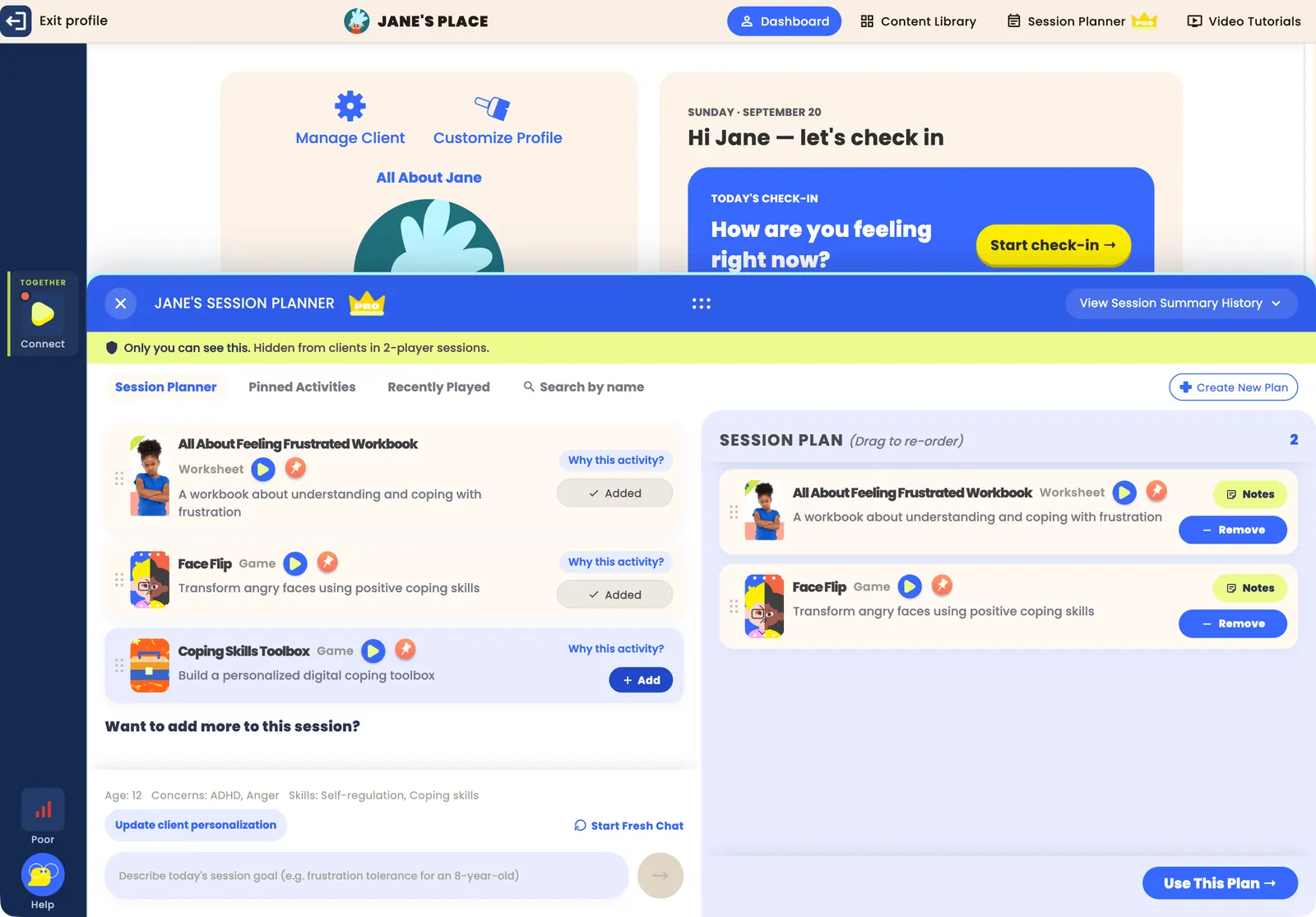
The Personalization tab of the client form ("What does this client need support with?") feeds the planner: the client's age, concerns, and skills appear above the goal box, and Update client personalization opens that tab. Filling it in gives you better suggestions. Do not type a client's name, email, phone number, or other identifying details into the planner: they are screened out before anything is saved, and the planner will ask you to remove them.
Notes — each activity has a Notes button. Write a reminder or a prompt to use during the session; notes save automatically and are for you only ("Only you can see this. Hidden from clients in 2-player sessions.").
Running the plan — press Use This Plan to move to the activities review, then Play on an activity to open it. The planner marks what is playing and what has been played; Back to Planning returns to the plan.
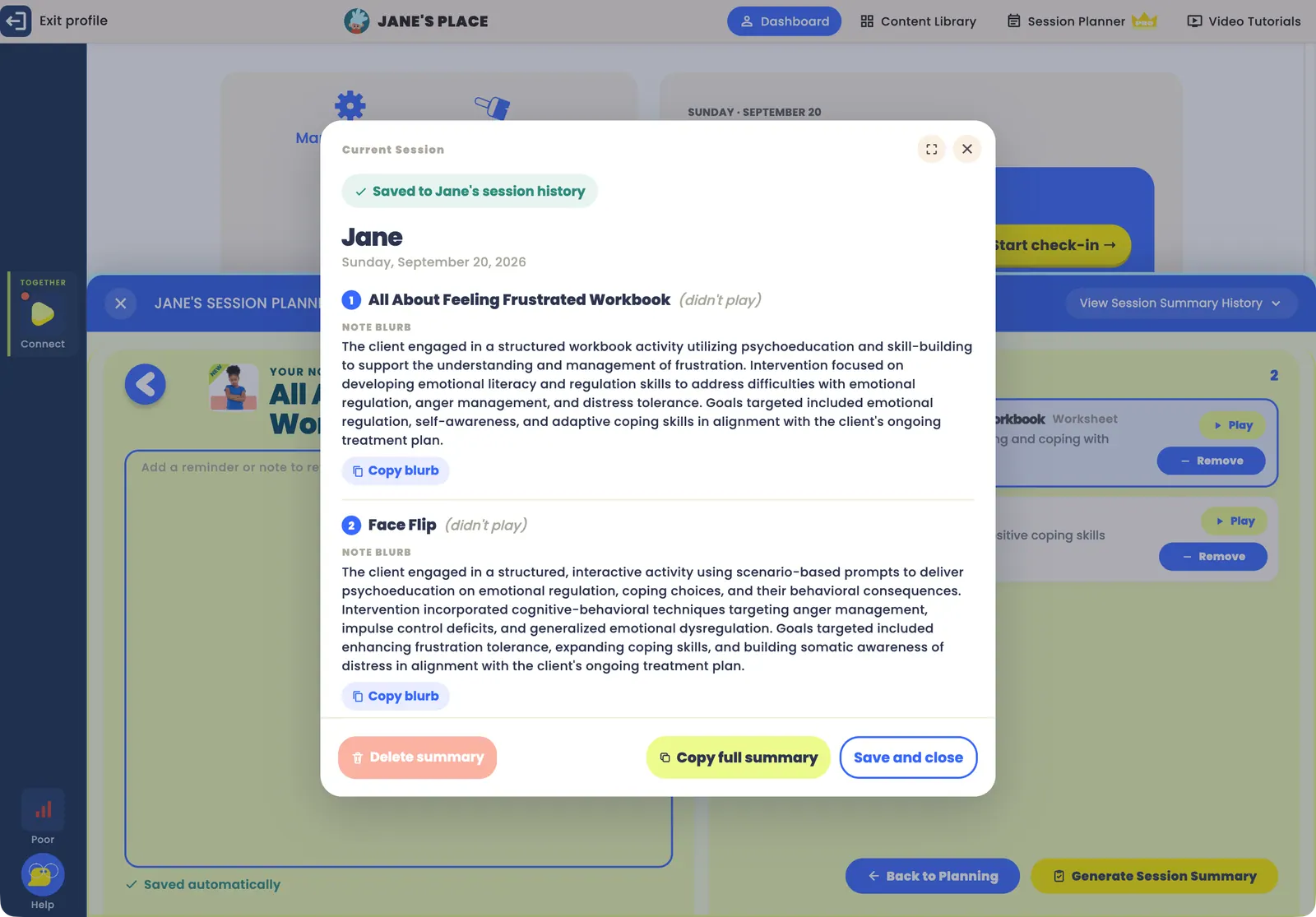
Session summary — when you are done, press Generate Session Summary. For each activity you get a NOTE BLURB, a short clinical description of the activity you can paste into your notes (Copy blurb), alongside your own SESSION NOTES; activities you did not get to are marked "(didn't play)". Copy full summary copies everything at once, and Save and close stores the summary in the client's session history. View Session Summary History in the planner header lists past summaries by date, and works on every plan.
When a new session begins, press Create New Plan to start a fresh plan, or Start Fresh Chat to clear the conversation and keep the plan; the planner asks you to confirm before clearing anything.
Steps to using the Session Planner
- Open a client's profile and click Session Planner in the header bar.
- Describe the session goal and send it; review the suggested activities, or add your own from Pinned Activities, Recently Played, or Search by name.
- Add a private note to any activity you want a reminder for.
- Press Use This Plan, then Play each activity from the plan.
- Afterwards, press Generate Session Summary, copy the note blurbs you need, and Save and close.
Quick Answers
Q: Which plan includes the Session Planner? A: Pro and Enterprise, and the 14-day free trial's Pro preview. On Basic the planner opens but its contents are dimmed, with an Upgrade button in its header; View Session Summary History still works. See Plans and Billing.
Q: Where is the Session Planner? A: In the header bar at the top of every page inside a client's profile, next to Dashboard and Content Library. It is per client, so open the client first.
Q: Does the planner choose activities for me? A: It suggests activities that match the goal you describe and explains why. Which ones you use, and how, is your clinical judgment; the planner is a planning tool, not clinical advice.
Q: Can my client see my plan or notes? A: No. The planner, your notes, and the session summaries are visible only to you, including during 2-Player sessions.
Q: The planner says "Thinking..." and then shows an error. What now? A: Suggestions usually take several seconds. If the request fails, the message stays on screen with a Retry button; press it. Your typed goal is kept. If it keeps failing, check your connection and try again in a moment.
Q: What is a note blurb? A: A short, clinical summary of an activity written for your session notes. It describes the activity and its therapeutic focus, never your client; you add your own observations in Session Notes.
Using the PDF Uploader
In This Section You'll Learn: How to upload your own PDF resources into Hopscotch Play using the PDF Uploader. Watch to learn about how to tag and organize them, and access them during sessions with clients.
Hopscotch Play has a feature that allows you to bring your own resources into the platform—so you can expand the content you use with clients, grow your personal library, and put to use all the effective tools you've collected over the years. Best of all, it keeps everything in one place alongside Hopscotch Play's interactive tools.
To get started, go to your Home page and look in the left toolbar for the Upload PDFs option. Click to enter your Uploads page, then click the "Upload a PDF" button to begin. You'll see a quick outline of the steps to get your PDF onto the platform.
First, you can drag and drop your file or click to upload it from your device. Once your file is uploaded, you'll see a preview of it on the right.
Next, name your resource. The file name will be auto-filled, but you can change it to something more descriptive if you'd like. This name will be searchable in your filters in the library. You can also add an optional short description of the resource, which will also appear on the content card in your library. Then, choose from existing tags in our system. Tagging makes your PDF appear when you filter or search by tag in the library. You can also select the language—either English or Spanish. If Spanish is selected, the content will only appear when the Spanish toggle is on in the library.
When you're ready, click Save. Your PDF will be successfully uploaded, and you'll see it listed in your Uploads screen. From here, you can search your uploads by title, edit the resource by clicking on the card, update the name, description, tags, or language, or delete the resource if needed.
Once uploaded, your PDFs are ready to use with clients. Go to a client's profile, click the Worksheets button, then open the dropdown and select My Uploads. Your library of uploaded PDFs will appear here. Clicking Play will open the PDF in our Interactive PDF Editor, where you and your client can work together using drawing tools, text, stickers, and more. Your PDFs will also appear in the library when using filter functions, including searching by title or theme.
With PDF uploads, you can integrate your favorite resources seamlessly into Hopscotch Play!
Quick Answers
Q: How do I upload my own PDF? Click Upload PDFs in the left toolbar of your Home page, then hit Upload a PDF. You'll follow simple steps to drag and drop your file, give it a name, and choose tags.
Q: Can I edit my uploaded PDF later? Yes! Go to the My Uploads screen, click the resource card, and you'll be able to update the title, description, tags, or delete it.
Q: Where do I find my uploaded PDFs during a session? Go to your client's profile, click Worksheets, and then choose My Uploads from the dropdown to access your uploaded files.
Q: What tags should I use? Choose tags that help you filter and find your resource later—such as "anger," "mindfulness," or "executive functioning." You can only use tags already in the system.
Q: Can clients access uploaded PDFs on their own? No, PDFs must be launched by the provider during a session. Clients won't see your uploads outside of the session.
Gameplay Features and Tools
In This Section You'll Learn: What tools are available during gameplay. Watch to learn about gameplay features and tools or follow the steps list below.
When you're playing a game or running an activity, you'll notice several helpful features designed to keep your sessions moving smoothly. In the side menu bar you'll find the Connect button; press it, choose 2-Player, and press Connect → to begin the synced session with your client. If you ever run into a snag, the Help button is in the bottom-left corner: press it to ask Hop any questions or report technical needs you have.
For general navigation, look to the bottom left for the in-game menu gear icon. This is where you can view specific game settings or select Exit Game to head back to the content library or your client dashboard. Keep in mind that certain settings on this screen may be enabled or disabled depending on the specific features of the game you're playing. Most activities also feature a How to Play button, which opens a pop-up with a video and text walkthrough to guide you through the activity.
You also have a few handy tools for managing the gameplay itself. The Clear Game button is perfect for resetting an activity, which is especially useful for our drawing games. If you want to save a moment from the session, the download button will take a screenshot and generate a PDF for you to keep. You can even manage the soundscape with separate audio controls: one for background music and sound effects, and another for the game's voiceover. Both can be muted or unmuted with a single click.
You'll also have exclusive access to Provider Tools. This area is hidden from your client during 2-Player and is packed with clinical support. You can click About to review the game's objectives or pull up Discussion Questions to find prompts that help drive the conversation while you play. If you want to expand on a topic, the Related Resources tab will show you similar content that you can check out or play instantly. You can even access your pinned content right from here to keep your favorite tools within reach.
These features are all built to handle the technical details so you can stay focused on what matters most: the connection with your client.
Available features and tools
- About: A quick overview of the game's clinical objectives.
- Discussion Questions: Helpful prompts to drive the conversation during the activity.
- Related Resources: Similar content you can use to supplement the current session.
- Pinned Content: Quick access to your favorite saved resources.
Quick Answers
Q: Can clients see the Provider Tools?A: No. The Provider Tools section (including the About tab, Discussion Questions, and Related Resources) is only visible on your screen. It is completely hidden from your client's view during 2-Player mode to ensure your clinical prompts and notes remain private.
Q: How do I reset a drawing or a game?A: Simply click the Clear Game button. This will instantly reset the activity, which is especially useful for starting over on drawing boards or interactive worksheets.
Client Dashboard
In This Section You'll Learn: What features are available on the client dashboard. Watch to learn about the features and tools or follow the steps list below.
This is a dedicated space designed to make your sessions more engaging, whether you are meeting face to face or using our two player feature.
We know a client's age and personality changes by the hour, from a playful and animated seven year old to a serious and thoughtful sixteen year old, and everything in between. That is why we have built this dashboard to be fully customizable. Your younger clients can make it playful and bright, while your teen clients can keep it sleek and modern, or whatever best fits their style.
Let's start by looking at how clients can make this space their own. When you click into a client's profile from your Home page, you will be taken straight to their dashboard.
In the All About section, clients can choose a screen name and select an avatar. They can pick from our illustrated human characters, choose one of our Psykick buddies, or upload their own image that represents them best, such as a picture of themselves or something they find interesting. They can also update the entire look of the dashboard here. They can choose from rows of light or dark colors, select one of our custom patterns, or upload their own background image for total personalization.
Right underneath their avatar, clients can update their status to share what is on their mind right now.
In the Playlist area, clients can share the music and videos that matter to them. They can grab a link from YouTube and drop it right here. The song or video will appear in their playlist, ready to watch or listen to directly within Hopscotch Play. This is a great way to explore songs that matter to them in the moment, share cool videos with you, and explore other interests.
Let's visit the Check in area next. This is a perfect way to start a session. It offers a complete range of ways to check in. Clients can identify their feelings using colors or emojis and select topics that are on their mind. They can also share their highs and lows from the week and rate different areas of well being, like appetite, exercise, and stress levels. This is a great guide for setting the session agenda and will give you lots to explore with your client.
In the My Circle section, clients can identify the top five people in their support system. They can add names, choose avatars, or upload photos to represent them. Below that is the Goals section. Here, you can work together to create and track goals, using the progress slider to measure success week over week.
To keep things engaging, we have added a fun section at the bottom. This includes a Mini Mission which is a small actionable task for the week, and a weekly Poll and Trivia question.
When you are ready to get to work, check the Pinned section to access activities you have saved from the library, or click Recently Played to jump back into a favorite game.
Last but not least is My Feed. Designed to feel like a social media feed, this area highlights mental health tips, fun facts, current events, and more. There are two versions of this feed. One for kids and one for teens. You have full control over this. Simply visit your Home page to update the client's profile. If you select Teen, their dashboard will automatically update to show the teen focused newsfeed.
The dashboard is designed for all ages. It is a powerful way to personalize your practice and keep kids and teens actively involved in their own journey.
Quick Answers
Q: Can clients customize their dashboard? A: Yes. Clients can choose a screen name, select or upload an avatar, pick background colors or patterns, upload a background image, and personalize the overall look of their dashboard.
Q: How can a client share how they're feeling at the start of a session? A: Clients can use the Check-In area to identify feelings with colors or emojis, select topics on their mind, share highs and lows, and rate areas like stress, appetite, and exercise.
Q: Can clients share music or videos they like? A: Yes. In the Playlist section, clients can paste YouTube links to songs or videos, which will appear in their playlist and can be played directly inside Hopscotch Play.
Q: Where can I find activities I've saved for a client? A: Go to the Pinned section on the client's dashboard to access saved activities, or use Recently Played to jump back into games you've used before.
Q: How do I switch a client to the teen version of the dashboard? A: From your Home page, edit the client's profile and select the Teen option. Their dashboard will automatically update to show the teen-focused newsfeed.
Using 2-Player
In This Section You'll Learn: How to connect with a client for a live 2-Player session, how the connection works, and how to end it. Watch to learn about using 2-Player or follow the steps list below.
2-Player lets you and your client play games and use activities together in real time, even on separate devices, like a computer, tablet, or phone, in the browser or in the Hopscotch Play app. Everything you do together stays in sync: scrolling, drawing, typing, and moving pieces.
Starting 2-Player
Go to your client's profile. Reminder: make sure you're in the profile of the client you want to play with before you start. The Connect button is in the side menu bar that appears on every page inside a client's profile (the left rail on a desktop, the bottom bar on a phone), so you can start from the client's dashboard, the Content Library, or inside a game.
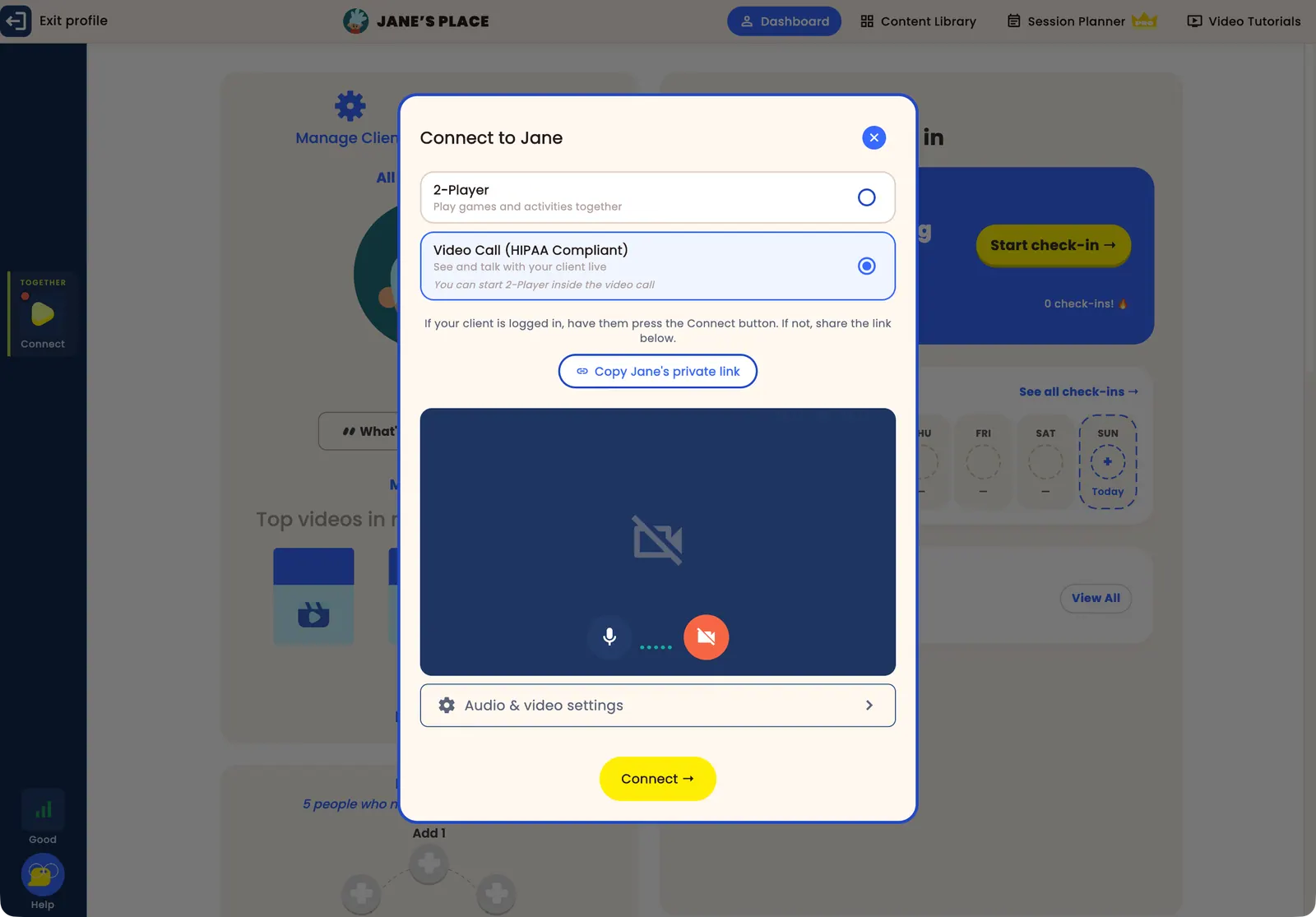
Press Connect. The "Connect to ..." dialog offers two ways to meet, and you pick one: 2-Player ("Play games and activities together") or Video Call (HIPAA Compliant). Choose 2-Player and press Connect →. If you have the Video Call add-on and want to see each other, choose Video Call instead; the dialog notes "You can start 2-Player inside the video call", and you add the game once the call is running (see Using Video Call). You may see a "Ready to play?" reminder to stay on this tab; press Will do!.
Your client can join in one of two ways:
- Client logged in (recommended). If your client has Client Access at Home and is signed in on their device, ask them to press their own Connect button, which reads Request to Connect. That is all; no link needed.
- Client link. Press Copy {client}'s private link in the dialog (or Copy link on the Connect button later) and send it to your client. The link is permanent for that client: it stays the same between sessions, so you can save it in your scheduling tool, and your client reconnects with the same link after any drop. It only connects while you are in that client's profile, and because it identifies your client, keep it private and never share it with anyone else.
If you are using the Video Call add-on, the same button starts both at once and you can share the link right in the call. If you are not, send the link through your telehealth platform's chat and run its video alongside 2-Player; see 2-Player and Your Telehealth Platform.
While you are connected
The Connect button tells you where things stand: Waiting... with a yellow dot until your client joins, then Connected with a green dot and a short chime. An orange dot means your own connection has dropped; it turns green again when it recovers.
Press the Connect button again for the session controls: Copy link, Client control, and End 2-Player. Client control decides whether your client can play or only watch ("Client control is ON · the client can play" / "OFF · the client can only watch"), which is handy for instructions, demonstrations, or a client who needs a moment.
Some things are visible only to you and never to your client: the library filters, the Related Tools window, certain toolbar options, and your Session Planner and notes.
The connection relies on both of you staying in Hopscotch Play. If either of you switches to another browser tab or minimizes the window, the connection can pause; your client sees "2-Player is paused" until you come back, and it reconnects on its own. This is one of the reasons we recommend the Hopscotch Play app, which does not have browser tabs to lose. Sometimes you may see a prompt asking you to refresh: Hopscotch Play updates often, and the refresh makes sure you and your client are on the same version. If 2-Player misbehaves, a quick refresh usually gets things back on track; other causes are network speed or an unsupported device.
Seeing your client while you play
With the Video Call add-on, you see and talk to your client inside Hopscotch Play, the faces sit in the side menu bar while you play, and you can start 2-Player from inside the call; there is no separate telehealth window to juggle. It is a per-seat add-on on any plan and needs the Hopscotch Play app; see Using Video Call and our pricing page. Without it, use your telehealth platform's video alongside 2-Player with Picture-in-Picture, your browser's split-screen tool, side-by-side windows, or a second monitor.
Ending the session
Leaving your client's profile ends the 2-Player session. To end it while staying in the profile, press Connect and then End 2-Player. Your client sees that the session has ended. The client link stays valid for next time; you never need to make a new one.
Steps to using 2-Player
- Open your client's profile and press Connect in the side menu bar.
- Choose 2-Player (or Video Call, if you have the add-on and want video; you start 2-Player inside the call), then press Connect →. Press Will do! on the "Ready to play?" reminder.
- Connect with your client in one of two ways:
- Method 1 (Recommended): if your client is logged in, ask them to press Request to Connect on their Connect button.
- Method 2: press Copy {client}'s private link and send it to your client in the call or through your telehealth platform's chat.
- Wait for the button to read Connected with a green dot.
- Play. Use Client control on the Connect button to let your client play or only watch.
- Press Connect > End 2-Player when you are done, or simply leave the profile.
Quick Answers
Q: What if my client disconnects?
A: Switching tabs or minimizing Hopscotch Play can pause the connection; it recovers on its own when they come back. If they drop out completely, they rejoin with the same link, or by pressing Request to Connect again if they are logged in, as long as you are still in their profile. If you leave the profile, the session ends. The link never changes, so you never need to generate a new one.
Q: How do I add my client to a game?
A: 2-Player can begin whether you are in the Content Library, the client dashboard, or already inside a game. As long as you see the Connect button in the side menu bar, press it, switch on 2-Player, press Connect →, and connect through their login or the shared link.
Q: How can I see my client during 2-Player?
A: With the Video Call add-on, you see each other inside Hopscotch Play and can run 2-Player inside the call, in the app. Otherwise, use your telehealth platform's video alongside 2-Player; keep your Hopscotch Play tab active with Picture-in-Picture, split screen, side-by-side windows, or an external monitor.
Q: Can my client join from the app?
A: Yes. Your client link and Request to Connect work the same in the browser and in the Hopscotch Play app on Mac, Windows, iPhone, iPad, and Android, and the app's 2-Player connection is more stable.
Important Notes for 2-Player:
- Exiting your client's profile at any time ends the session. Your client reconnects next time with the same link, which never changes.
- To end a session manually, press Connect and then End 2-Player.
Using Video Call
In This Section You'll Learn: what Video Call is, how to start one with a client or a guest, how to use Video Call and 2-Player together, and the in-call tools available to you.
Hopscotch Play Video Call lets you see and talk with your client directly inside Hopscotch Play, with 2-Player available inside the call, so there is no separate telehealth platform to juggle. It is secure and HIPAA compliant, and calls are not recorded. Video Call is an optional add-on on every plan, priced per seat on your existing Monthly or Yearly cycle; see Plans and Billing and our pricing page. It works in the Hopscotch Play app on Mac, Windows, iPhone, iPad, and Android, not in a web browser (in the browser the option reads "Available in the Hopscotch Play app, not in the browser"); see Using the Hopscotch Play App. If the Video Call option shows a padlock and Add Video Calls, your account does not have the add-on yet; whoever manages your billing can add it under Account > Billing > ADD-ONS.
Two ways to start a call
- From the left-hand toolbar ("Start Video Call", marked HIPAA Compliant) — for a parent, a colleague, or any meeting that is not tied to one client. This opens the "Start a video call" dialog with a Common link that anyone you send it to can use to ask to join. You can still start 2-Player later from inside the call: the Connect button asks "Who is playing?" so you can pick the client.
- From a client's profile — for individual client sessions. Press Connect in the side menu bar and choose Video Call, 2-Player, or both together.
Starting a session from a client's profile
To support HIPAA compliance and client privacy, always confirm you are in the correct client's profile before starting a Video Call or 2-Player session. When you switch to a new client, enter their profile first, before making any connection.
From the client's profile, press Connect in the side menu bar and choose how to begin:
- 2-Player — play together in real time, without video.
- Video Call (HIPAA Compliant) — see and talk with your client live. You pick one of the two to begin with; choose Video Call, and the dialog notes "You can start 2-Player inside the video call", which you do from the Connect button once the call is running. If you start with 2-Player alone, you cannot add video to that session; end it and reconnect as a Video Call.
With Video Call chosen, the dialog shows a preview of your camera and microphone with mute and camera toggles, and an Audio & video settings panel for your devices and virtual background, so you can check everything before you press Connect →. From here:
- If your client is not logged in: press Copy {client}'s private link and send it to them. This is the same permanent link used for 2-Player, so your client can save it and reuse it every session.
- If your client is already logged in: no link is needed. Ask your client to press Request to Connect on their Connect button.
When someone opens your link they wait until you let them in. A banner on your call screen tells you who is waiting; press Admit. The Attendees panel lists everyone in the call and lets you mute or remove a participant.
In-call tools
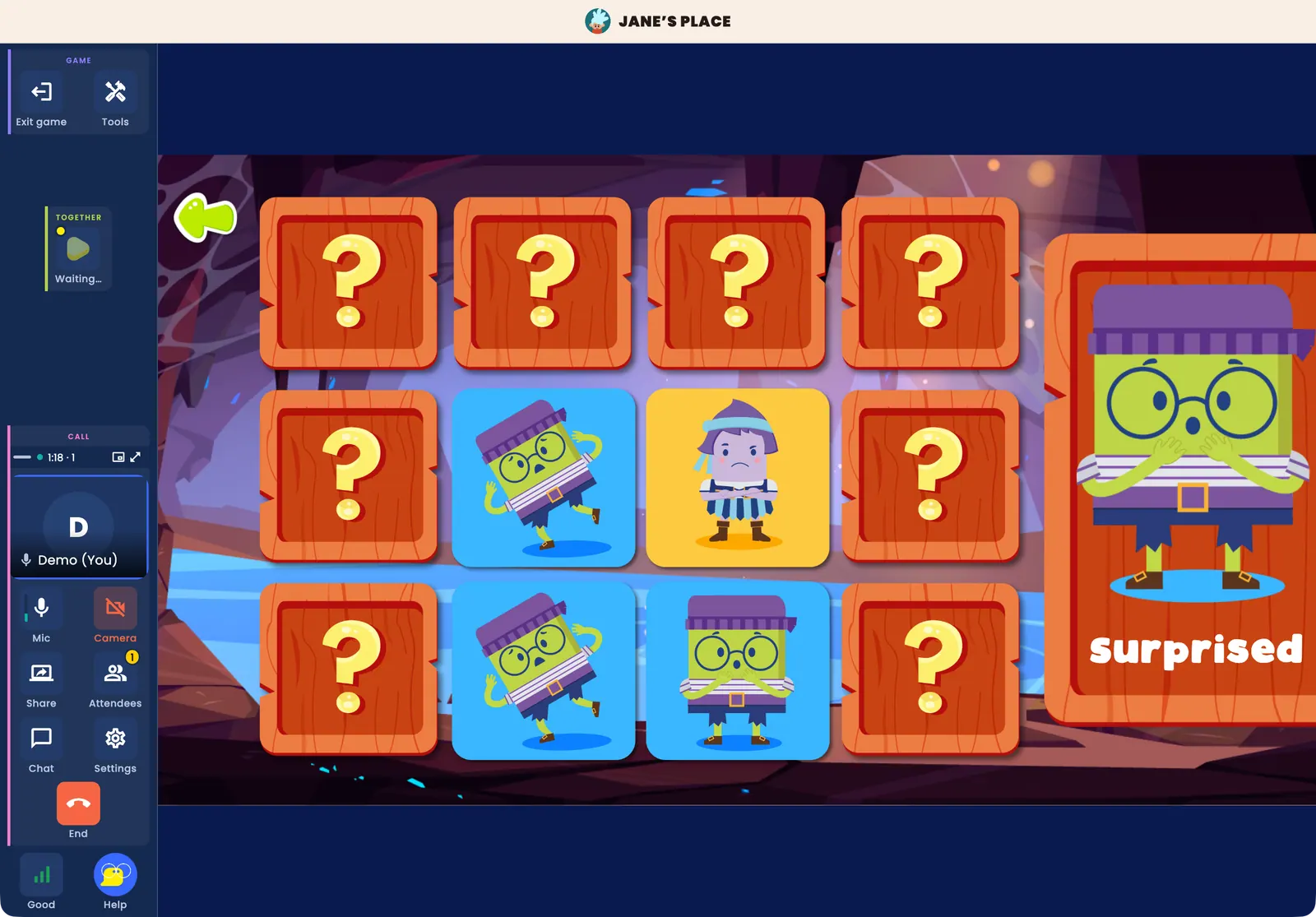
The controls are along the bottom of the call: Mic, Camera, Share (screen sharing), Chat, Attendees, Settings (camera, microphone, and speaker), Hopscotch Play, and End. When there are two of you, the other person fills the screen and you appear in a small corner card you can drag; with more people you get a gallery, and you can pin anyone to fill the stage. Virtual backgrounds are available on Mac, iPhone, iPad, and Android.
The Hopscotch Play button lets you browse the platform on your own screen while the call continues: line up an activity, check a dashboard, or open the Session Planner. Your client does not see what you browse. While you browse or play, the faces move into the side menu bar; use the float control to pop them out into a movable card if you prefer, and dock them back the same way.
When you Share your screen, a strip at the top of your window names exactly what your attendees can see (your whole display, one window, or only Hopscotch Play) for as long as the share lasts.
Using Video Call and 2-Player together
Inside a call from a client's profile, the Connect button reads 2-Player; press it to start 2-Player without leaving the call. Once the game is running, the same button switches both of you between views: Back to the full-screen video call while you are in the game, and Back to the 2-Player game while you are on video. For example: open with a check-in over video, move into an activity, then return to full-screen video to wrap up.
Ending a call
Press End. On your own you can End video call. With a 2-Player game running you choose End 2-Player only (the game closes for everyone and the call keeps going) or End all sessions. Ending the video call always ends 2-Player with it. A guest sees Leave call instead. A call can run for up to two hours; a countdown appears for the last fifteen minutes.
Quick Answers
Q: How much does Video Call cost? A: It is a per-seat add-on on any plan, billed on your existing Monthly or Yearly cycle. The current price is on our pricing page; add or remove it any time under Account > Billing > ADD-ONS. It is not included in the free trial.
Q: Is Video Call available on the web? A: No. Video Call works in the Hopscotch Play app on Mac, Windows, iPhone, iPad, and Android. Everything else in Hopscotch Play keeps working in the browser; see Using the Hopscotch Play App.
Q: Can I use Video Call and 2-Player at the same time? A: Yes. Start the call from the client's profile, then press the Connect button (it reads 2-Player) inside the call. The same button then switches both of you between the game and full-screen video.
Q: Does my client need the app too? A: Yes, for video. When your client opens your link in a browser, the page offers the free app download for their device.
Q: Do I still need my telehealth platform if I have Video Call? A: No. With the add-on, video, 2-Player, chat, and screen sharing all happen inside Hopscotch Play. If you prefer your existing platform, you can keep running its video alongside 2-Player.
Q: Can I blur or change my background? A: Yes, on Mac, iPhone, iPad, and Android, from the preview before you join or from Settings during the call. Windows does not support virtual backgrounds.
Using 2-Player with Your Telehealth Platform
The 2-Player feature in Hopscotch Play lets you and your client play together in real time. If you have the Video Call add-on, video is built in and 2-Player runs inside the call, so none of the juggling below is needed; see Using Video Call. If you're not on Video Call, or you prefer your existing telehealth platform, you can run its video alongside 2-Player. Here's how to do that on the most popular platforms.
Zoom
If you're using Zoom:
- If you're using Zoom chat to send the 2-Player link, send it first , then minimize the Zoom using the yellow dot on Mac (in the top-left corner, between the red and green buttons) or the small horizontal dash on Windows (in the top-right corner). Minimizing your window will keep the Zoom video feed visible on top of Hopscotch Play.


- Once your Zoom window is minimized and is on top of your Hopscotch Play window, let your client know that they can now click on the 2-Player link. You want to make sure you are on the Hopscotch Play screen when they do.
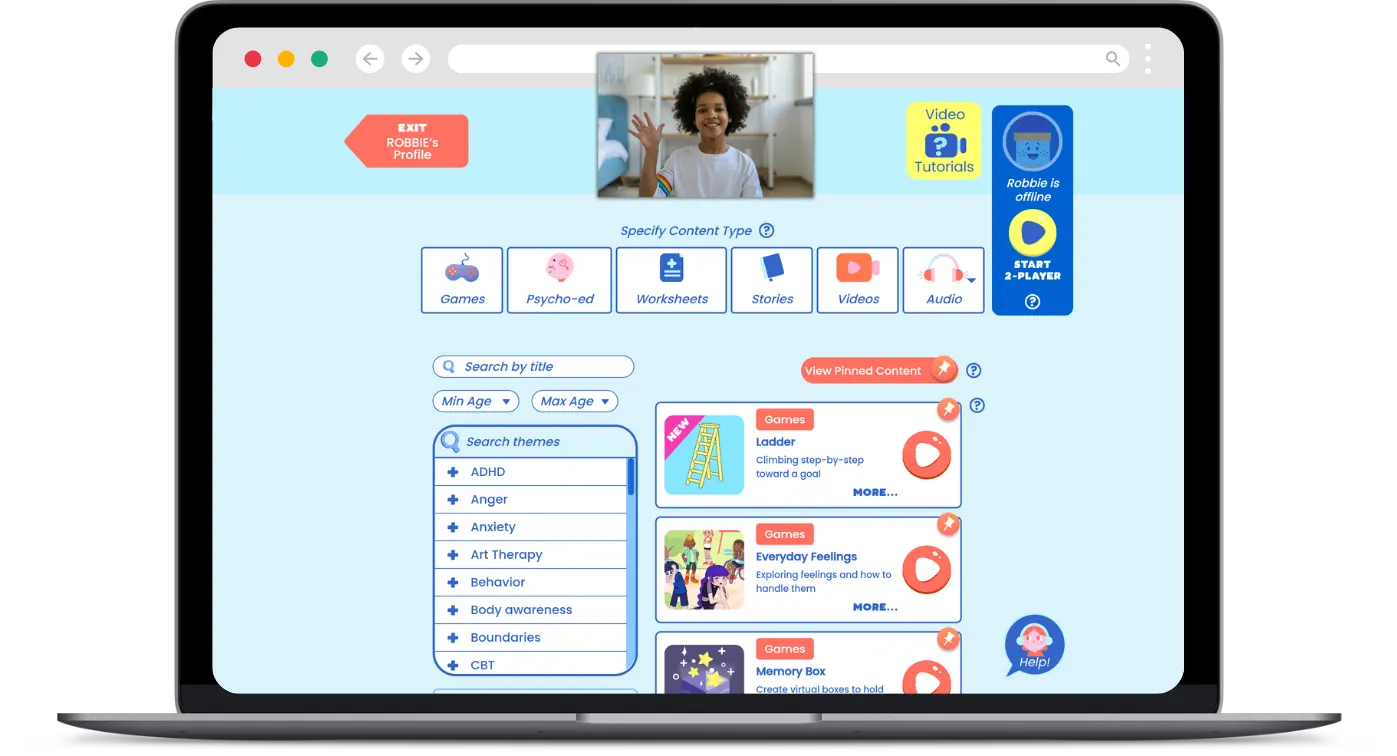
- This setup helps keep the Hopscotch Play window active and ensures a strong 2-Player connection.
Google Meet
For Google Meet, use Picture-in-Picture (PiP):
- PiP allows you to see your client in a small floating window while staying in the Hopscotch Play tab . Some Google accounts turn this on automatically when switching tabs.
- If yours does not, look for the PiP icon by hovering your mouse over your client's video during a call. It appears as a square with a smaller square inside it, often accompanied by an arrow. Note: This option will only appear if your camera is enabled.
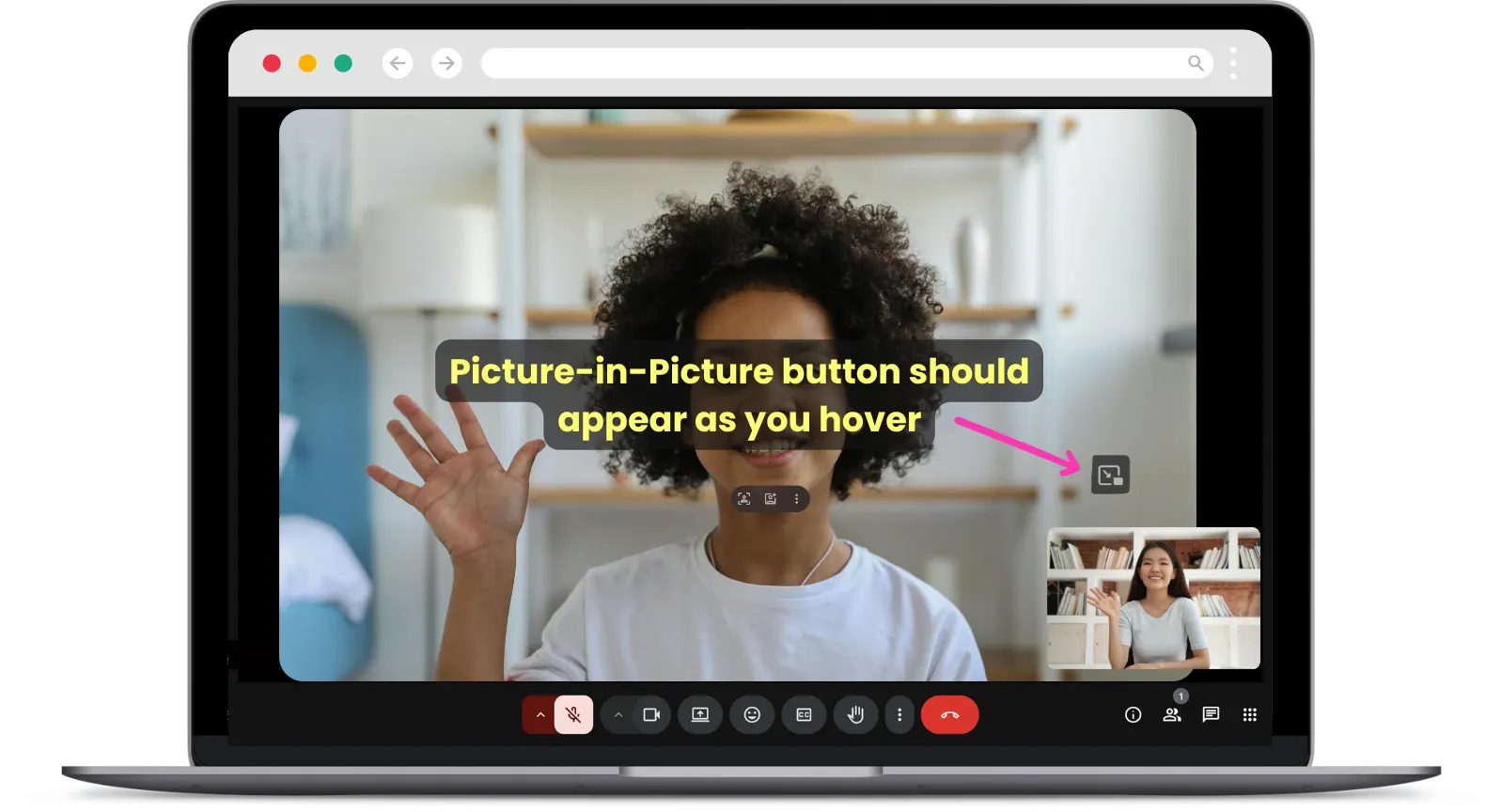
- Send the 2-Player link in the chat , then activate PiP and switch back to Hopscotch Play.
- Your client's video should now stay visible as a small overlay while you are in the Hopscotch Play tab. Let your client know that they can now click on the 2-Player link. You want to make sure you are on the Hopscotch Play screen when they do.
SimplePractice
For SimplePractice, use Picture-in-Picture (PiP):
- PiP allows you to see your client in a small floating window while staying in the Hopscotch Play tab . For SimplePractice, Picture in Picture isn't available when doing telehealth on a tablet or mobile device.
- You can access PiP by right clicking on your client's image. Find and select Picture in Picture . Note: This option will only appear if your camera is enabled.
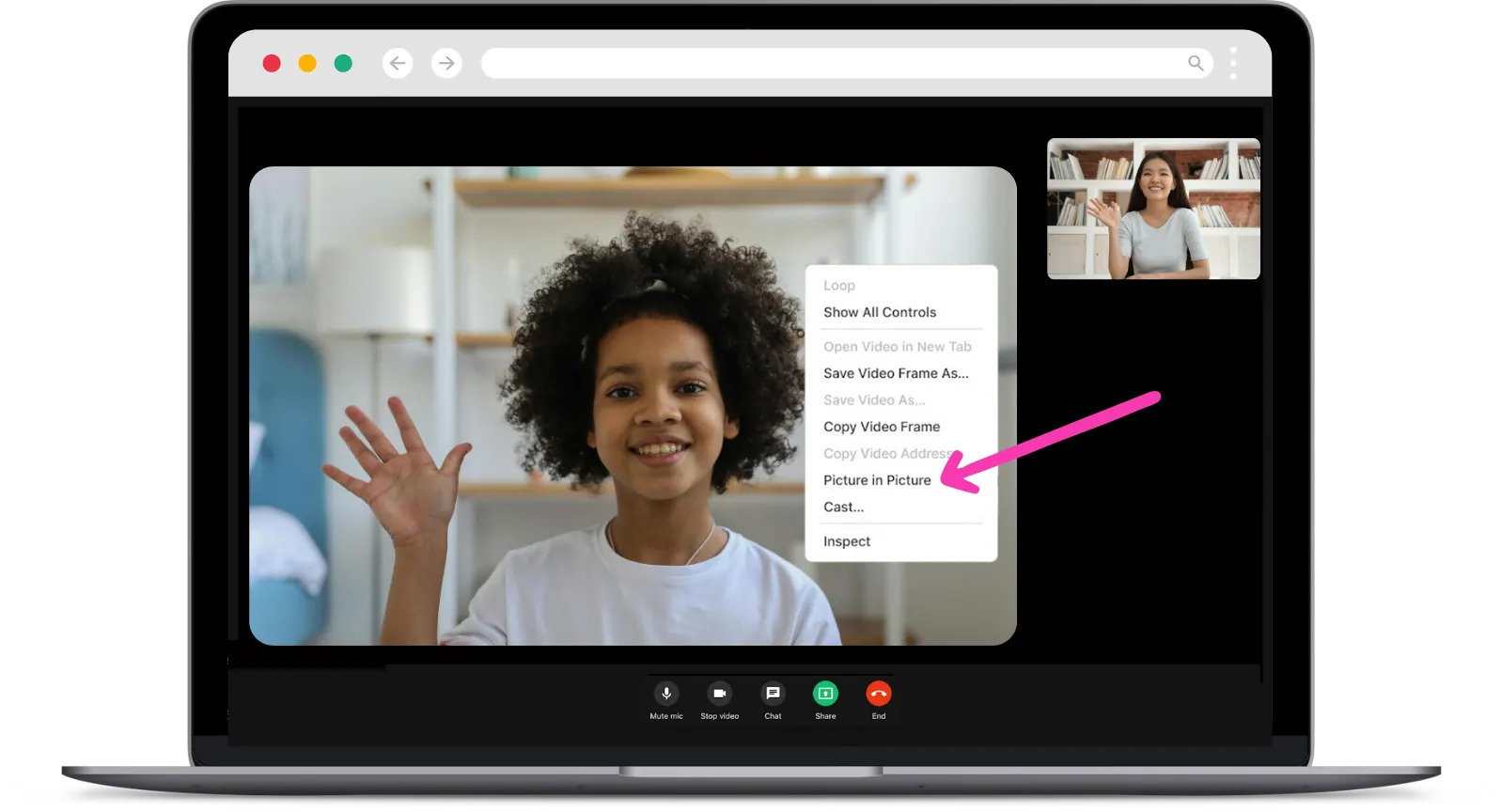
- Send the 2-Player link in the chat , then activate PiP and switch back to Hopscotch Play.
- Your client's video should now stay visible as a small overlay while you are in the Hopscotch Play tab. Let your client know that they can now click on the 2-Player link. You want to make sure you are on the Hopscotch Play screen when they do.
- To learn more, visit SimplePractice's Telehealth Help Page .
doxy.me
For doxy.me, use Picture-in-Picture (PiP):
- PiP allows you to see your client in a small floating window while staying in the Hopscotch Play tab .
- When in a session, picture-in-picture will be located in the lower right corner of your screen.
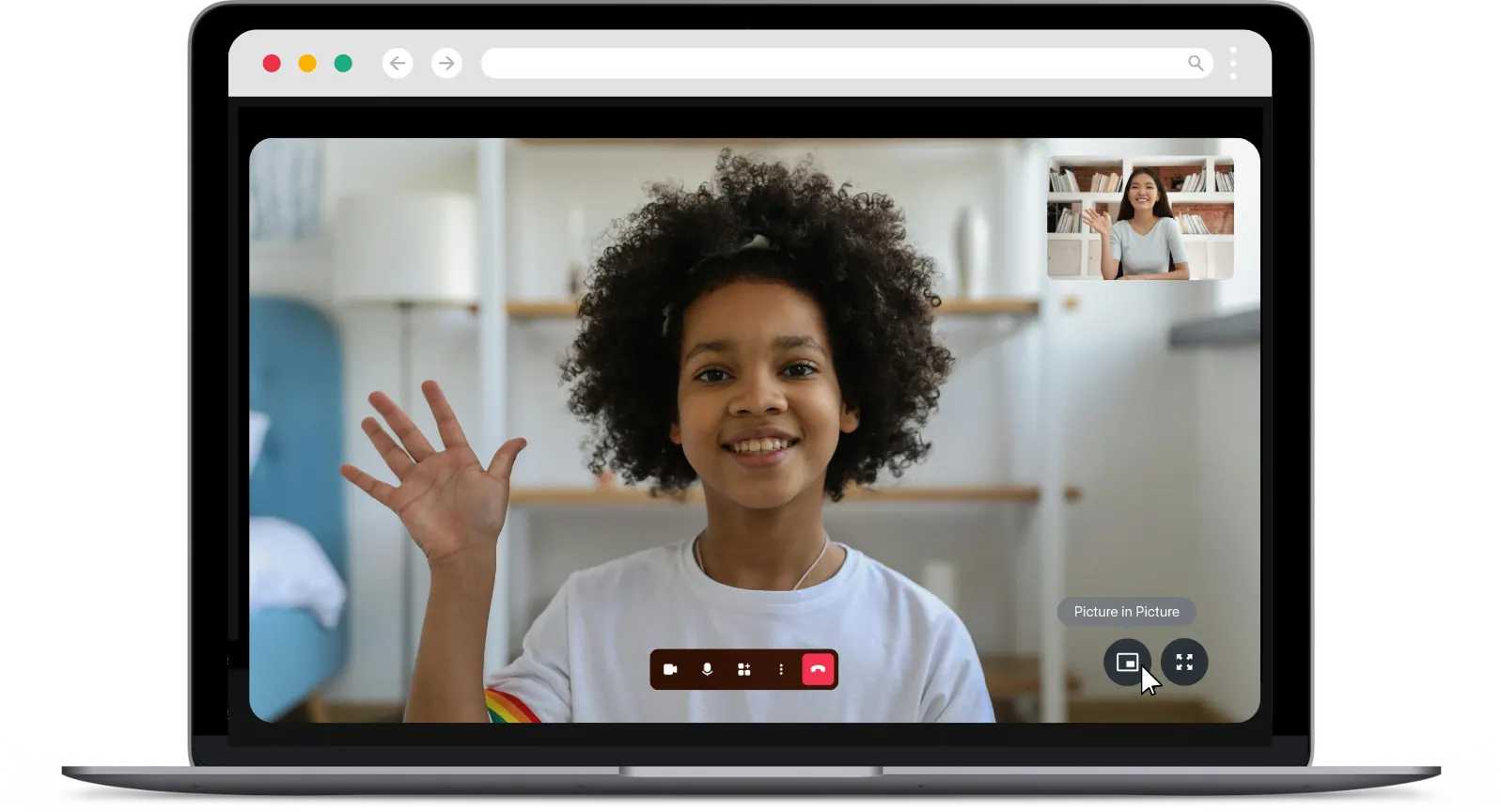
- Send the 2-Player link in the chat , then activate PiP and switch back to Hopscotch Play.
- Your client's video should now stay visible as a small overlay while you are in the Hopscotch Play tab. Let your client know that they can now click on the 2-Player link. You want to make sure you are on the Hopscotch Play screen when they do.
- To learn more, visit Doxy's Telehealth Help Page .
Therapy Notes & Other Browser-Based Platforms
Using other browser-based platforms can be trickier since they don't always support PiP. Here's what works best:
- Open two separate windows —one for your telehealth platform and one for Hopscotch Play.
- Split your screen so both windows are visible. Keep Hopscotch Play larger, and your telehealth window smaller (but still big enough to see your client's face and reactions).
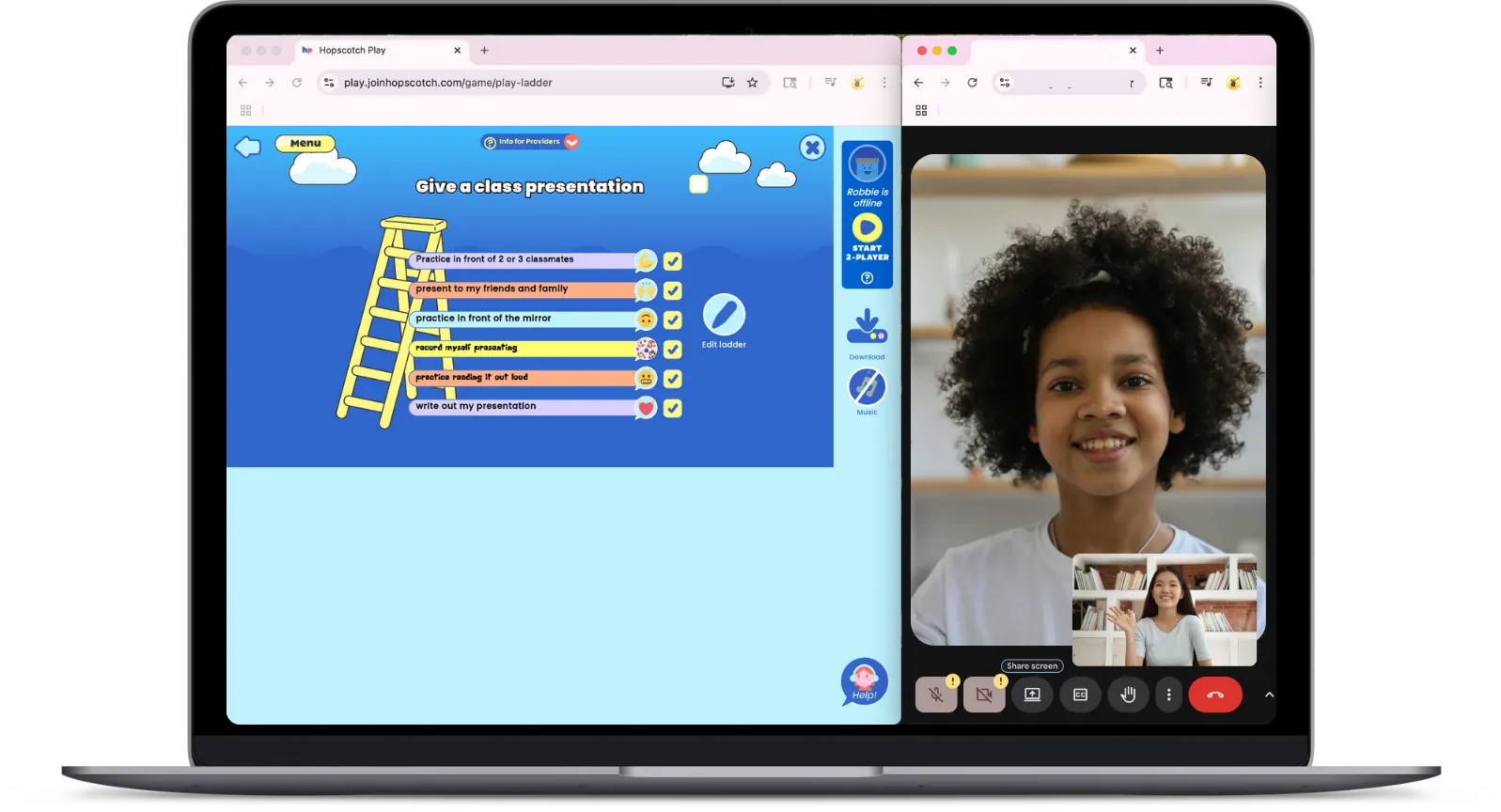
- Make sure the Hopscotch Play window/tab is active and in the foreground to maintain the 2-Player connection. Avoid minimizing or moving it to the background.
- If available, using a second monitor makes this even easier. You can dedicate one screen to your telehealth platform and the other to Hopscotch Play.
Using Browser Split-Screen
If you are running virtual sessions, juggling multiple tabs can be a hassle. Microsoft Edge, Google Chrome, and Firefox now feature built-in split-screen functionality. This tool lets you view two web pages side-by-side in a single tab.
This is a great option for providers who want to have Hopscotch Play open on one side of their screen during a 2-Player session while keeping their telehealth platform visible on the other. It helps you stay productive and prevents you from having to constantly click back and forth between tabs and breaking the 2-Player connection.
Here are the steps to get this set up in your browser.
Microsoft Edge
- Open your telehealth platform and Hopscotch Play in the same browser window.
- Click the Split screen icon on your toolbar. It is located right next to the address bar.
- Your active tab will split in half. Just click on your telehealth tab on the open side to view them together.
- Click and drag the middle border to resize the views.
Google Chrome
- Open Hopscotch Play and your telehealth platform in the same window.
- Right-click on the Hopscotch Play tab at the very top of your browser.
- Select the Split screen option from the dropdown menu.
- Choose your telehealth tab to fill the other side of the screen.
- You can adjust the width by dragging the divider in the middle.
Firefox
- Open your telehealth platform and Hopscotch Play in the same window.
- Right-click on the tab you want to split.
- Choose the split view option from the menu.
- Select your second tab to view them side-by-side.
- You can easily rearrange or resize the windows by dragging the middle divider.
Using 2-Player with telehealth takes a little setup, but with these tips, you can keep your sessions flowing smoothly while engaging your client in real-time, interactive play.
Quick Answers
Q: How do I use Hopscotch Play alongside my telehealth platform? A: It depends on the features your telehealth platform supports.
-
If your platform has Picture-in-Picture (PiP): Start your session in your telehealth window. Then, open Hopscotch Play in another tab, and click the 2-Player icon to generate a client link. Paste that link in your telehealth chat box. Once you're back in the Hopscotch Play window, prompt your client to click the link — you'll both see and control the activity in real time.
-
If your platform doesn't support PiP: Open both your telehealth platform and Hopscotch Play in separate windows. Use split screen view to place them side by side, so you can easily interact with both during the session. Send the 2-Player link to your client through the chat and prompt them to click the link and join you in Hopscotch Play.
Troubleshooting
If you're experiencing issues with Hopscotch Play, such as features not loading correctly or connection problems during a 2-Player session, a quick refresh or restart usually clears it up. Here's how to troubleshoot and avoid disruptions during sessions.
Quick Fix: Force a Browser Refresh
Occasionally, you might run into unexpected issues, like slow loading, syncing problems, or features not appearing correctly. These are often caused by an incomplete app update in your browser.
On the Hopscotch Play app: if you're using the app rather than the web version, close and reopen it, and make sure it's updated to the latest version. The browser-refresh steps below apply to the web version. If browser glitches keep coming back, the Hopscotch Play app avoids most of them.
The easiest fix is to refresh your browser, which forces it to load the latest version of Hopscotch Play. You don't need to do this every time, but it's a good habit to do every once in a while and especially helpful when things aren't working as expected.
- Log in to Hopscotch Play as the provider.
- While on your Home page page (before entering any profiles or 2-Player), click your browser's Refresh button.
- Enter your client's profile and start a 2-Player session.
- Have your client click the link to join the 2-Player session. Once they are on the Hopscotch Play screen, ask them to refresh their browser before you begin playing together.
- If the client gets disconnected for any reason, they can reconnect using the same original link , as long as you remain in the same 2-Player session.
Refreshing on Safari
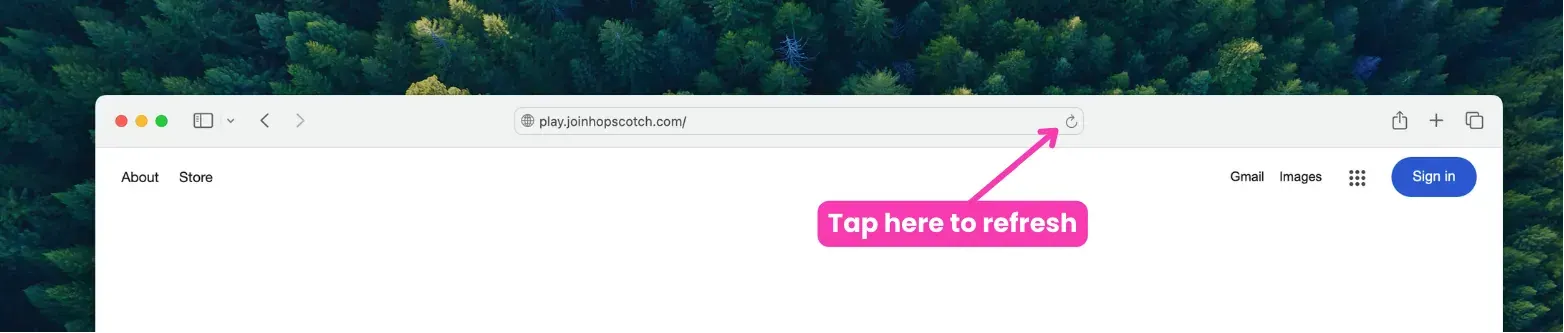
Refreshing on Chrome
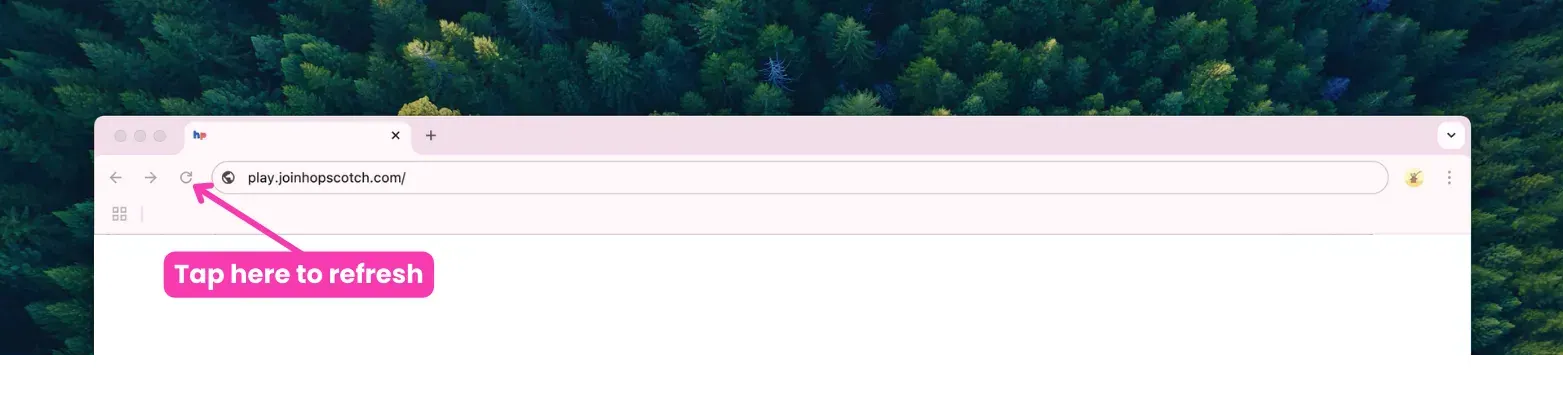
If you still continue to experience issues, even after a browser refresh, don't hesitate to contact our support team. Learn more about Contacting Support below!
Quick Answers
Q: Refreshing fixed the issue — do I need to do it every time? A: No, just refresh occasionally or when something isn't working.
Cancelling or Pausing My Subscription
In This Section You'll Learn: How to cancel, pause, or delete your Hopscotch Play account. Watch to learn how to cancel or manage your plan or follow the steps list below.
Thank you for giving Hopscotch Play a try! If you are interested in making changes to your subscription status, you can do so by accessing Account in the left toolbar of your Home page..
Next, go to Billing. Under CURRENT PLAN, select Cancel plan. You will be prompted to provide a reason for cancellation and let us know how we could have improved your experience. Your plan then shows as pending cancellation: you keep full access to everything in your plan until the end of the period you have already paid for, and you can change your mind at any point before then with Cancel change.
When that period ends, your account moves to the free Lite plan. Lite keeps the PDF content library and trials of our newest games, and all of your client profiles and their data stay saved, so nothing is lost if you decide to come back. To return to a paid plan later, go to Account > Billing and choose Re-subscribe or Upgrade. If a payment fails, your account also moves to Lite until you update your payment method on the PAYMENT tab.
To delete your account, you can proceed to Manage Account and select Delete Account which is located at the bottom right of the screen. Deletion is permanent and you will lose all of your data including client progress. To complete the process, click on the Delete button. You are always welcome to create a new account if you are ever interested in returning in the future.
If you experience any issues, please do not hesitate to contact us through the Help button on your Home page or reach us through our contact form.
Steps to cancelling or pausing your subscription
- Go to Account > Billing.
- Under CURRENT PLAN, click "Cancel plan" and answer the short feedback questions.
- You keep full access until the end of your paid period, then move to the free Lite plan with your PDFs and client profiles intact.
Steps to delete your account
- Go to Account > Manage Account.
- Click "Delete Account."
- This action is permanent and removes all data.
Quick Answers
Q: What happens when I cancel? A: You keep everything until the end of the period you have paid for. After that you are on the free Lite plan: the PDF library, trials of our newest games, and all your saved client profiles.
Q: Can I come back later? A: Yes. Go to Account > Billing and choose Re-subscribe or Upgrade; your clients and their data are still there.
Q: Can I switch to a cheaper plan instead of cancelling? A: Yes. Under CHANGE PLAN, choose Downgrade next to Basic. The change takes effect at your next invoice and is listed under UPCOMING until then. See Plans and Billing.
Where to Find Help
In This Section You'll Learn: How to find tutorials, use the support chatbot, submit support tickets, and schedule a live support call when you need additional help.
On Hopscotch Play, help is always just a click away. Throughout the platform, you'll see small question marks next to specific tools and features. Clicking these will pull up a short video tutorial to show you exactly how that feature works. If you're looking for our full library of help videos, just head to your Home page or within any client profile and look for the Tutorials icon at the top. This is where you'll find videos about account management and using certain features and tools.
If you need immediate assistance, the Help button is in the bottom-left corner of every page, next to a Network indicator that shows your connection quality (Good, Unstable, Poor, or Offline). Press Help to open the support panel. It has four tabs: Chat, History, Client Tickets, and Help Library. The Help Library lists the sections of this guide, including Plans and Billing, Using the Session Planner, and Using Video Call, and opens them directly; we recommend checking it first, as it often solves a problem quickly.
On the Chat tab you can type a question to Hop, our AI assistant, for an immediate answer. After each answer you are asked whether it helped. If it did not, answer No and you are offered two ways to reach a person: open a support ticket, or book a support call. A ticket sends our team a copy of your chat history plus a screenshot of your screen and technical diagnostics, so we can get up to speed quickly; you can switch the screenshot off before sending if it shows something private. Please avoid typing client or payment details into the chat.
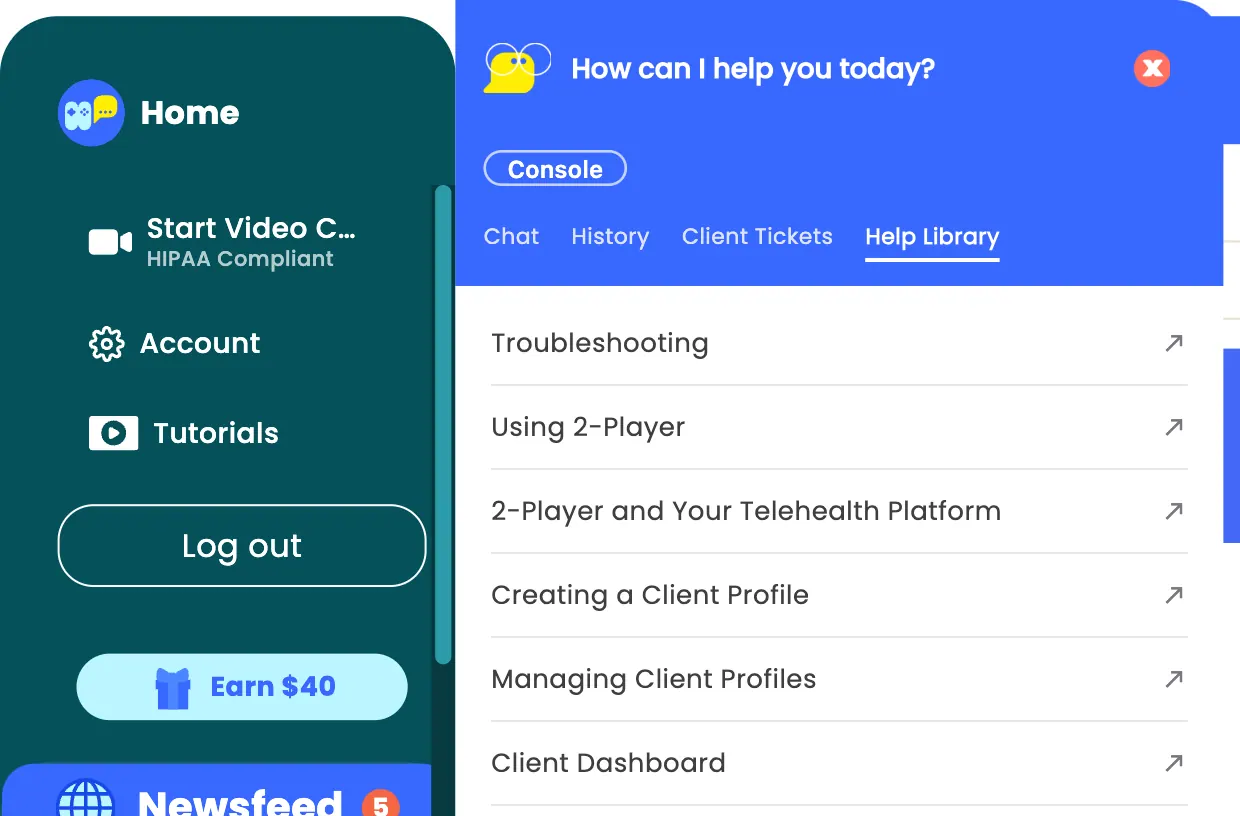
A support call is a great way for us to see what's happening live and diagnose the problem together; be ready to share your screen when you hop on. Replies to tickets arrive by email and in the panel, where a red count on the Help button tells you something is waiting. The Client Tickets tab shows help requests your own clients have sent, which come to you first to send on to Hopscotch or close with a note. We're here to make sure the platform works perfectly for you, so you can stay focused on the kids you serve.
Steps to Finding Help
- Click the question mark icons throughout the platform to watch short feature tutorials.
- Open the Tutorials section at the top of your Home page or inside a client profile to browse all help videos.
- Press the Help button in the bottom-left corner of any page and ask Hop on the Chat tab for quick answers.
- Open the Help Library tab for links to every section of this guide.
- If an answer isn't helpful, answer No to open a support ticket or book a support call.
- A support ticket sends your chat history, a screenshot, and diagnostics to our team; replies come by email and in the panel.
- Book a support call if you need live troubleshooting help.
Quick Answers
Q: Where can I find tutorials or help videos? A: Click the Tutorials icon at the top of your Home page or inside a client profile to access help videos and walkthroughs.
Q: What do the question mark icons do? A: Clicking a question mark opens a short video tutorial explaining that specific feature or tool.
Q: Where is the support chat? A: Press the Help button in the bottom-left corner of every page, in the browser and in the app, and stay on the Chat tab.
Q: Can I ask the chatbot questions directly? A: Yes. Type your question to Hop for quick help and troubleshooting. It answers questions about using Hopscotch Play; it will not recommend specific activities or give clinical advice.
Q: How do I submit a support ticket? A: If an answer isn't helpful, answer No and choose "Open a ticket". Describe the problem and send it; the reply comes to your account email and appears in the panel.
Q: Can I schedule a live support call? A: Yes. After answering No, choose "Book a support call" to pick a time with our team.
Frequently Asked Questions (FAQs)
Getting Started and Access
Q: What device settings are recommended for the best experience on Hopscotch Play?
A: Hopscotch Play works on laptops, desktops, tablets, and phones. For the best experience we recommend the Hopscotch Play app, and Video Call is available only in the app. See below for recommended device specs.
- An internet speed of 100 Mbps or higher for smooth streaming and gameplay
- A laptop, desktop, tablet, or phone
- At least 8GB of memory and a recent processor (like Intel i5 or AMD Ryzen 5)
- Windows or Mac operating system
- Using Chrome, Safari, or Edge browsers
- Download the Hopscotch Play app — you'll find both the App Store and Google Play links here: https://release.joinhopscotch.com/hs_play/installers/prod/index.html
Q: What age group is the Hopscotch Play platform designed for?
A: Hopscotch Play can be used with children aged 5 to 18 years old, its appropriateness for specific age groups can be determined by the therapist based on the developmental stages and individual needs of the child in therapy. We are always working to expand our content library.
Q: How can I access the content on the platform?
A: Once you sign up, you can access Hopscotch Play on the web from any computer, tablet, or phone with internet access — nothing to install. For the best experience, and to use Video Call, download the Hopscotch Play app: https://release.joinhopscotch.com/hs_play/installers/prod/index.html
Q: Is Hopscotch Play available internationally?
A: Yes, Hopscotch Play is accessible in the following countries:
- United States
- Australia
- Canada
- India
- New Zealand
- Republic of Ireland
- South Africa
- United Kingdom
Q: Is there a free trial available before subscribing?
A: Yes, we offer a 14-day free trial with a preview of our Pro features so you can explore Hopscotch Play before committing to a paid subscription. Video conferencing is not part of the trial. Sign up at play.joinhopscotch.com/onboarding.
Q: What is the cost of a subscription to Hopscotch Play, and are there different pricing plans available for groups?
A: Hopscotch Play has three plans, Basic, Pro, and Enterprise, priced per seat, per month or per year, with the price per seat going down as you add seats for a clinic, school, or organization. The current prices and a full feature comparison are on our pricing page, and Plans and Billing explains what each plan includes and how to change plans.
Q: Is there a Hopscotch Play app?
A: Yes, for Mac, Windows, iPhone and iPad, and Android, free with every plan. It is faster and more stable than the browser and is required for Video Call. See Using the Hopscotch Play App.
Q: How do I submit a purchase order for Hopscotch Play?
To submit a purchase order, please follow these steps:
- Request a quote : Send us a message through our contact form with the number of seats you'd like and the billing contact information. We'll send back a formal quote.
- Send us your PO : Once your organization generates a purchase order, send a copy through our contact form .
- As soon as we receive the PO, we'll process it, and you'll receive an invoice for payment based on your PO terms.
If your school or organization requires a W-9 or vendor paperwork, let us know and we'll be happy to provide it!
Content and Features
Q: What type of content is available on the Hopscotch Play platform?
A: Hopscotch Play offers a diverse range of content to enrich therapy sessions. This includes interactive games and activities, therapeutic stories, printable materials, educational videos, and audio content.
Q: How frequently is new content added to the platform?
A: We regularly update Hopscotch Play with fresh and engaging content. New games, activities, stories, and printables are added to ensure a diverse and continually enriching experience for users.
Q: Is there a specific curriculum or therapeutic approach followed on the platform?
A: Hopscotch Play is designed to complement various therapeutic approaches. While it doesn't adhere to a specific curriculum, the content is developed with input from child therapists to support a broad range of therapeutic strategies.
Q: How can I use Hopscotch Play for virtual therapy sessions?
A: Our unique 2-Player feature lets you generate and share a link, allowing your client to join you on the Hopscotch Play platform. With just one click, they can participate in games, read stories, watch videos, and explore content alongside you.
Privacy, Support, and Feedback
Q: Is Hopscotch Play HIPAA compliant?
A: We take the privacy and security of user data seriously. Hopscotch Play adheres to strict data protection measures, and all user information is handled in accordance with industry standards and regulations.
Q: How do I cancel my subscription if needed?
A: Canceling your subscription is simple, and there are no hidden fees. You can cancel your subscription and delete your account through the account settings on the platform.
Q: Can I provide feedback or suggest new features for the platform?
A: Absolutely! We value user feedback. You can share your thoughts, suggestions, and feature requests through our contact form on the website or directly on the platform itself. Your input helps us continually improve Hopscotch Play.